Let’s take a moment to check out some open source apps that have been on my list for a bit. The first is “Databasus” which is PostgreSQL/MySQL backup service that can run locally, in docker and in Kubernetes. We’re going to try backing up some PostgreSQL DBs as well as MariaDB 10 databases to a variety of endpoints.
A while back I saw this Marius post on CTRoadMap which describes itself as “Homelab Server Network Diagram & Documentation for Mapping Function Topology”. We’ll take a look at this and how to run in docker as well as externalizing with Kubernetes.
Databasus
From the README we see we can invoke it with one-liner install command:
sudo apt-get install -y curl && \
sudo curl -sSL https://raw.githubusercontent.com/databasus/databasus/refs/heads/main/install-databasus.sh \
| sudo bash
But I like docker better because it’s easier to maintain. The docker invokation is:
docker run -d \
  --name databasus \
  -p 4005:4005 \
  -v ./databasus-data:/databasus-data \
  --restart unless-stopped \
  databasus/databasus:latest
and docker compose
services:
  databasus:
    container_name: databasus
    image: databasus/databasus:latest
    ports:
      - "4005:4005"
    volumes:
      - ./databasus-data:/databasus-data
    restart: unless-stopped
    healthcheck:
      test: ["CMD", "databasus", "healthcheck"]
      interval: 30s
      timeout: 5s
      retries: 3
      start_period: 60s
We’ll circle back to helm later.
I fired up the simple docker command just so I could take it for a spin first locally
$ docker run -d \
  --name databasus \
  -p 4005:4005 \
  -v ./databasus-data:/databasus-data \
  --restart unless-stopped \
  databasus/databasus:latest
Unable to find image 'databasus/databasus:latest' locally
latest: Pulling from databasus/databasus
a8ac7f6c67ab: Pull complete
6c067403ad7b: Pull complete
26982fb1d211: Pull complete
22757486c4f7: Pull complete
866f622b3456: Pull complete
4f4fb700ef54: Pull complete
562a63b4f3e1: Pull complete
58aae819062e: Pull complete
28630f23fee6: Pull complete
78563f8f734e: Pull complete
59e5d0272fcf: Pull complete
b6e946845ca0: Pull complete
de6a8372de7a: Pull complete
4cecaae18e50: Pull complete
9d50a6a984d9: Pull complete
10678251c354: Pull complete
Digest: sha256:fe984a5a5f3a3a3f7330cc30b1895df793da76ca609339dab4888795c56c1b47
Status: Downloaded newer image for databasus/databasus:latest
7265b2a778a392db23ada7fdc4bbd64553f5617ac03f00365e3247e84c4e9490
we now have an admin login page
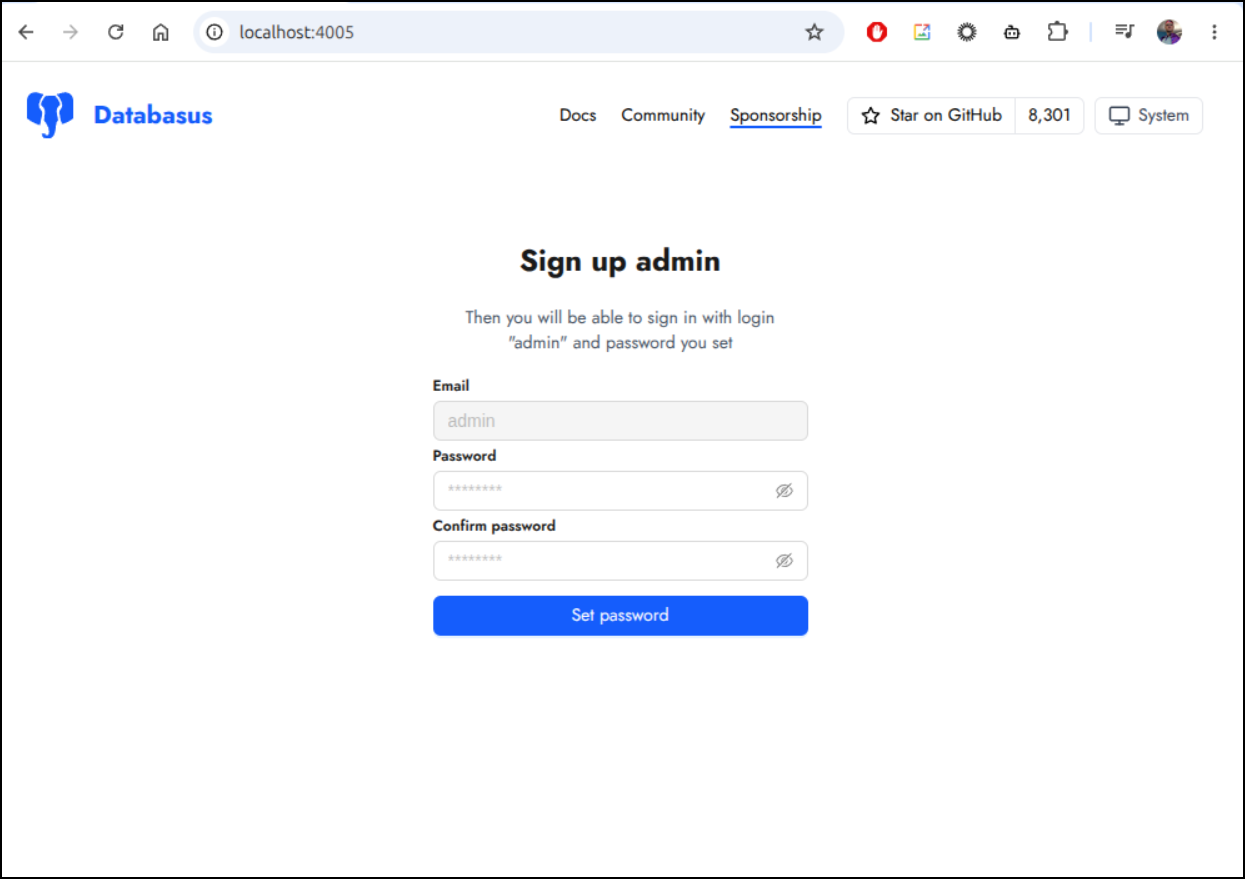
I’ll create a password and am then presented with the dashboard
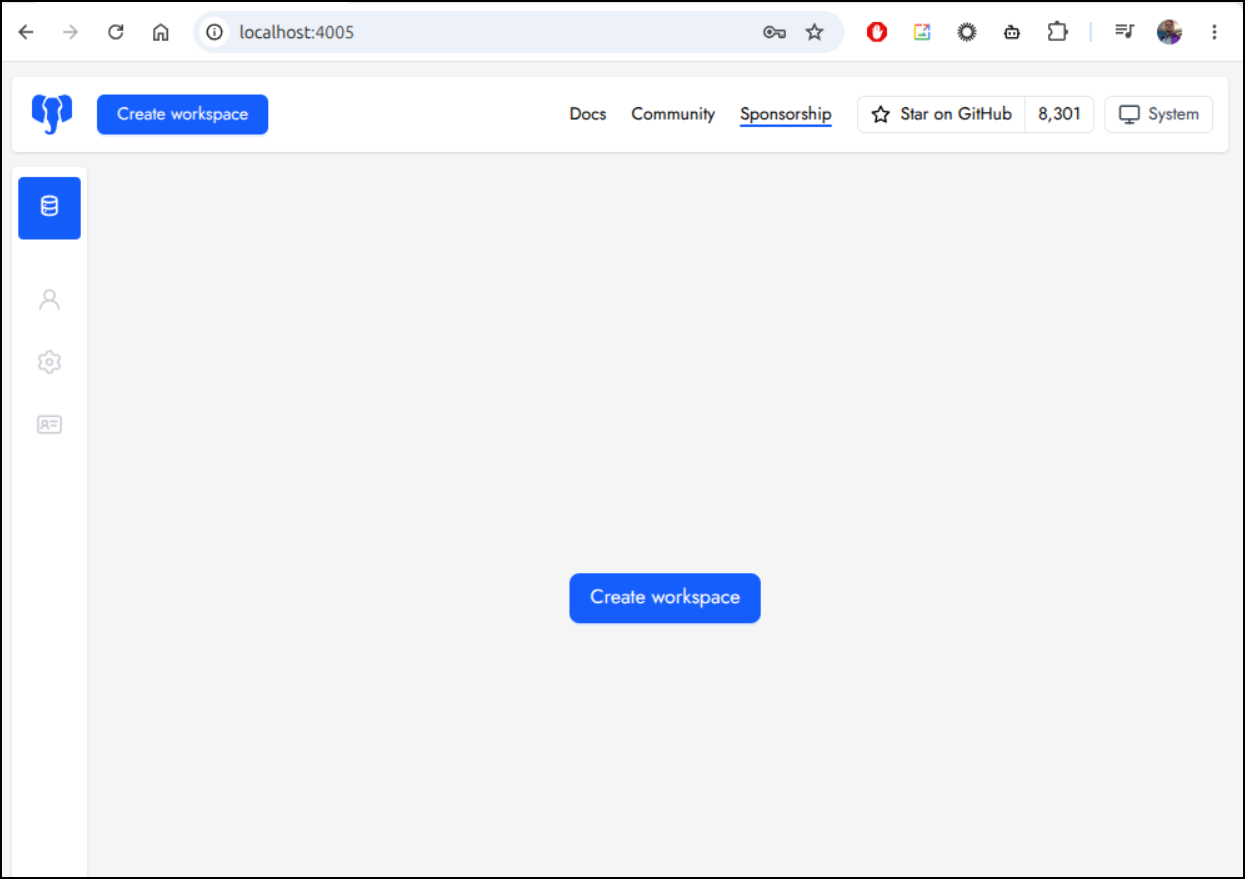
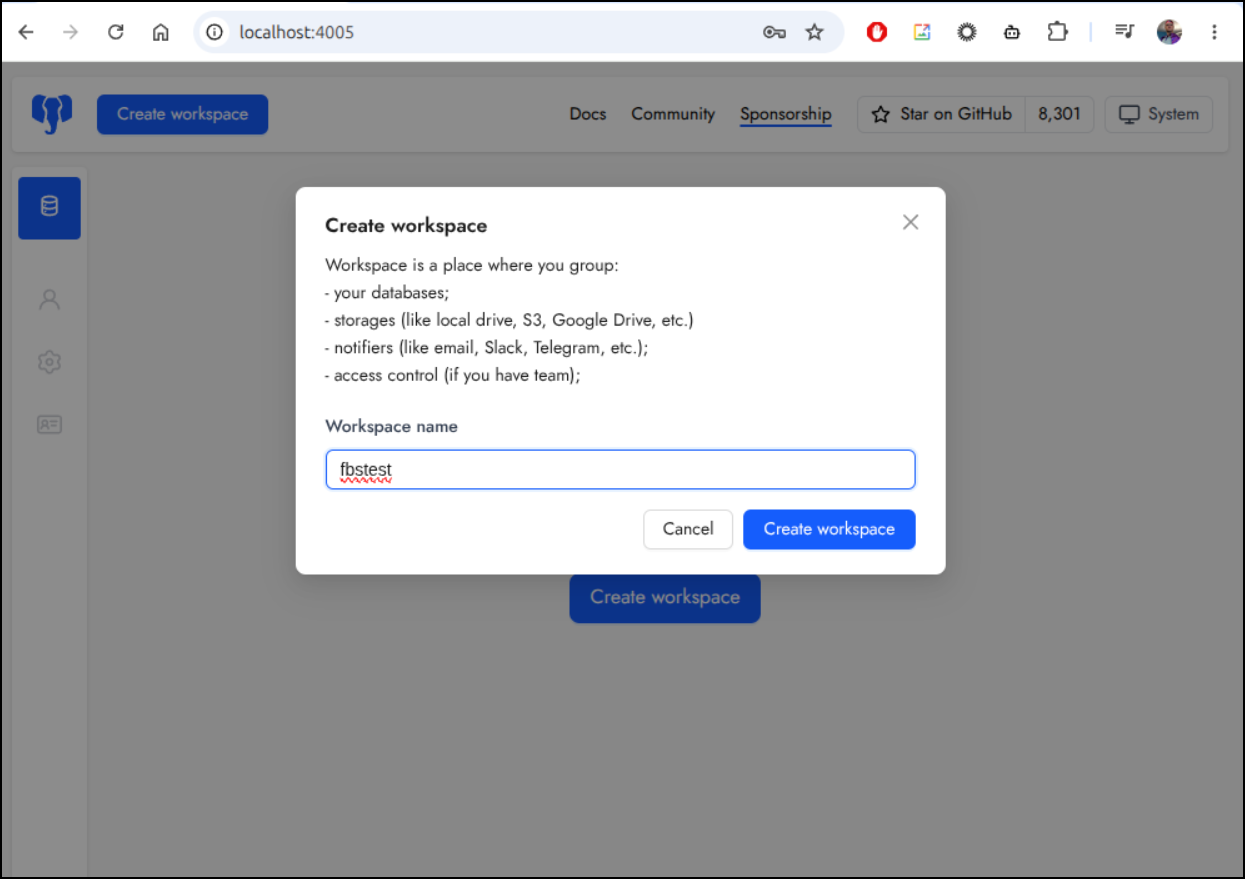
Creating a new workspace clues us in to what this is going to store: backups, notifiers and access controls
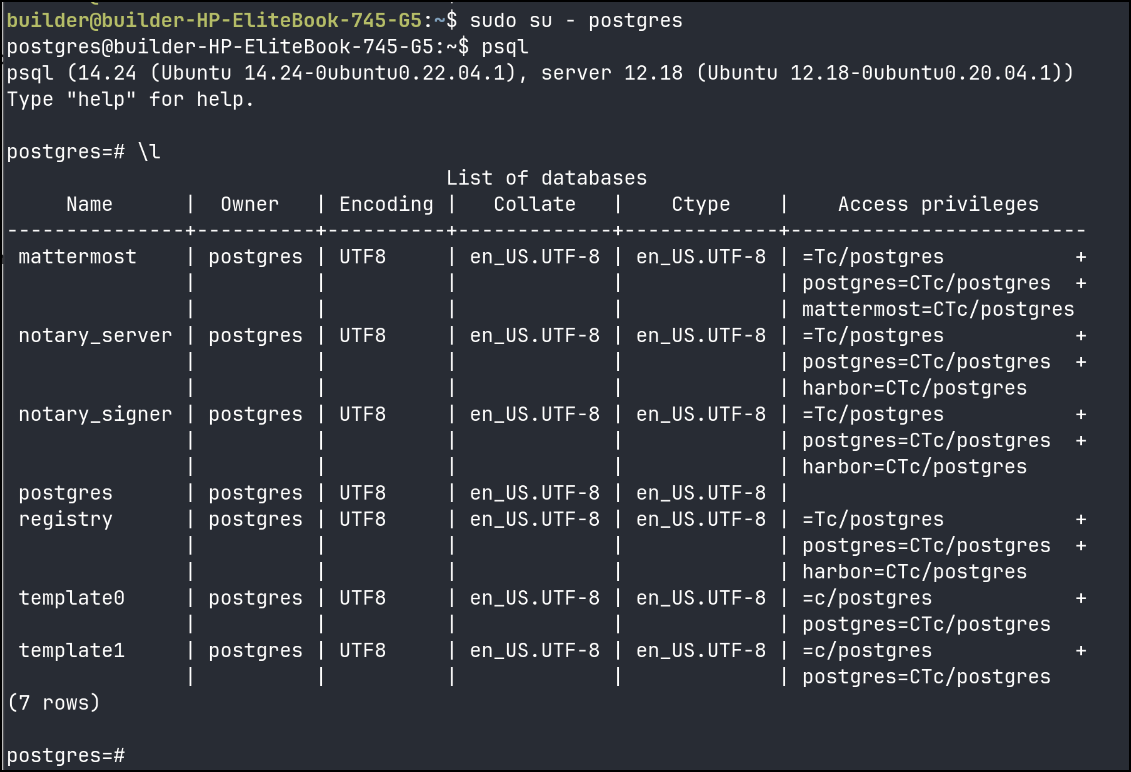
Let’s see if I can backup the PostgreSQL DBs on one of my Kubernetes nodes
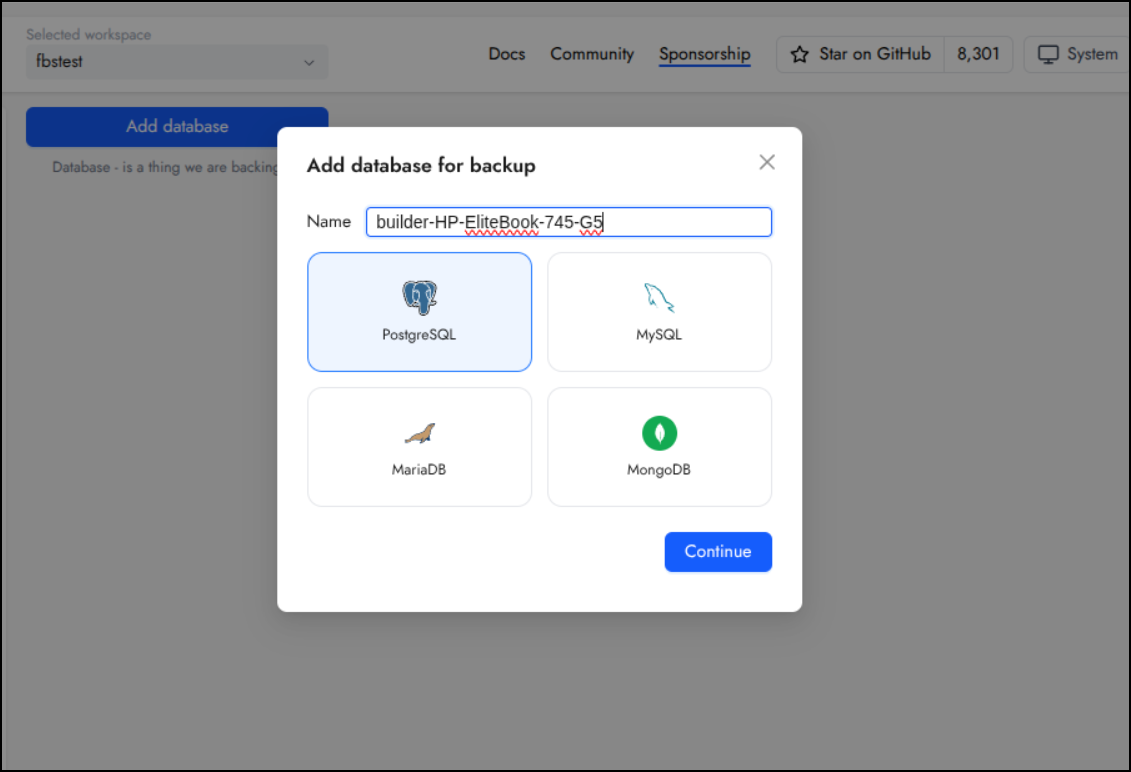
I’ll give the backup db a name and pick PostgreSQL in Databasus
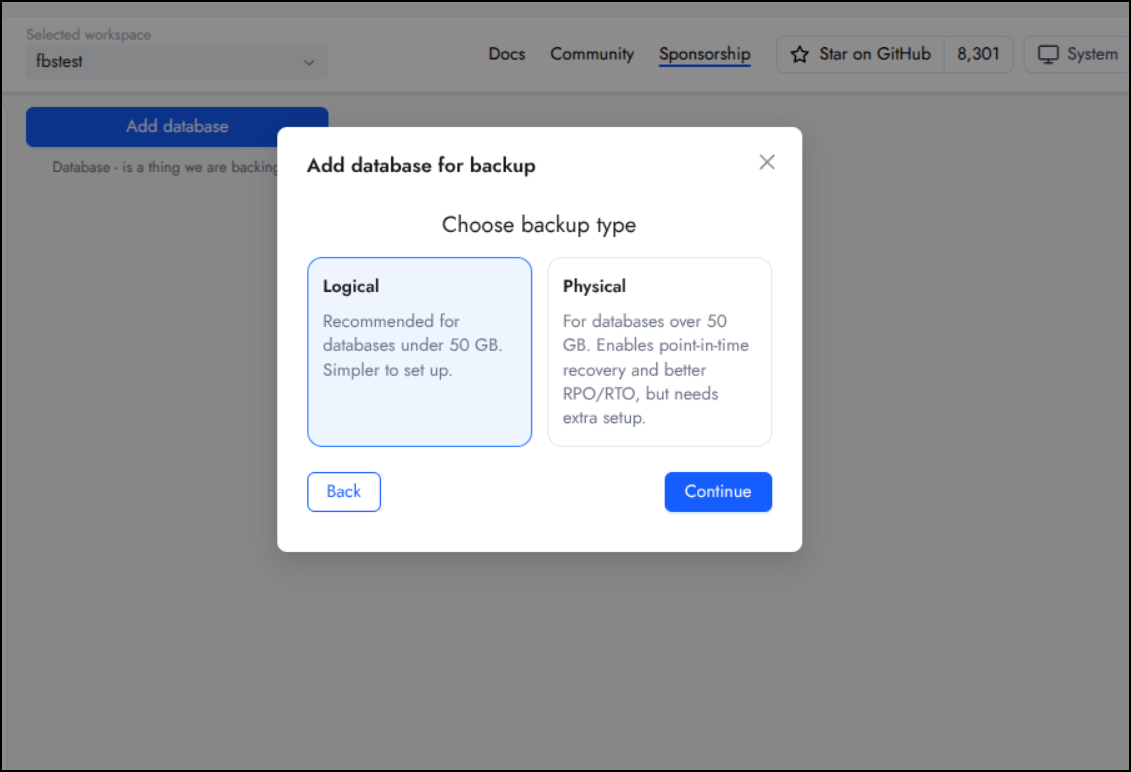
I’ll choose Logical
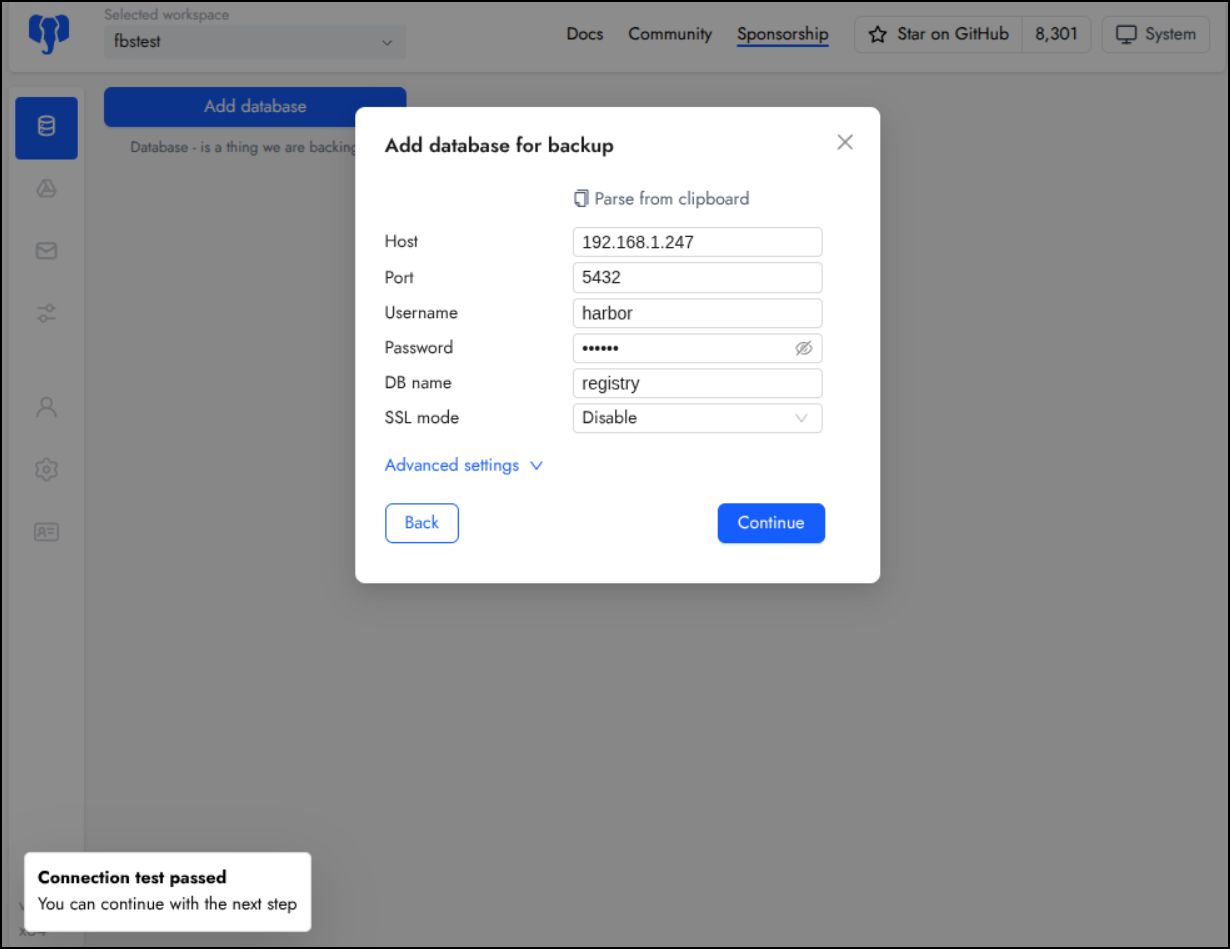
I’ll try the Harbor Database first
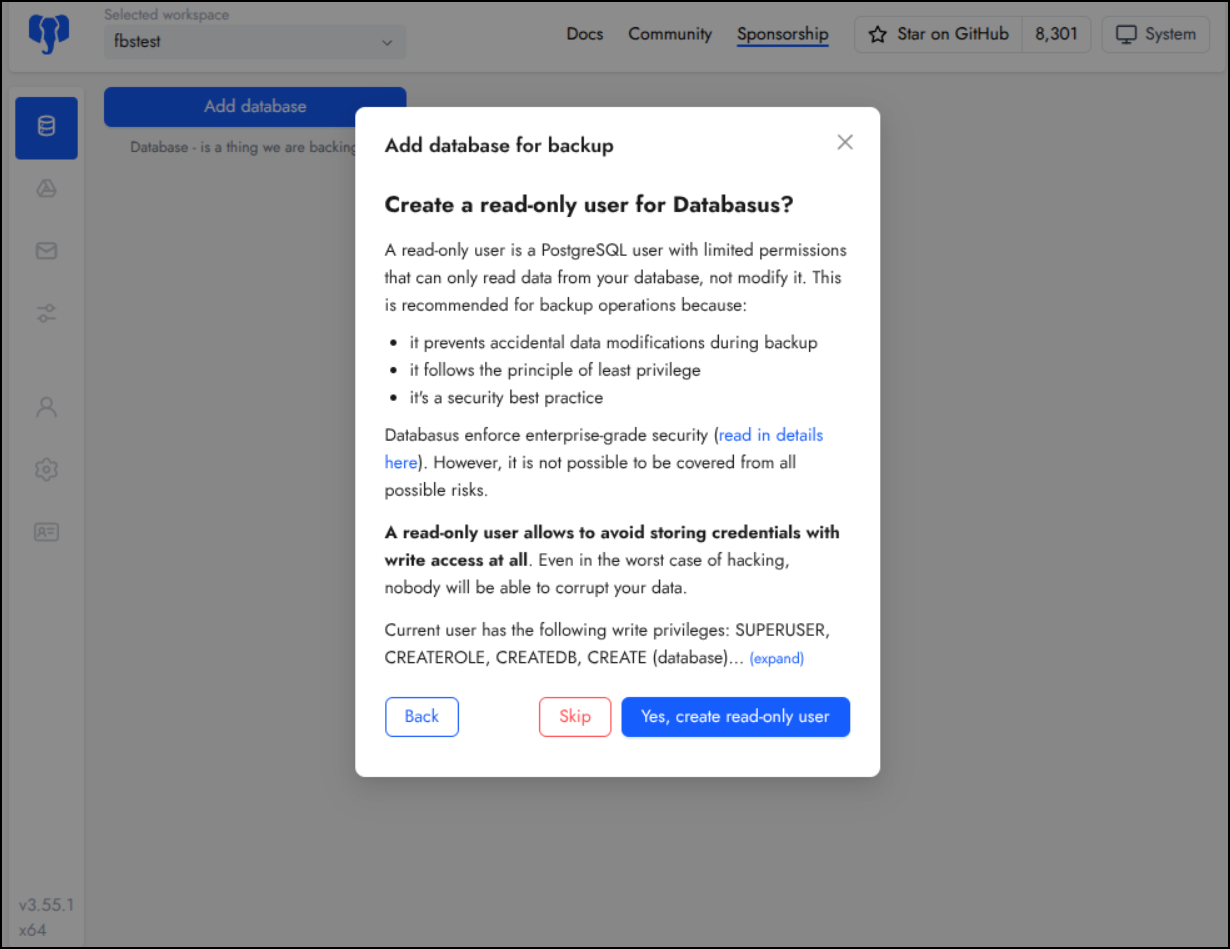
Databasus wisely noted my user has a lot permissions so it suggested we create a lower privileged RO user for backups
Next I need to create a backup schedule and location
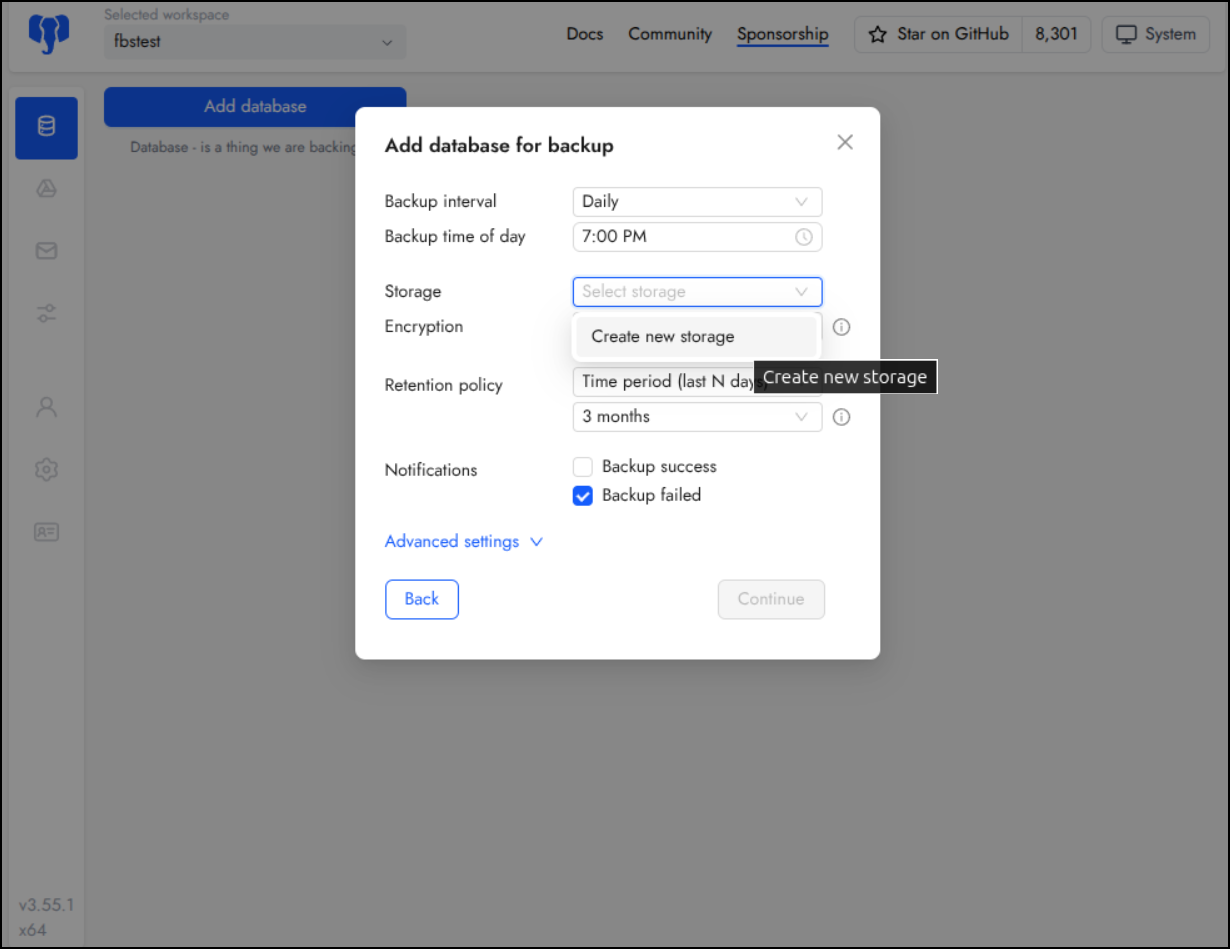
I have a few destinations available
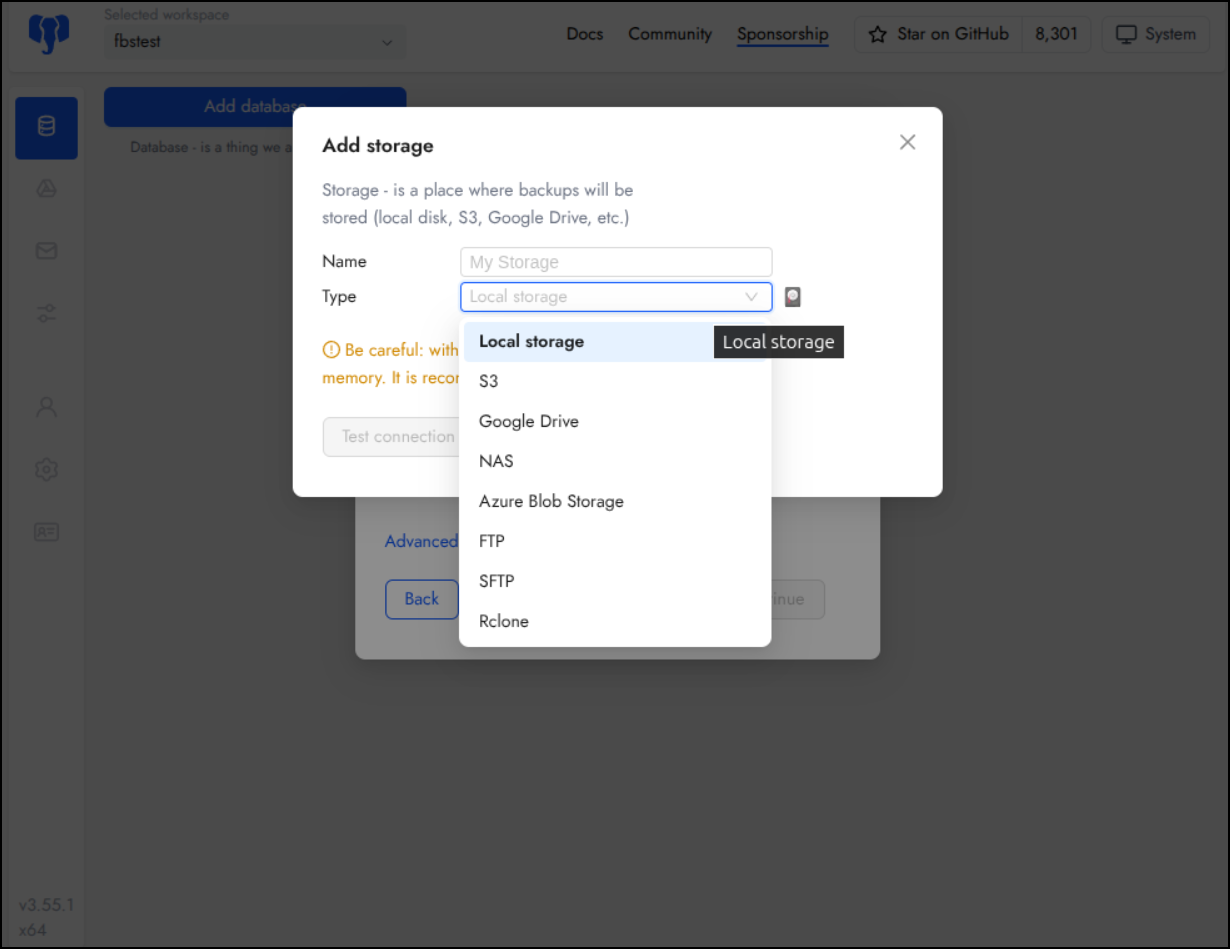
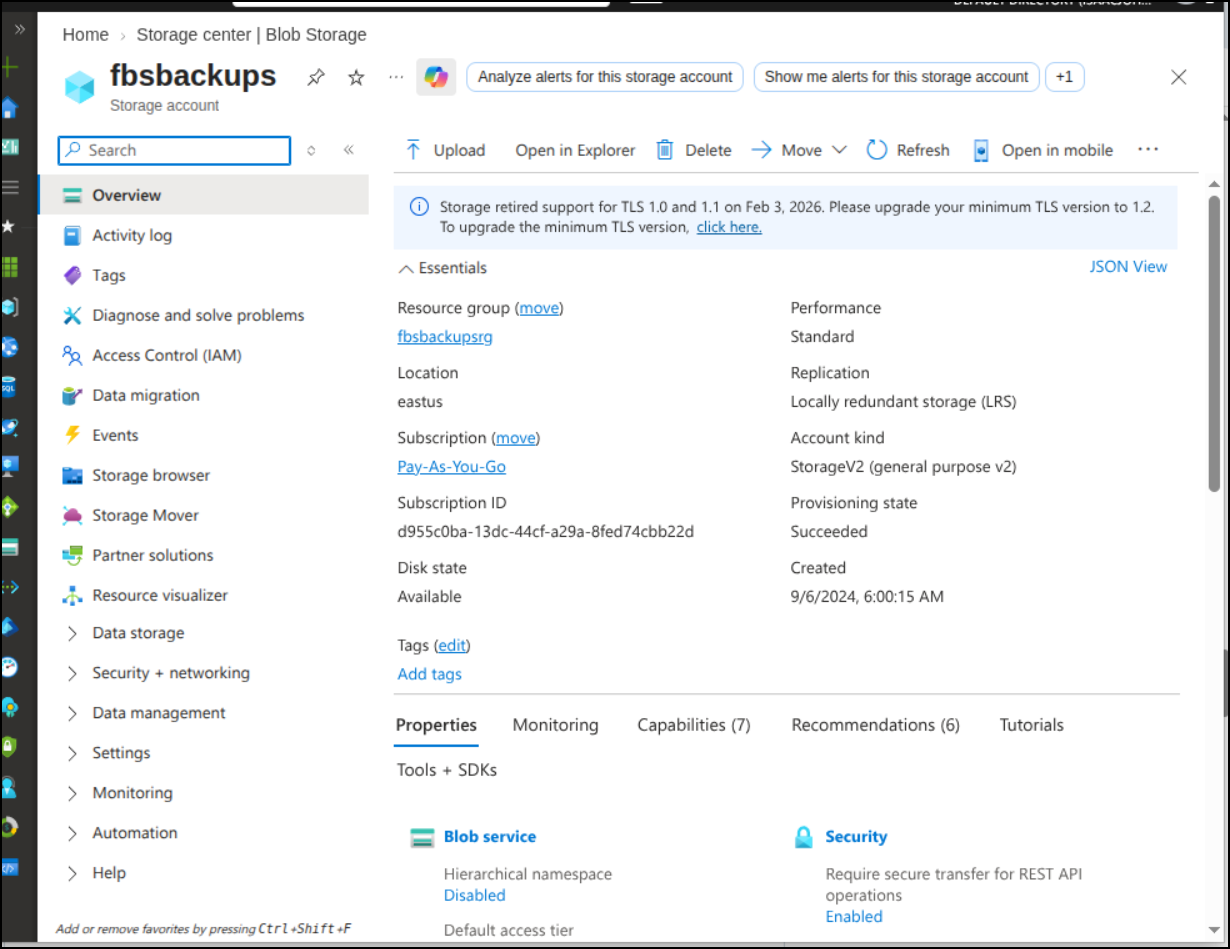
I’ll use Azure Storage and I already have a cheaper LRS storage account I can use
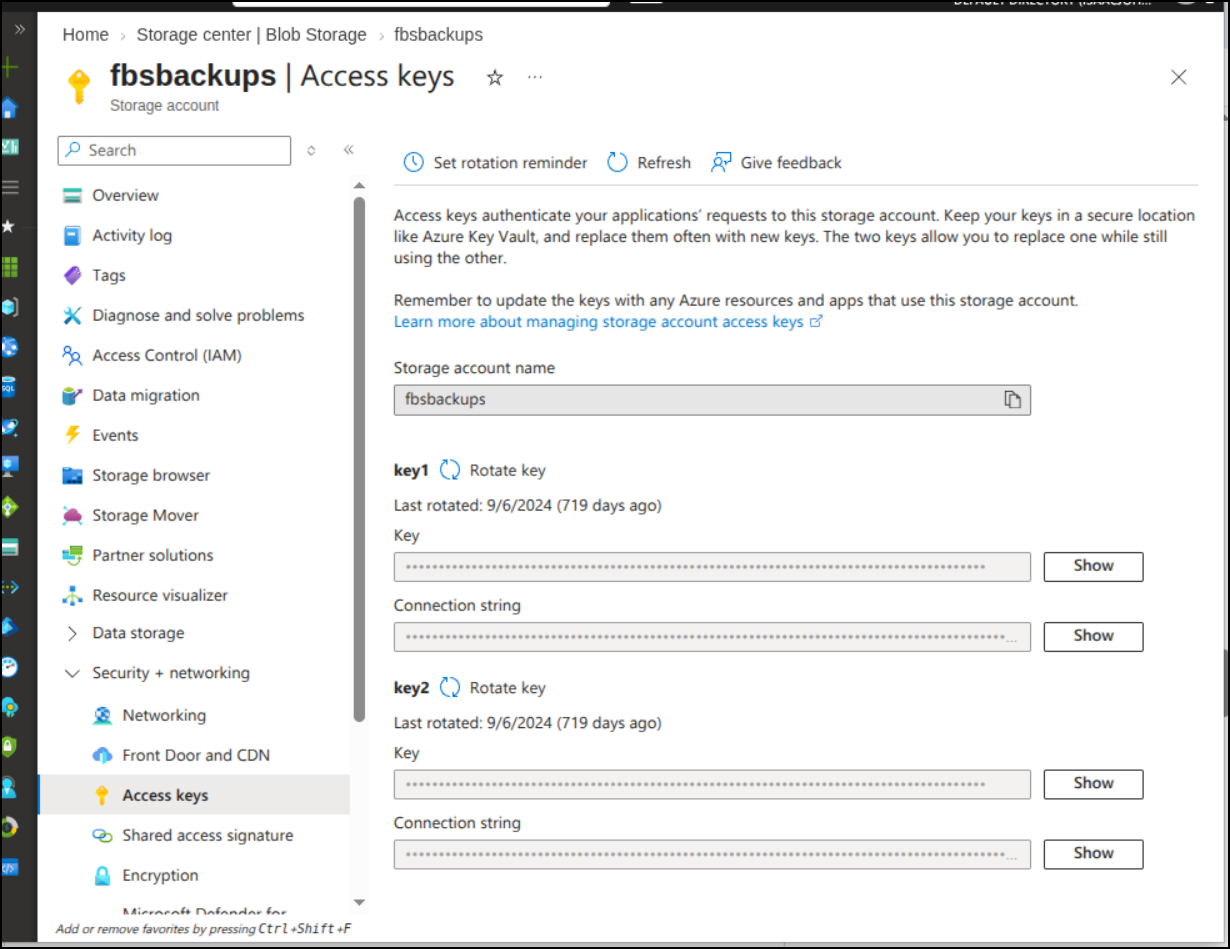
We just need the “Connection string” from the “Access keys” area in “Security + Networking”
as well as a new or existing container to use
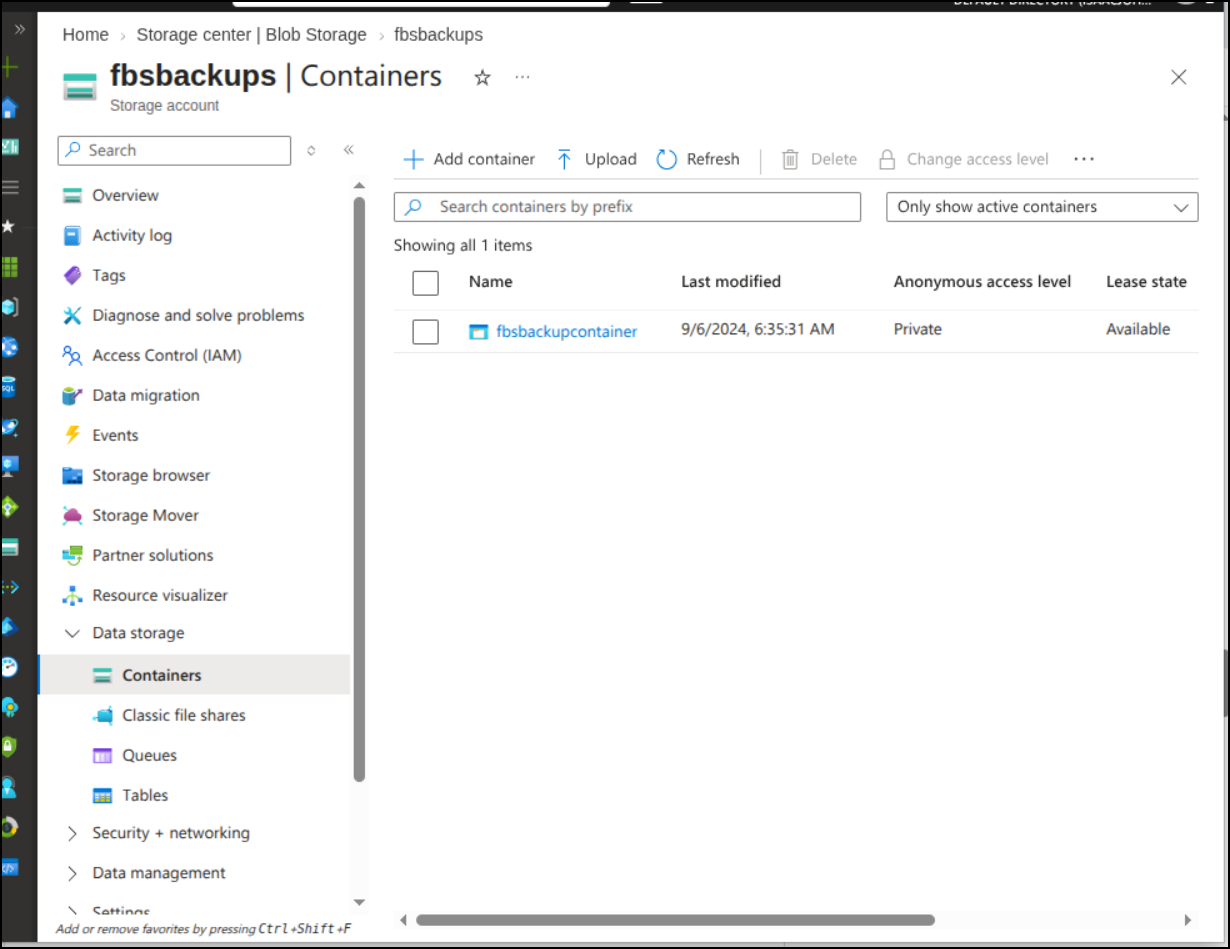
With those things set, I can test the connection
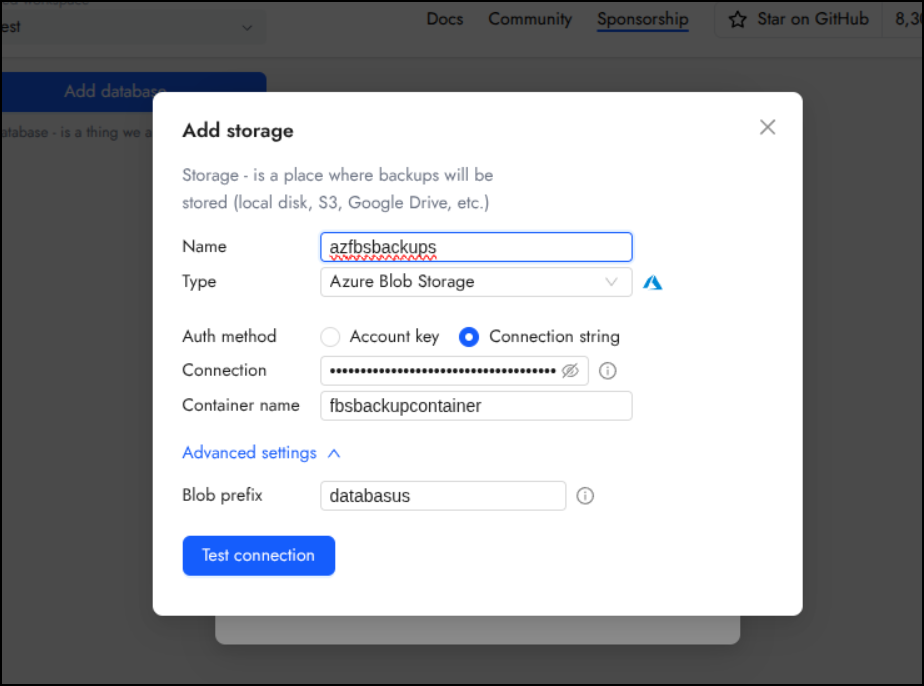
which was successful
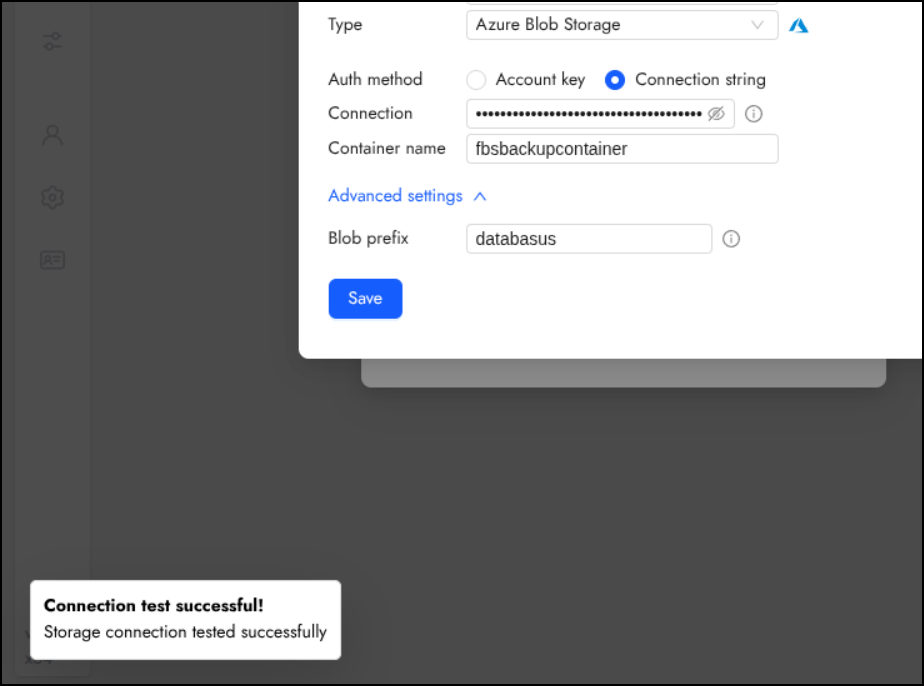
I now have everything I need to continue
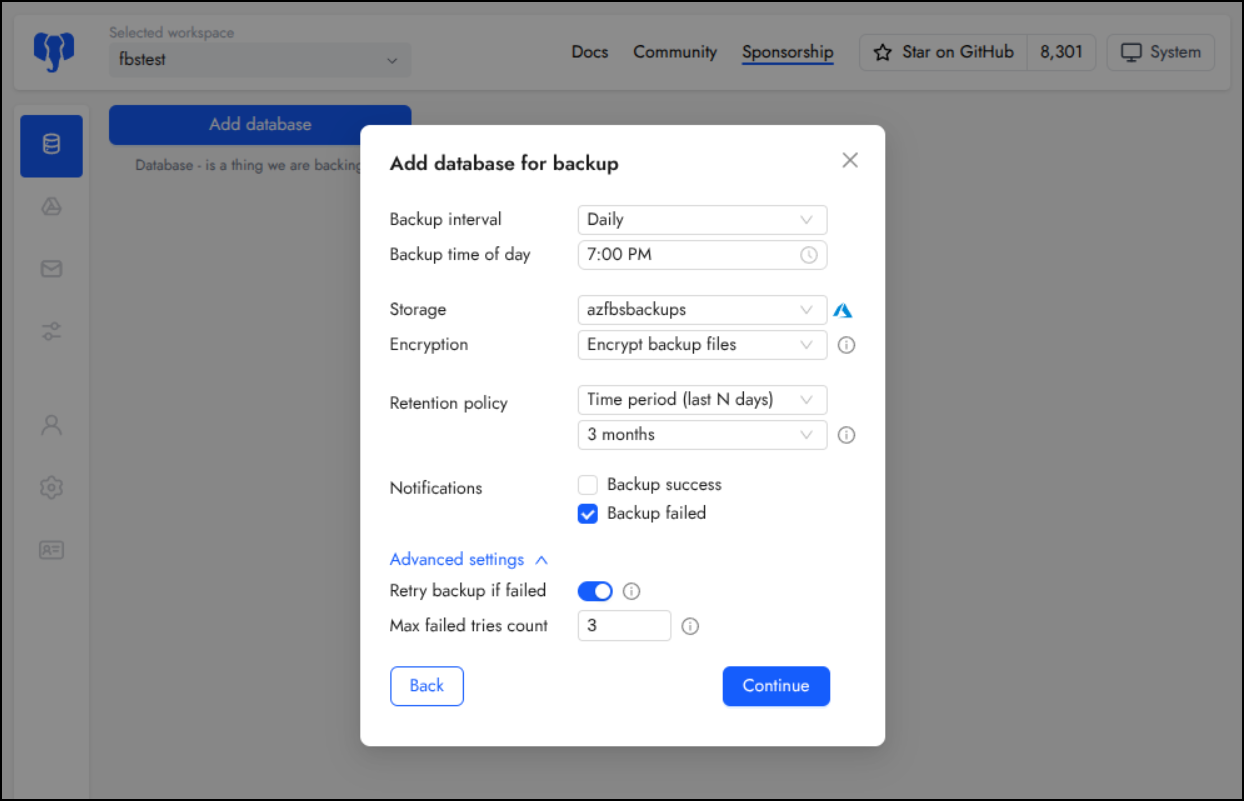
I’ll setup one notifier for now
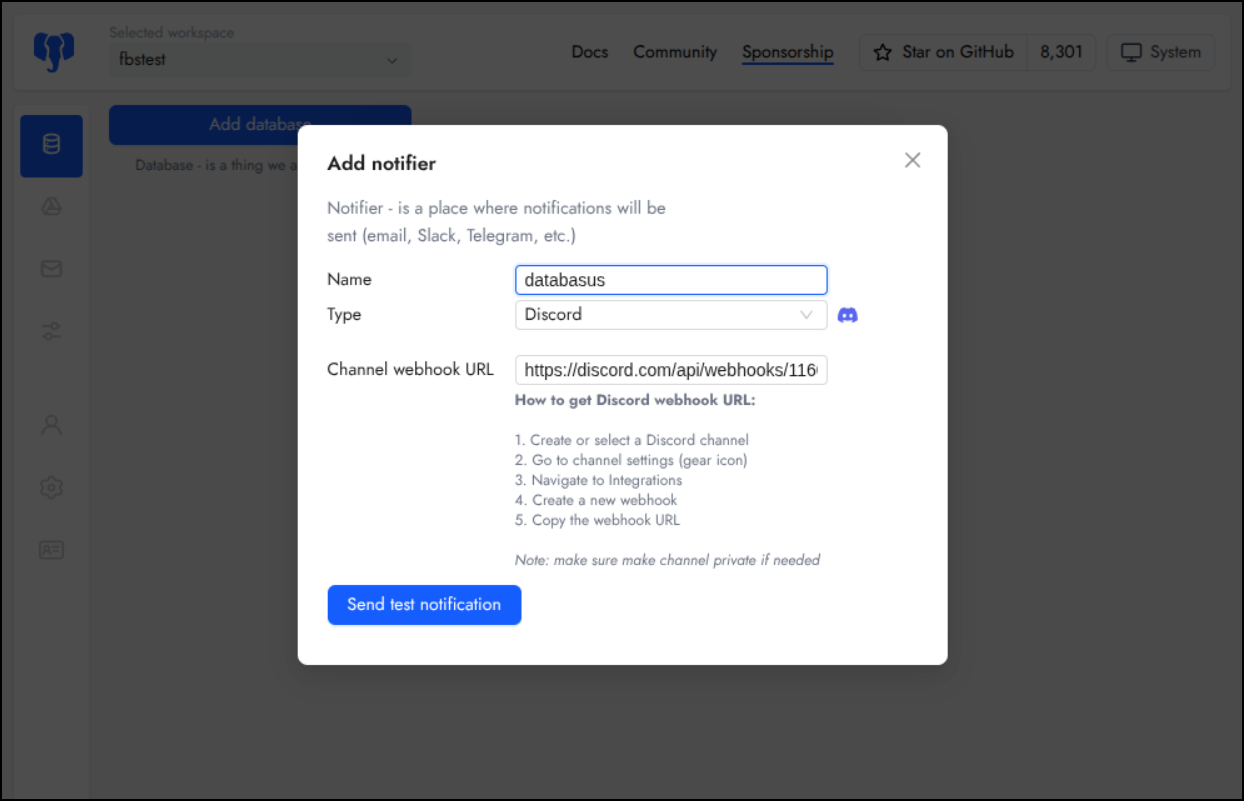
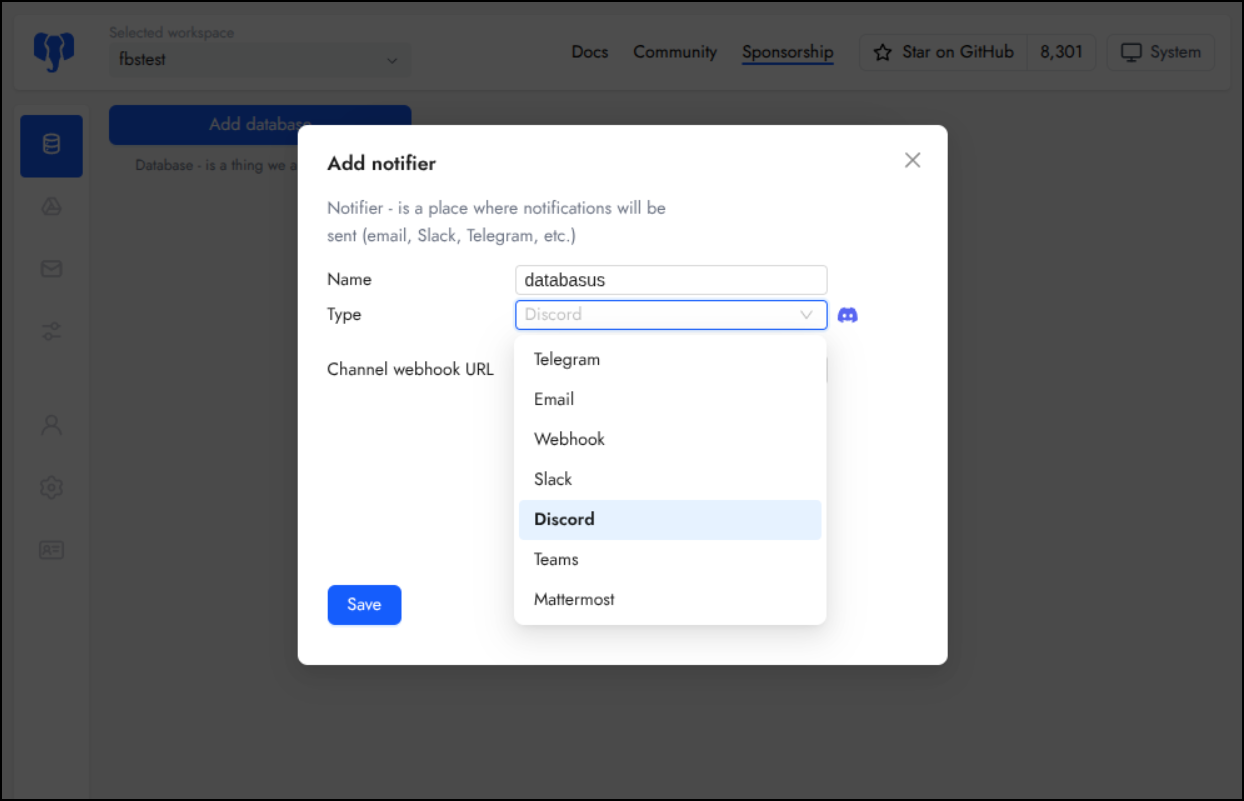
While we have a lot of choices, I just used discord
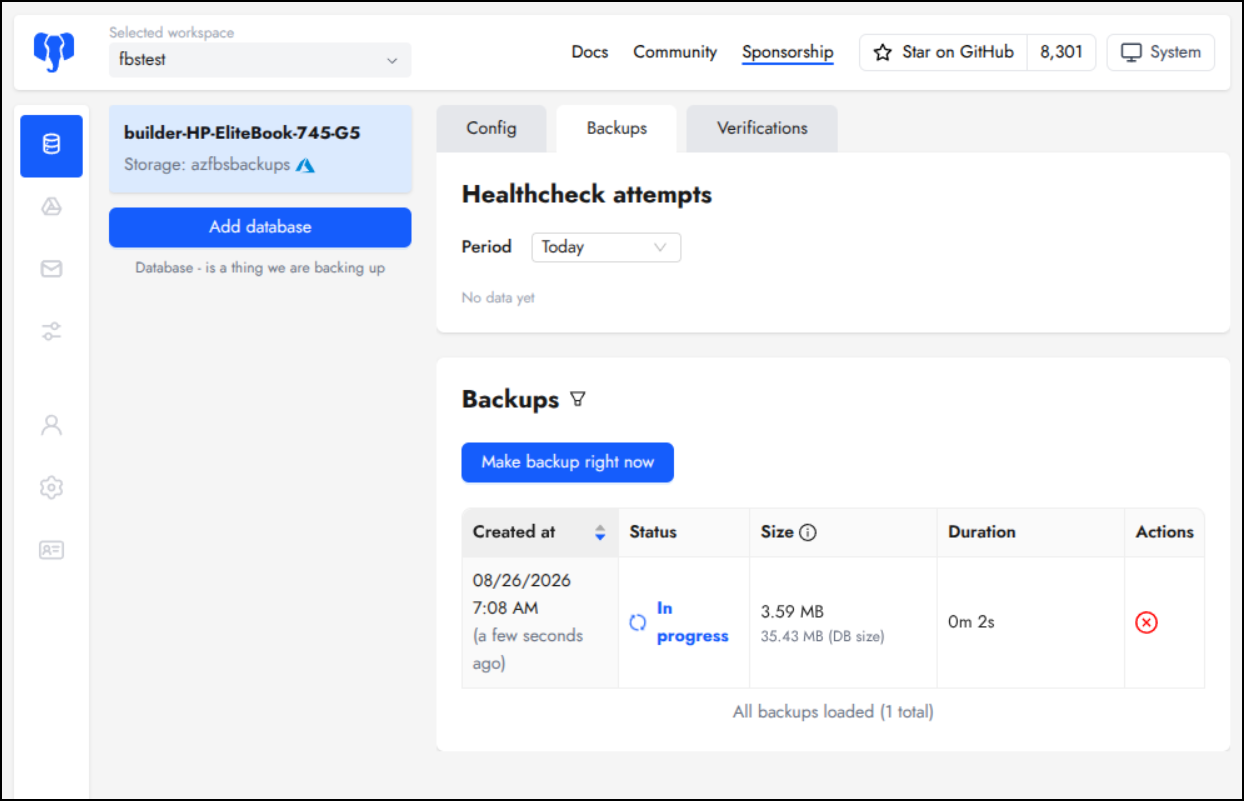
I immediately saw a backup activity start
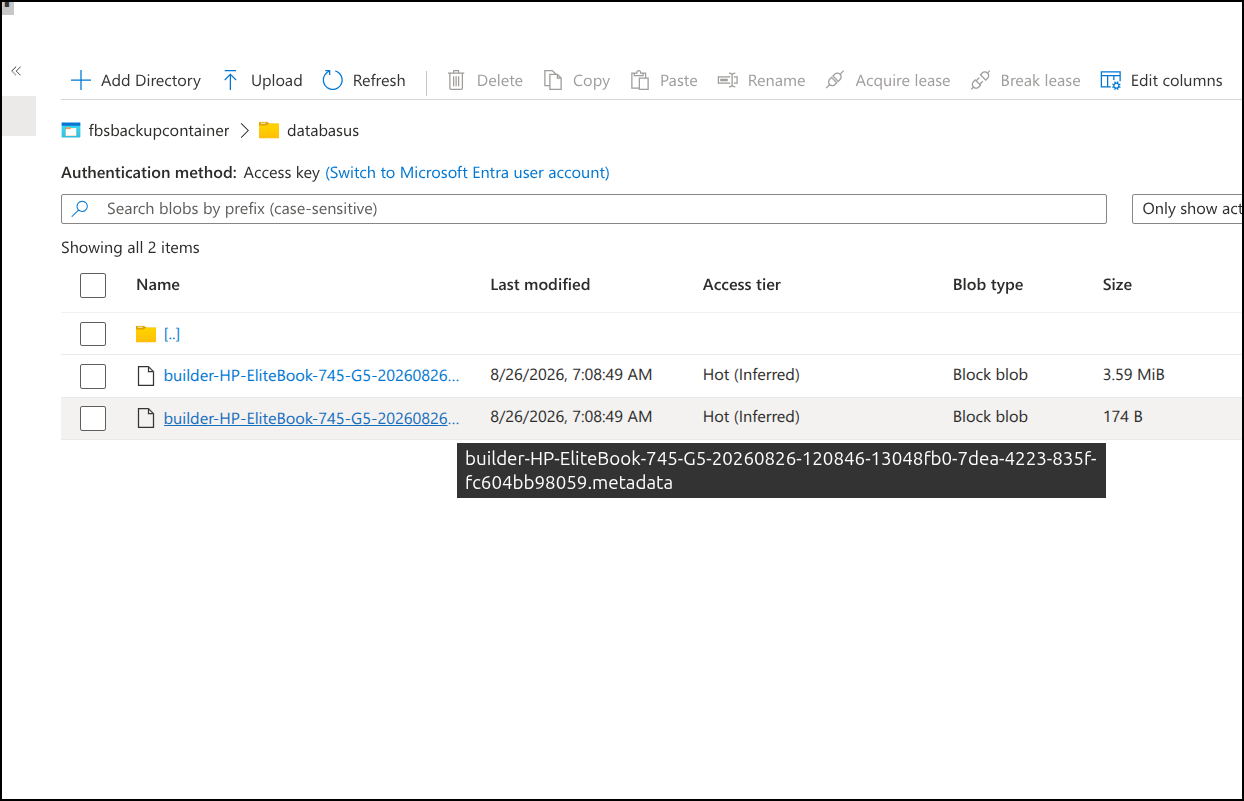
And since I did say I wanted “databusus” as a prefix, a new folder show up in Azure Storage
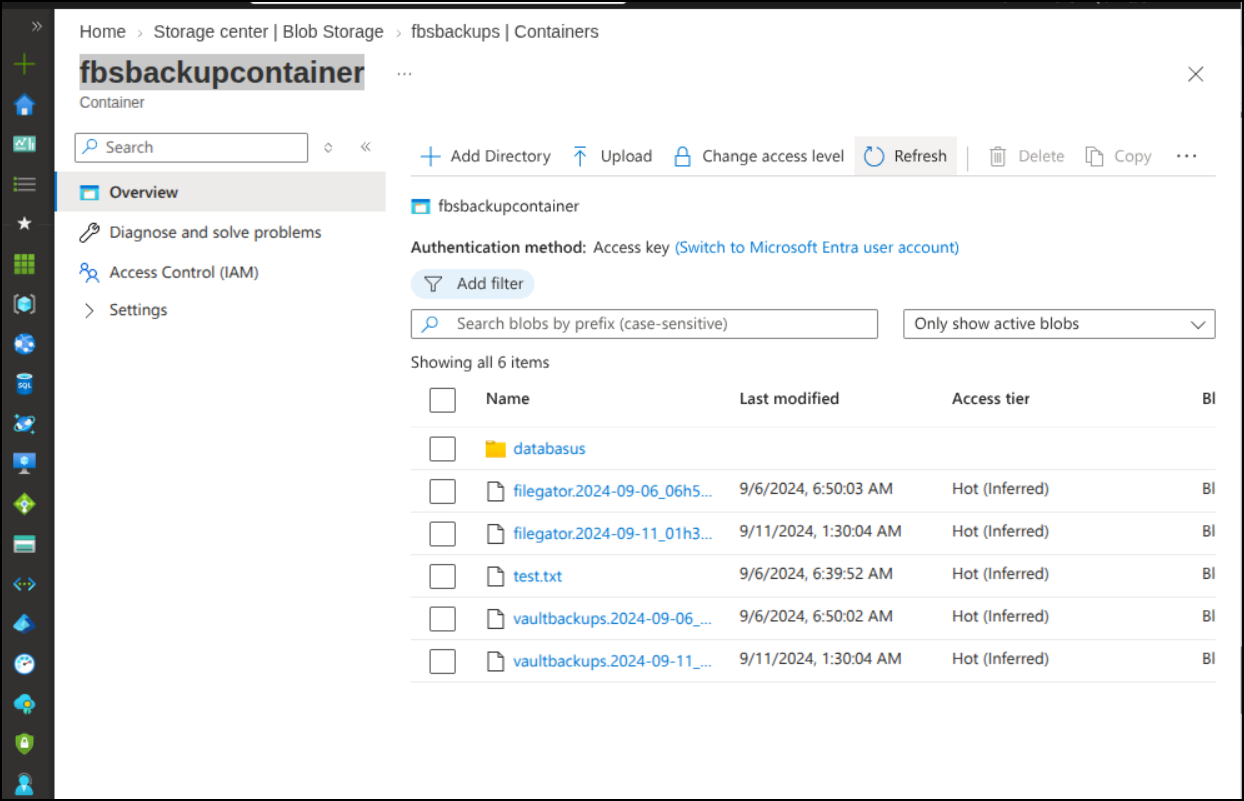
There is a binary and a metadata file for the backup
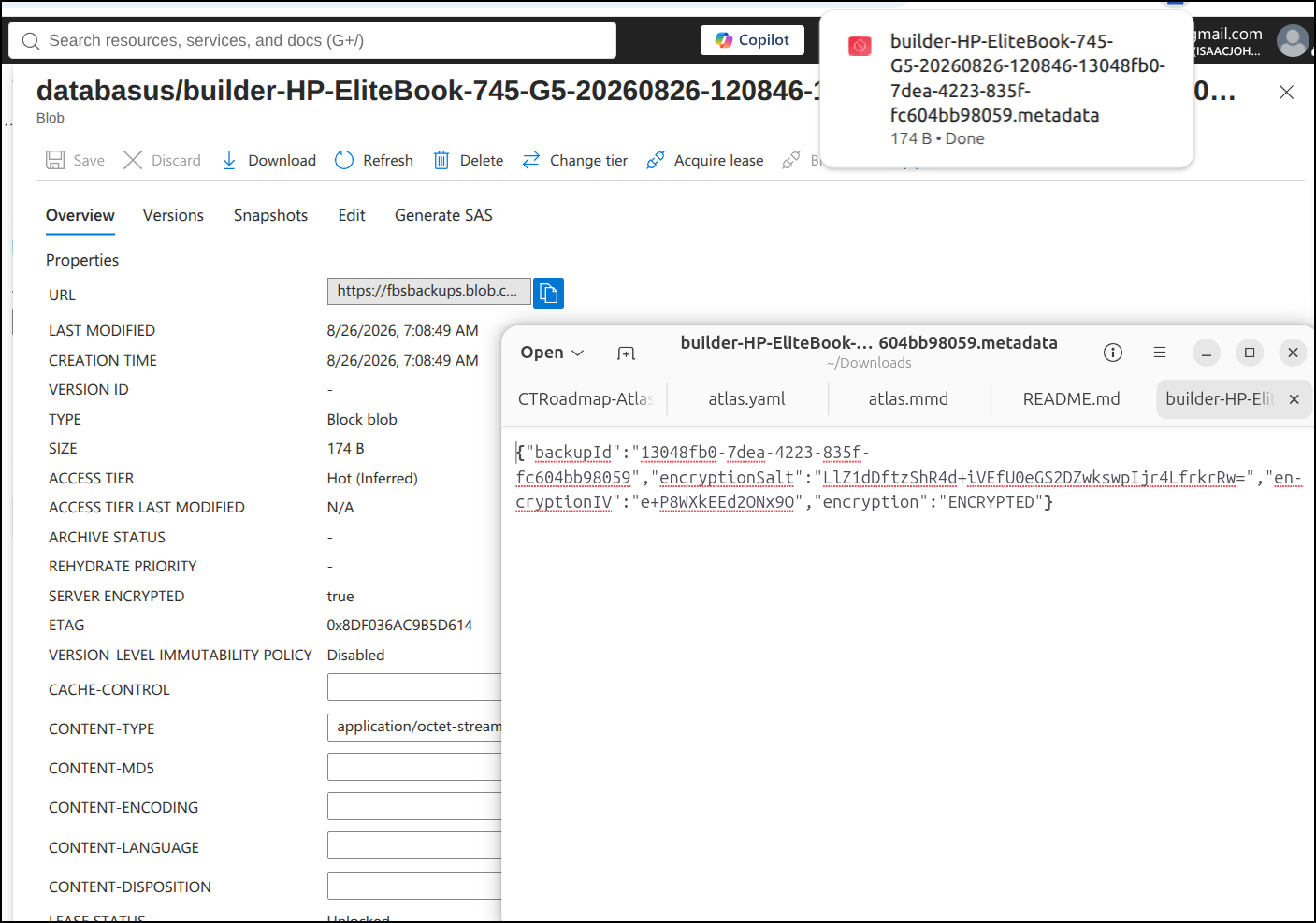
I was curious what the metadata file had in it so I pulled it down and looked.
Settings
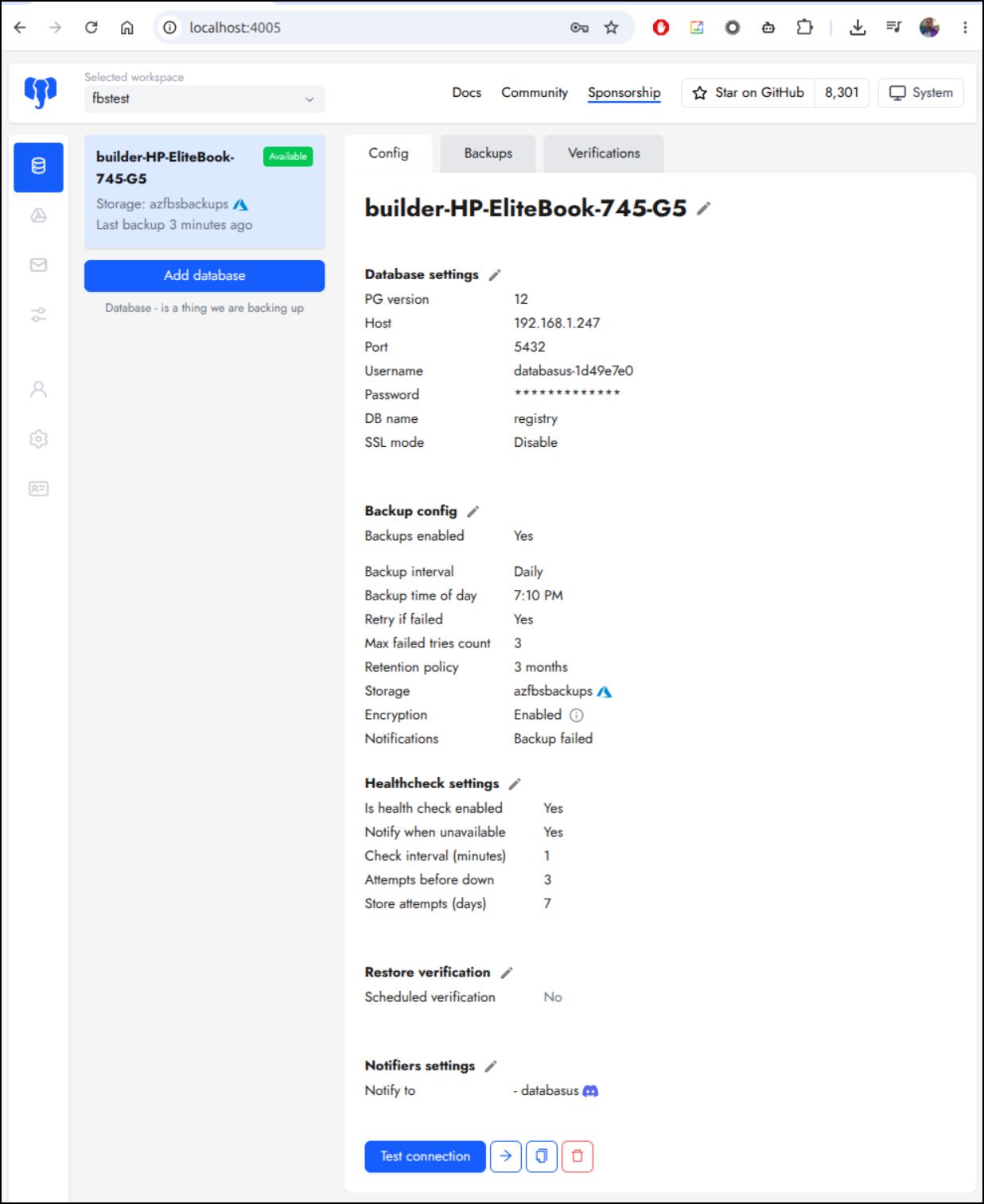
We can see the config setup in the “Config” tab
Existing backups in the Backups page
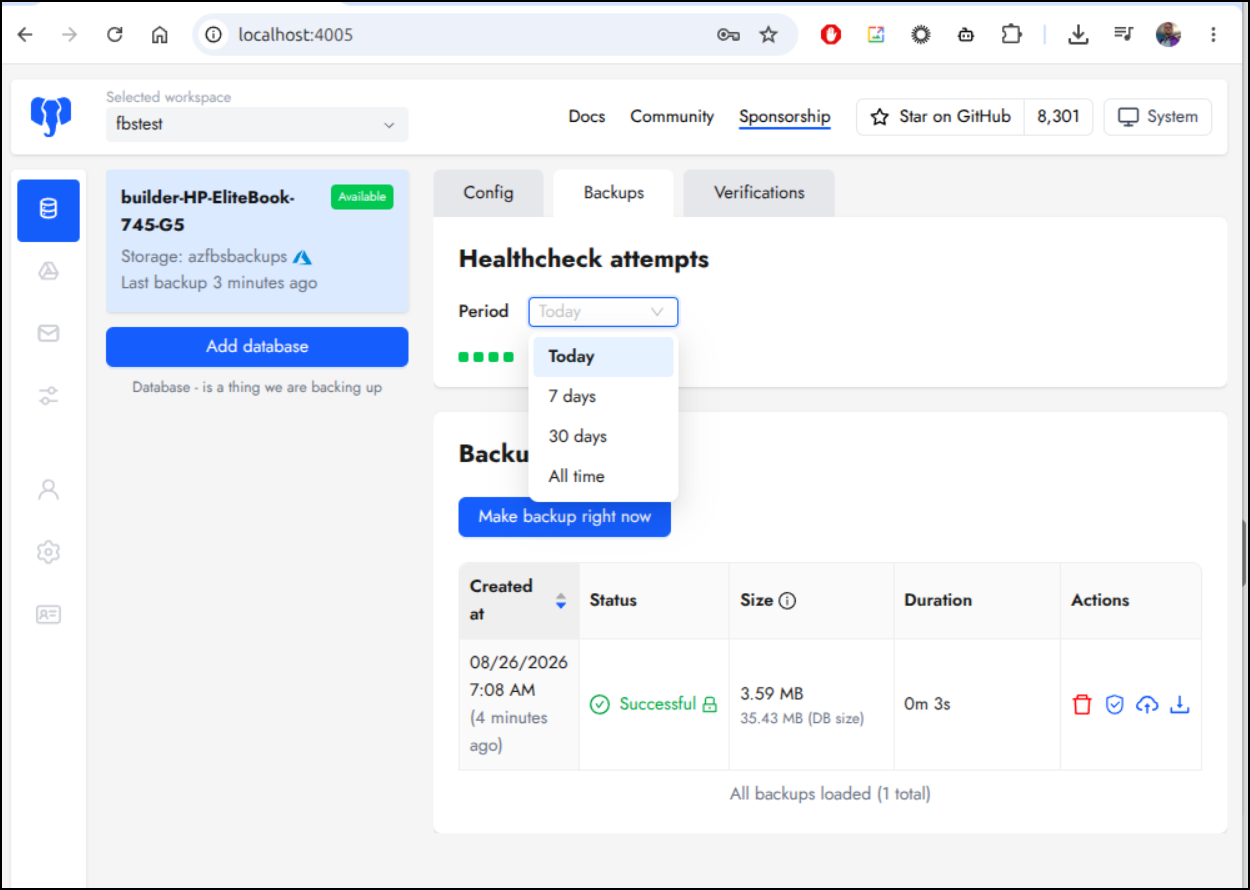
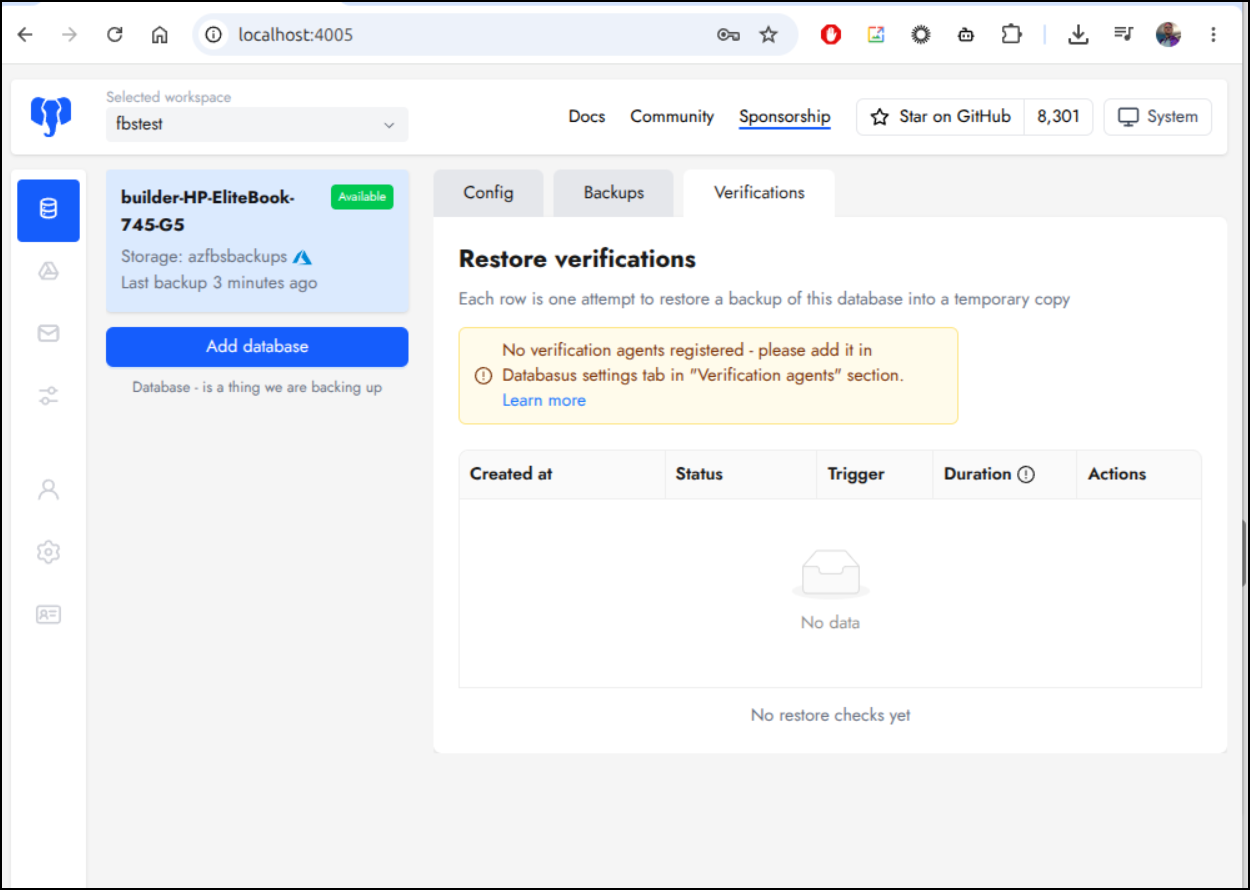
And if we have a verifier, we could see that in Verifications
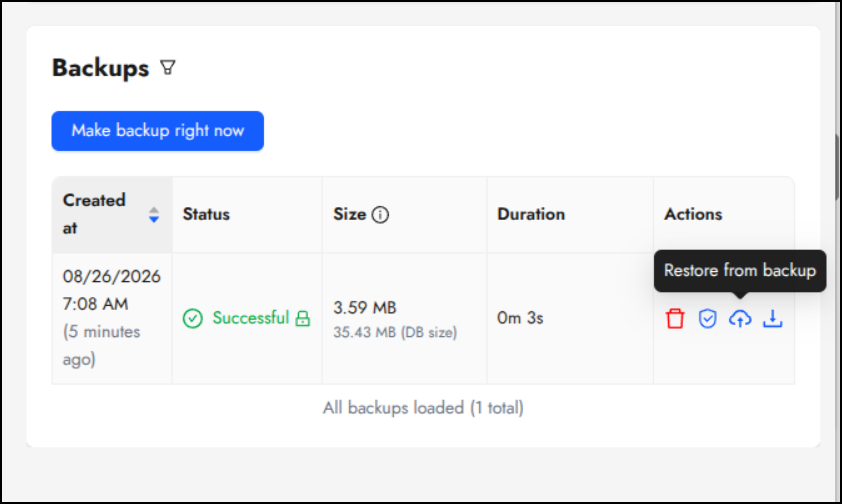
The actions icons in the backups area are: delete, verify, restore to this backup and download
I tried the download and it pulled down a “dump” file
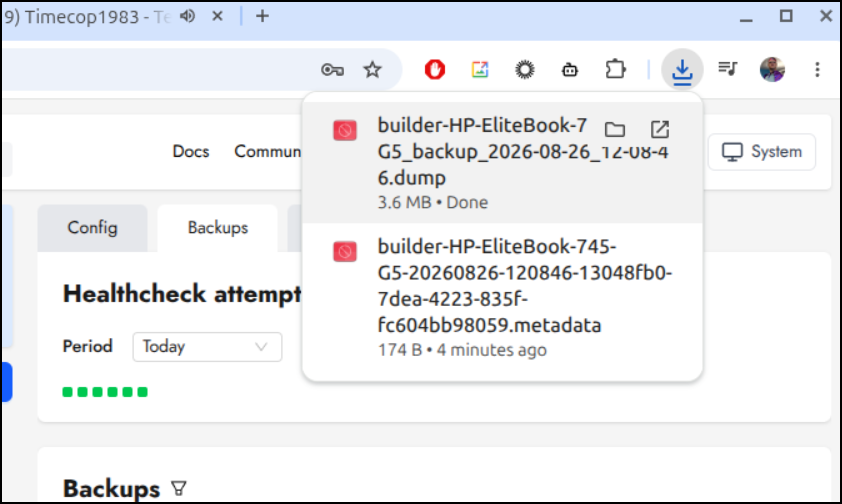
This is not a SQL text file, rather a binary dump so I would need to use pg_restore if I wanted to restore using it.
Adding storage locations
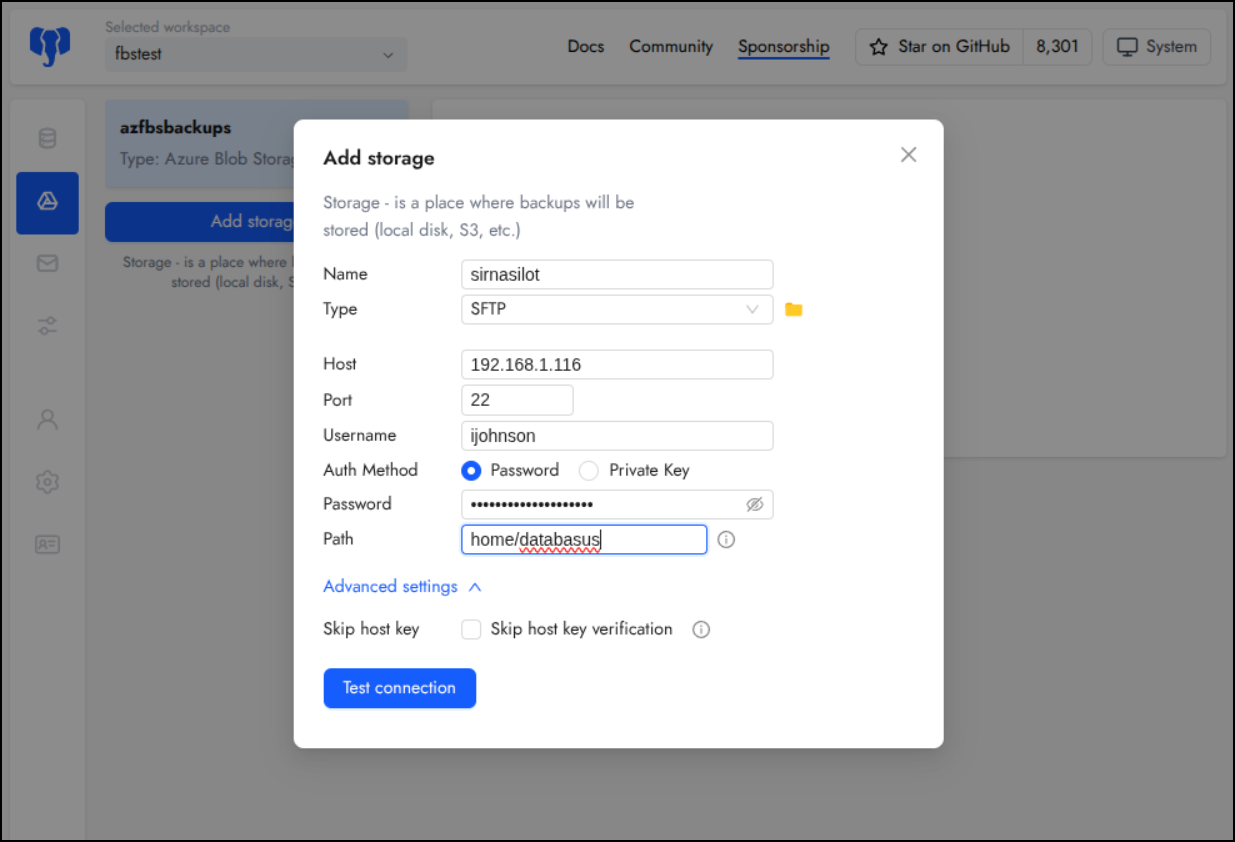
Let’s add an SFTP endpoint.
I just need to enable SFTP on my NAS
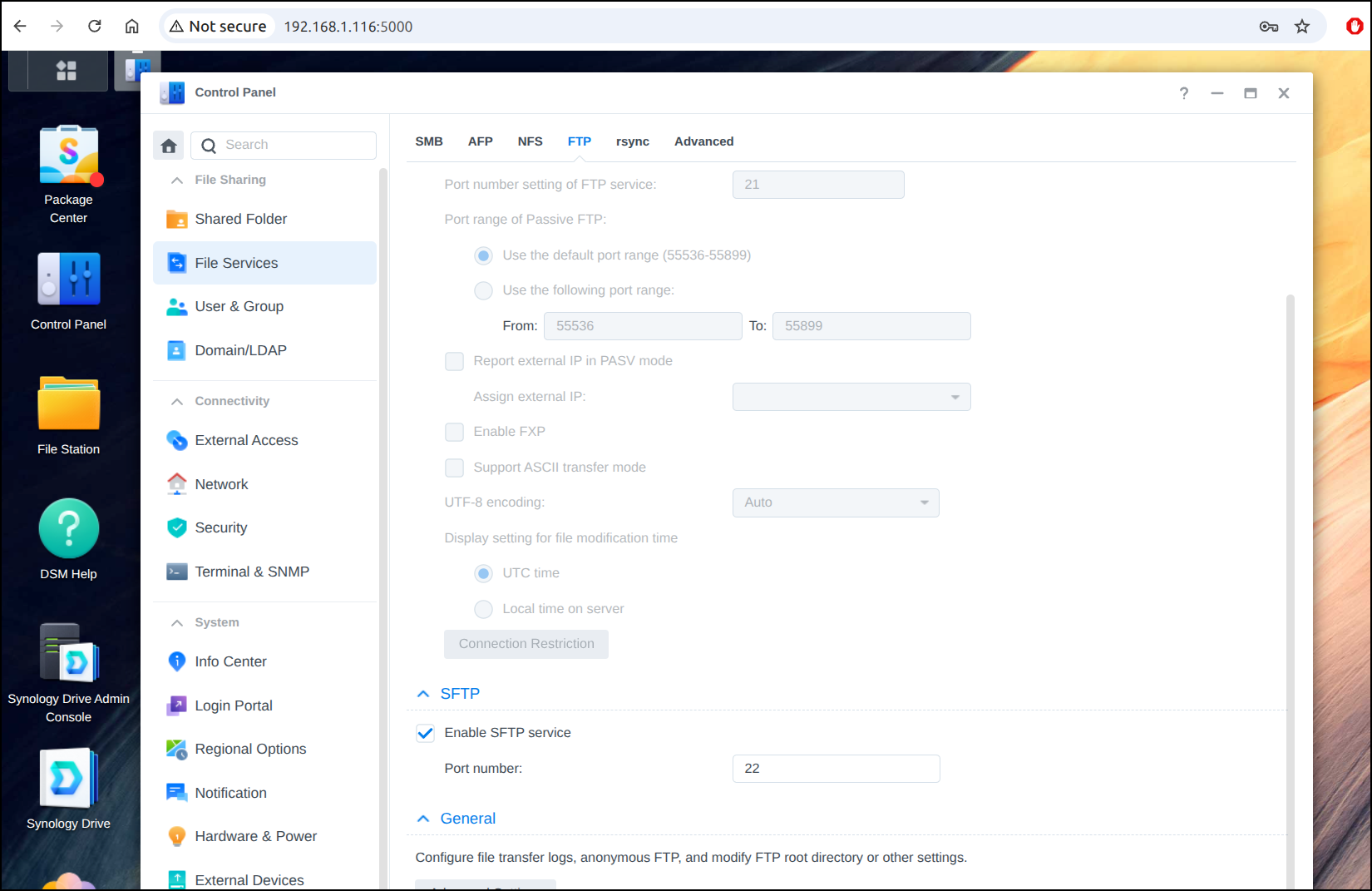
I personally find the best way to setup SFTP is to use a terminal and make the directories manually then you can use pwd to verify the path
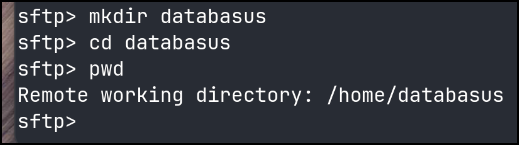
I can now add that path in the settings and click test connection
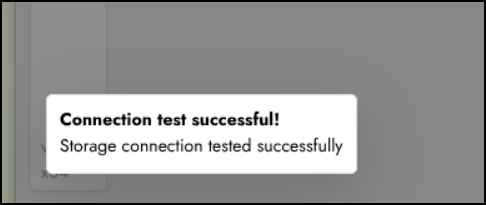
Which was successful
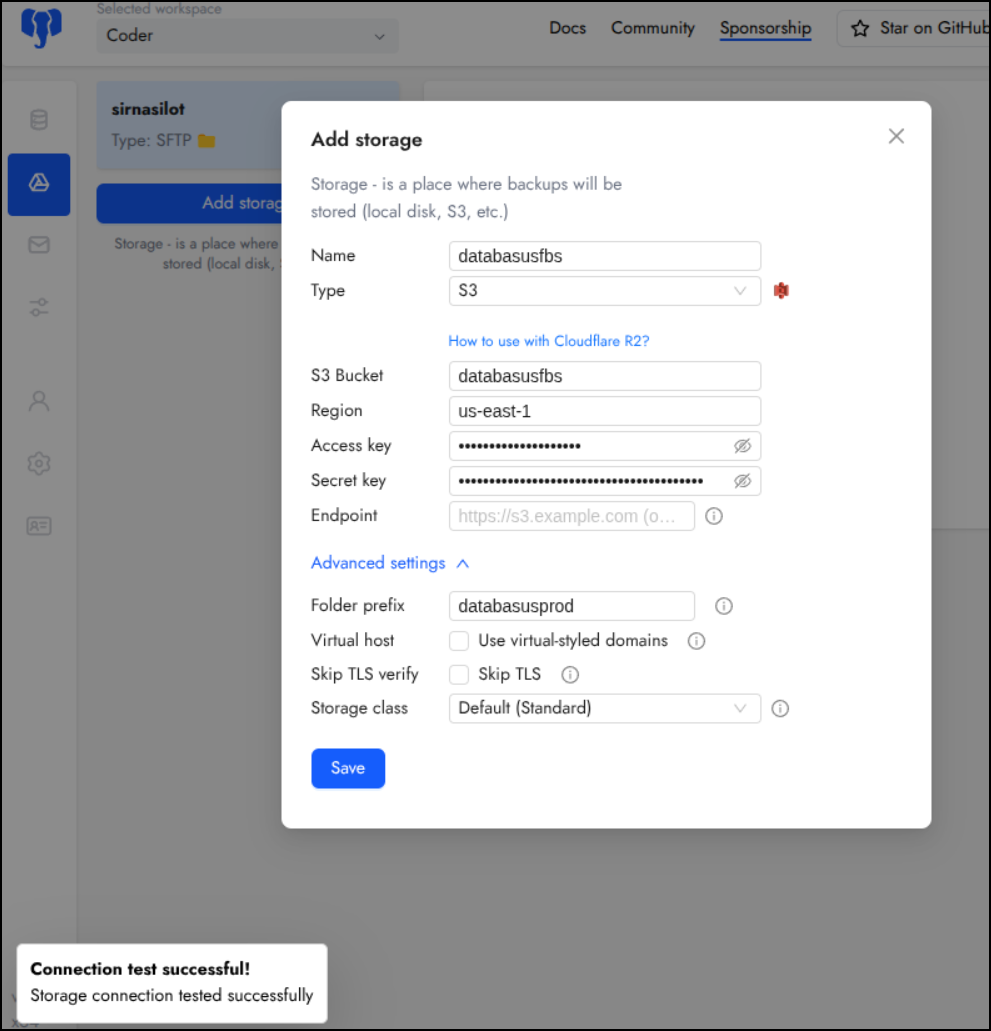
Lastly, I could use S3
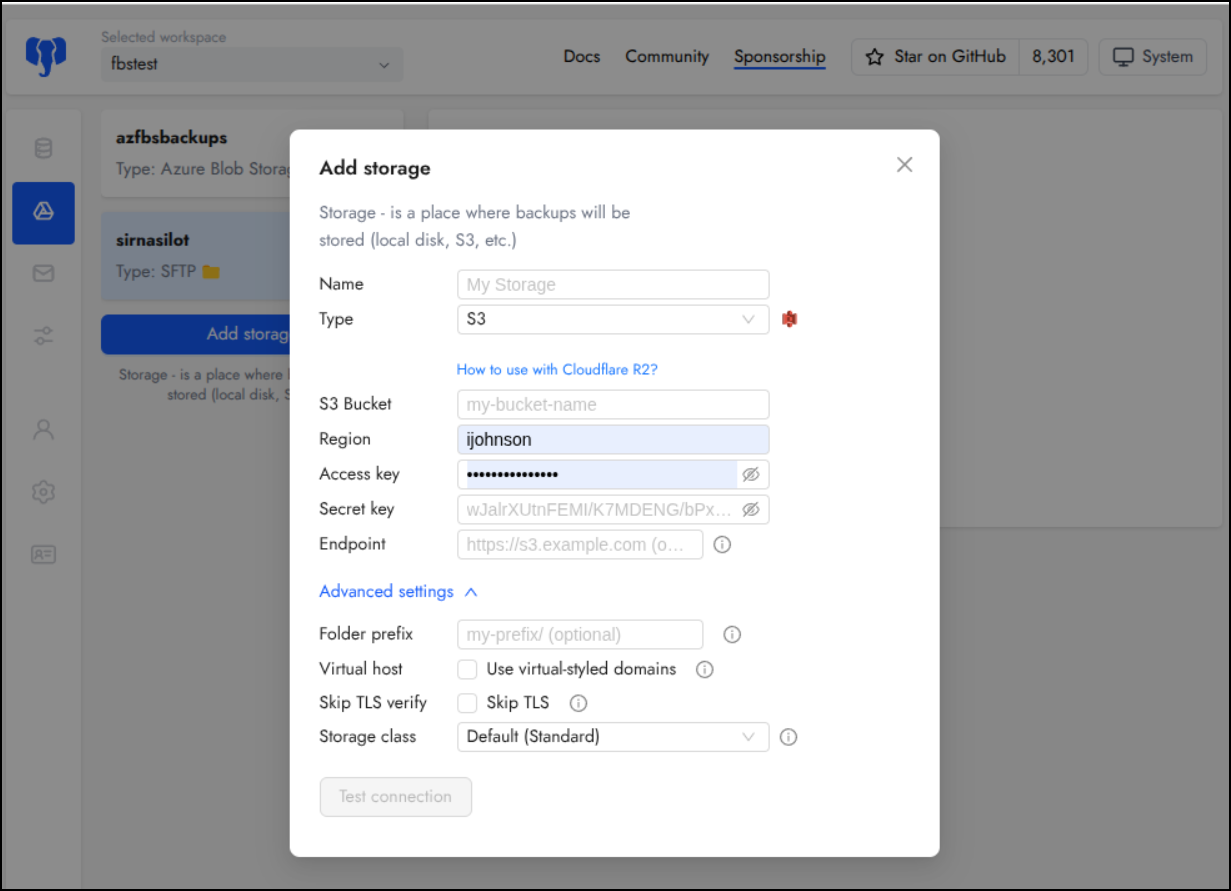
I actually like S3 a lot because of the storage lifecycle policies.
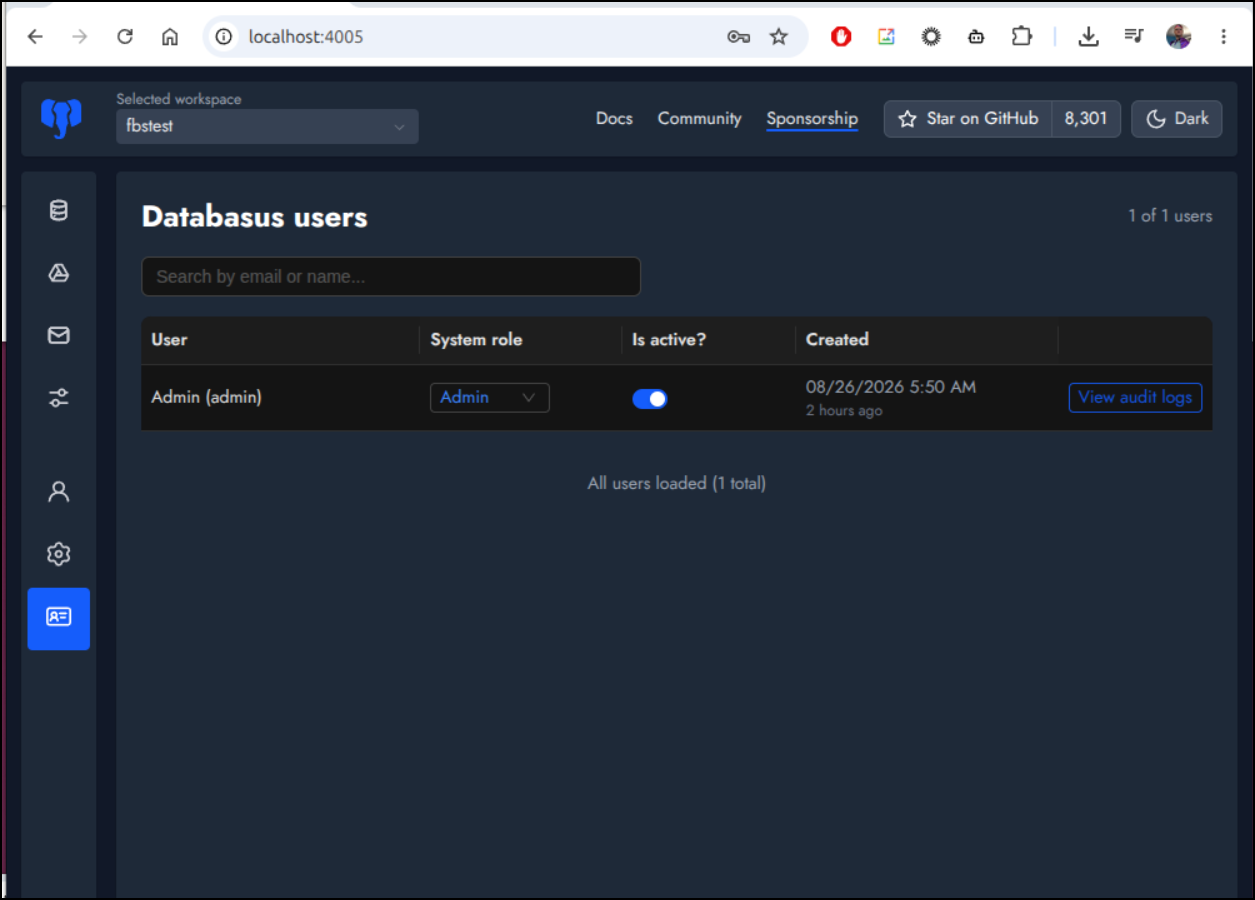
The only feature I was bit stuck on was adding users. I should see an add user according to the docs
but there is no such option for me (and I’m admin)
Kubernetes
I need an ingress first, so let’s create an A record in AWS
{
  "Comment": "CREATE databasus fb.s A record ",
  "Changes": [
    {
      "Action": "CREATE",
      "ResourceRecordSet": {
        "Name": "databasus.freshbrewed.science",
        "Type": "A",
        "TTL": 300,
        "ResourceRecords": [
          {
            "Value": "76.156.69.232"
          }
        ]
      }
    }
  ]
}
Applying it:
$ aws route53 change-resource-record-sets --hosted-zone-id Z39E8QFU0F9PZP --change-batch file://databasus.r53.json
{
    "ChangeInfo": {
        "Id": "/change/C064928819RBHTHT1DU1L",
        "Status": "PENDING",
        "SubmittedAt": "2026-08-26T22:46:25.785000+00:00",
        "Comment": "CREATE databasus fb.s A record "
    }
}
Let’s now set some helm values for our storage class (used by the PVC) and our Ingress
persistence:
  enabled: true
  storageClassName: "managed-nfs-storage"
  accessMode: ReadWriteOnce
  size: 10Gi
  # Mount path in container
  mountPath: /databasus-data

ingress:
  enabled: true
  className: nginx
  annotations:
    cert-manager.io/cluster-issuer: letsencrypt-prod
    ingress.kubernetes.io/proxy-body-size: "0"
    ingress.kubernetes.io/ssl-redirect: "true"
    kubernetes.io/tls-acme: "true"
    nginx.ingress.kubernetes.io/proxy-body-size: "0"
    nginx.ingress.kubernetes.io/proxy-read-timeout: "3600"
    nginx.ingress.kubernetes.io/proxy-send-timeout: "3600"
    nginx.ingress.kubernetes.io/ssl-redirect: "true"
    nginx.org/client-max-body-size: "0"
    nginx.org/proxy-connect-timeout: "3600"
    nginx.org/proxy-read-timeout: "3600"
  hosts:
    - host: databasus.freshbrewed.science
      paths:
        - path: /
          pathType: Prefix
  tls:
    - hosts:
      - databasus.freshbrewed.science
      secretName: databasus-tls
Since the chart is an OCI artifact, I can just reference it with oci: and not need to add a helm repository locally.
$ helm install databasus -f ./databasus.helmvalues.yaml oci://ghcr.io/databasus/charts/databasus
Pulled: ghcr.io/databasus/charts/databasus:3.55.1
Digest: sha256:1d994db6a8081c46ab9246bc76b6bd7e81b9cd03adba45778438bcb0499922de
NAME: databasus
LAST DEPLOYED: Wed Aug 26 17:54:36 2026
NAMESPACE: default
STATUS: deployed
REVISION: 1
DESCRIPTION: Install complete
TEST SUITE: None
Once the cert was satisfied
kubectl get cert databasus-tls
NAME            READY   SECRET          AGE
databasus-tls   False   databasus-tls   68s
$ kubectl get cert databasus-tls
NAME            READY   SECRET          AGE
databasus-tls   True    databasus-tls   100s
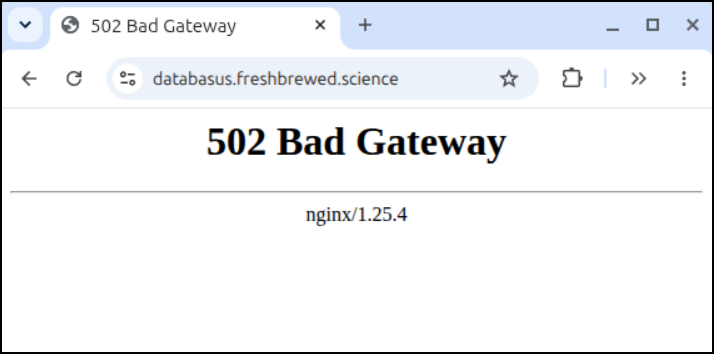
I went to login but saw a 502 coming back
Looking up the pod logs
builder@bosgamerz9:~/Workspaces/jekyll-blog$ kubectl get po | grep databasus
databasus-0                                          0/1     CrashLoopBackOff   4 (55s ago)        3m26s

$ kubectl logs databasus-0
Generating runtime configuration...
Setting up data directory permissions...
chown: changing ownership of '/databasus-data': Operation not permitted
I see the issue. NFS provisioners (at least the one I have) have issues when systems try to manually set root permissions.
I removed it, changed to “local-path” and tried again, but it was still crashing
builder@bosgamerz9:~/Workspaces/fbsnew$ helm delete databasus
release "databasus" uninstalled
builder@bosgamerz9:~/Workspaces/fbsnew$ cat databasus.helmvalues.yaml | grep -i class
  storageClassName: "managed-nfs-storage"
  className: nginx
builder@bosgamerz9:~/Workspaces/fbsnew$ vi databasus.helmvalues.yaml
builder@bosgamerz9:~/Workspaces/fbsnew$ cat databasus.helmvalues.yaml | grep -i class
  storageClassName: "local-path"
  className: nginx
builder@bosgamerz9:~/Workspaces/fbsnew$ helm install databasus -f ./databasus.helmvalues.yaml oci://ghcr.io/databasus/charts/databasus
Pulled: ghcr.io/databasus/charts/databasus:3.55.1
Digest: sha256:1d994db6a8081c46ab9246bc76b6bd7e81b9cd03adba45778438bcb0499922de
NAME: databasus
LAST DEPLOYED: Wed Aug 26 18:00:18 2026
NAMESPACE: default
STATUS: deployed
REVISION: 1
DESCRIPTION: Install complete
TEST SUITE: None
builder@bosgamerz9:~/Workspaces/fbsnew$ kubectl get cert databasus-tls
NAME            READY   SECRET          AGE
databasus-tls   True    databasus-tls   7s
builder@bosgamerz9:~/Workspaces/fbsnew$ kubectl get po | grep -i databasus
databasus-0                                          0/1     CrashLoopBackOff   1 (10s ago)        14s
builder@bosgamerz9:~/Workspaces/fbsnew$ kubectl logs databasus-0
Generating runtime configuration...
Setting up data directory permissions...
chown: changing ownership of '/databasus-data': Operation not permitted
The problem is that just removing helm does NOT clear out an existing PVC.
$ kubectl get pvc | grep databasus
databasus-storage-databasus-0              Bound    pvc-9c1a1bdd-d001-4517-bb93-b2c4a6a62799   10Gi       RWO            managed-nfs-storage   <unset>                 6m10s
This time i manually removed the PVC, verified the volume was gone, then relaunched
builder@bosgamerz9:~/Workspaces/fbsnew$ kubectl delete pvc databasus-storage-databasus-0
persistentvolumeclaim "databasus-storage-databasus-0" deleted from default namespace
builder@bosgamerz9:~/Workspaces/fbsnew$ kubectl get volume | grep pvc-9c1a1bdd-d001-4517-bb93-b2c4a6a62799
error: the server doesn't have a resource type "volume"
builder@bosgamerz9:~/Workspaces/fbsnew$ kubectl get persistentvolume | grep pvc-9c1a1bdd-d001-4517-bb93-b2c4a6a62799
builder@bosgamerz9:~/Workspaces/fbsnew$ helm install databasus -f ./databasus.helmvalues.yaml oci://ghcr.io/databasus/charts/databasus
Pulled: ghcr.io/databasus/charts/databasus:3.55.1
Digest: sha256:1d994db6a8081c46ab9246bc76b6bd7e81b9cd03adba45778438bcb0499922de
NAME: databasus
LAST DEPLOYED: Wed Aug 26 18:03:34 2026
NAMESPACE: default
STATUS: deployed
REVISION: 1
DESCRIPTION: Install complete
TEST SUITE: None
builder@bosgamerz9:~/Workspaces/fbsnew$ kubectl get pvc | grep databasus
databasus-storage-databasus-0              Bound    pvc-0e361612-a6e6-4508-ba1c-705b49db843c   10Gi       RWO            local-path            <unset>                 5s
builder@bosgamerz9:~/Workspaces/fbsnew$ kubectl get po | grep databasus
databasus-0                                          0/1     Running            0                  18s
As you can see above, the volume class is now “local-path”.
More importantly, the pod launched successfully and we can set the setup page
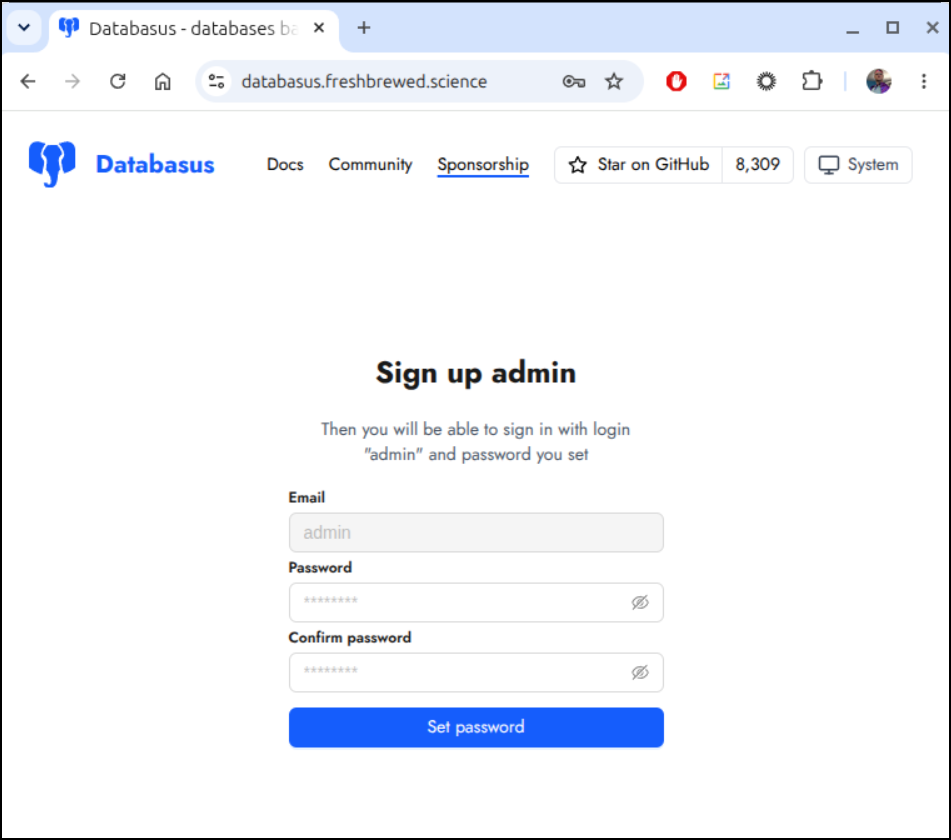
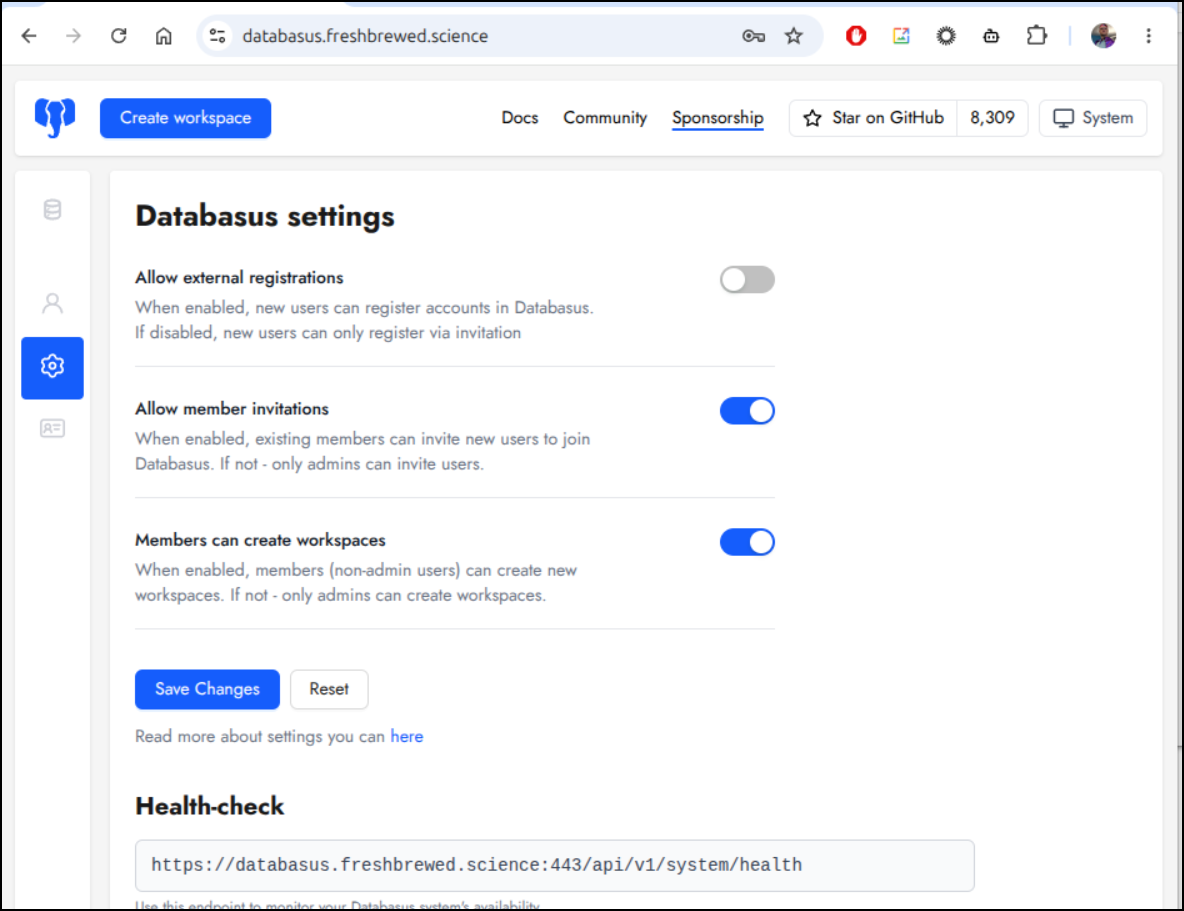
I want to experiment with a member level user, but I still see no “add user option”.
Since, by default, signups are enabled, let me add a lower privileged user
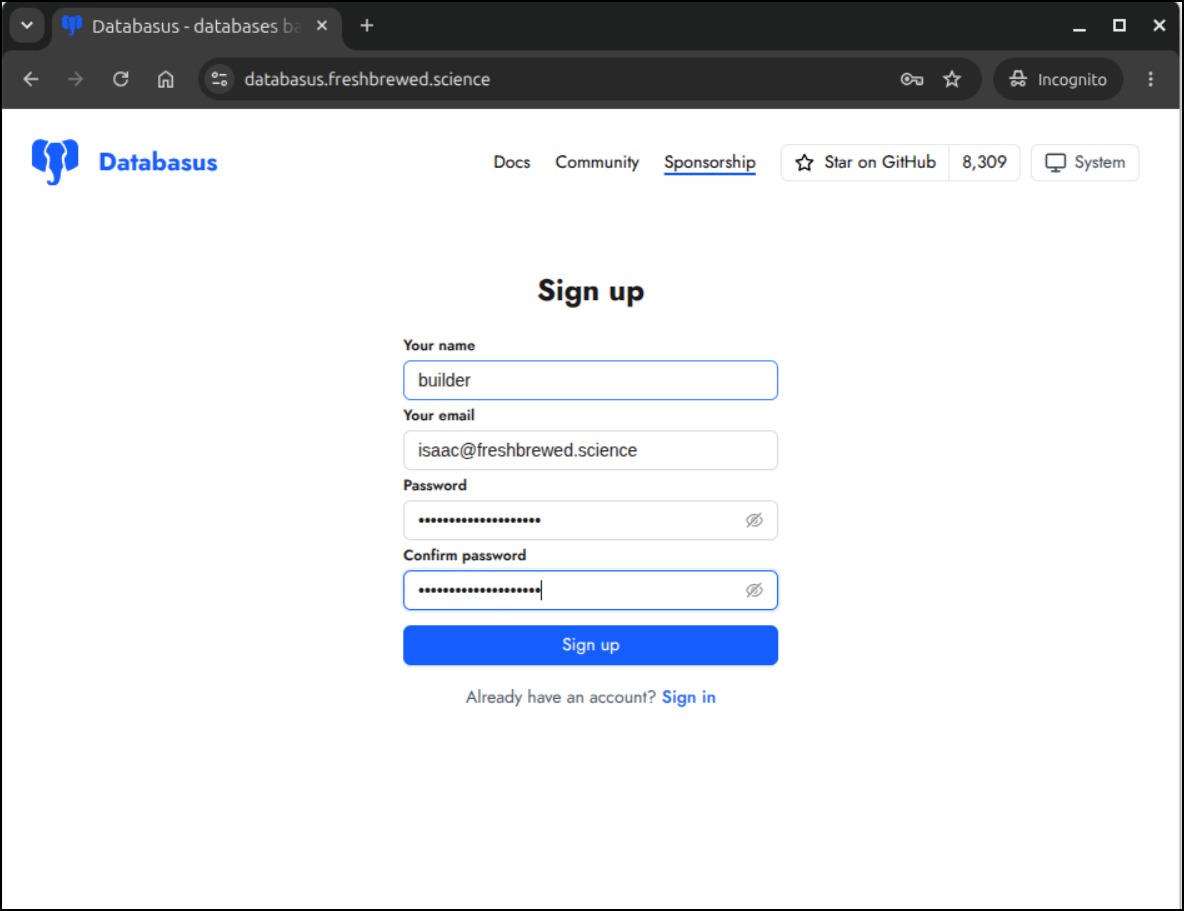
Then I’ll disable signups
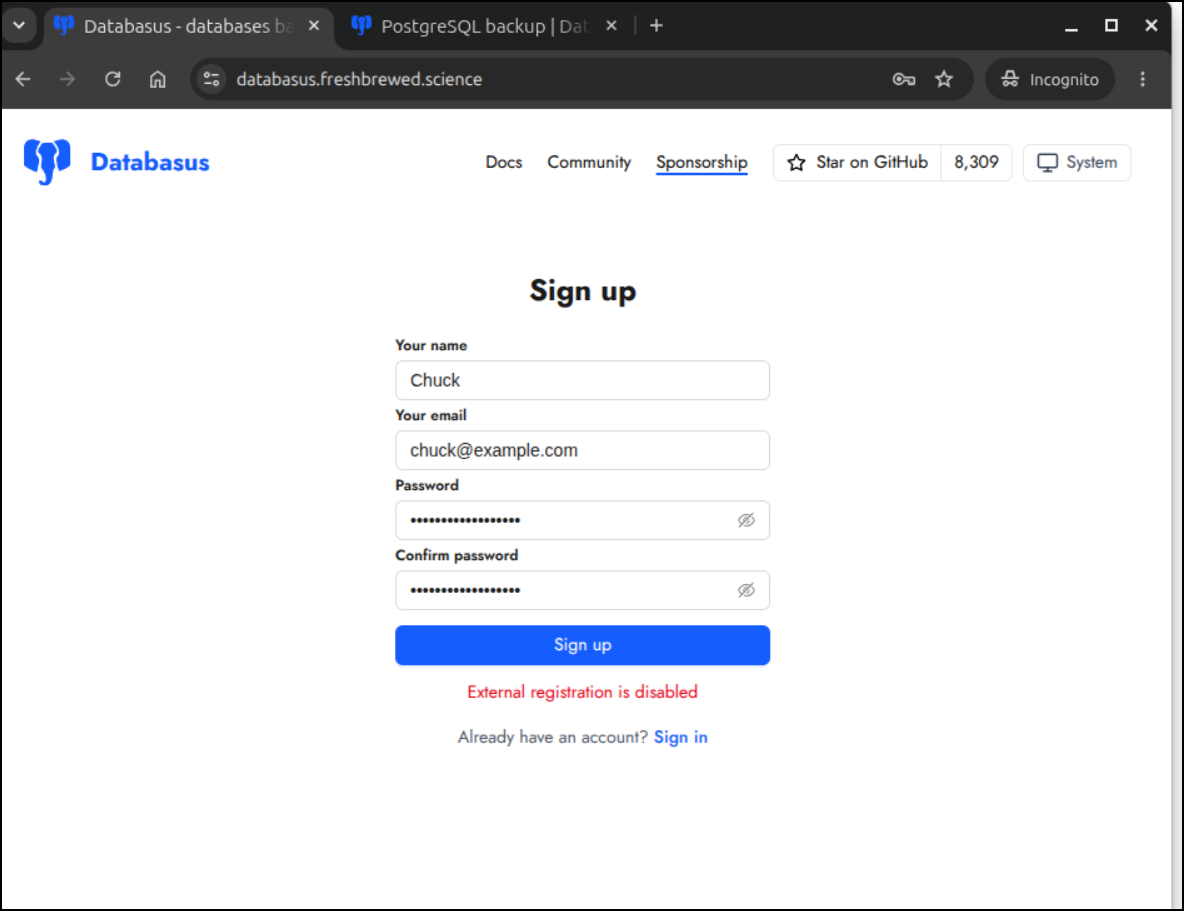
The default signup page is still shown but it is not usable (tested)
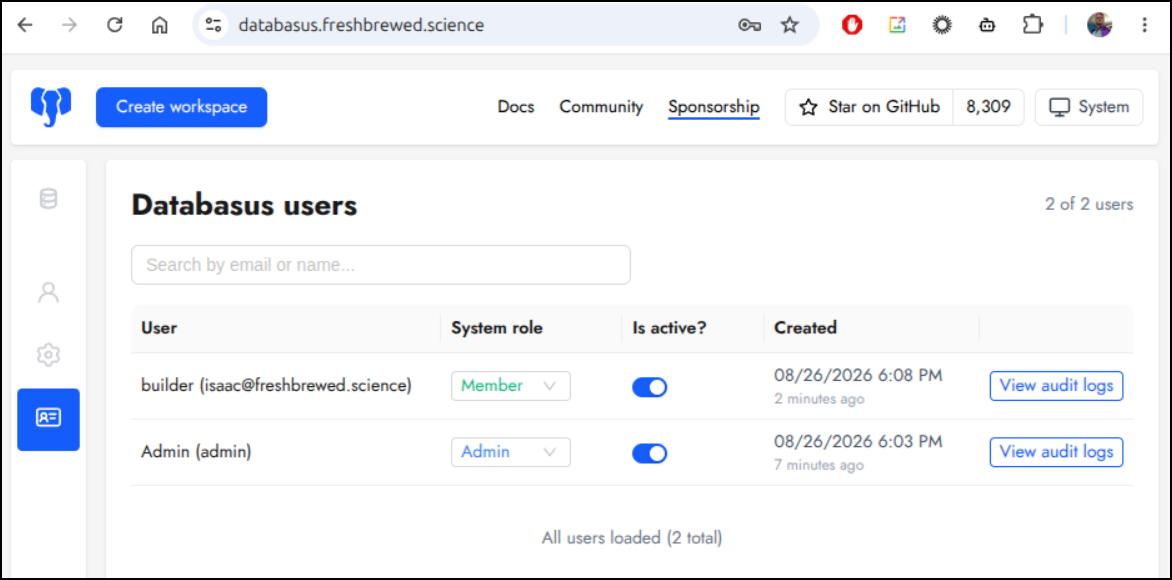
Back in my users area, I can see two users now and the new one is a “Member”
I wanted to find all the helm releases with PostgreSQL strings (or possible ones)
$ cat find-postgres-helm.sh
#!/usr/bin/env bash
#
# Scans all Helm releases across all namespaces for PostgreSQL configurations.
# Looks for: port 5432, "postgres", or "psql" (case-insensitive).

set -euo pipefail

# Check for dependencies
command -v helm >/dev/null 2>&1 || { echo "Error: 'helm' CLI is not installed." >&2; exit 1; }
command -v jq >/dev/null 2>&1 || { echo "Error: 'jq' is required. Please install jq." >&2; exit 1; }

echo "Fetching all Helm releases across all namespaces..."

# Fetch list of releases as JSON: array of objects with {name, namespace}
RELEASES_JSON=$(helm list --all-namespaces --output json)
TOTAL_RELEASES=$(echo "$RELEASES_JSON" | jq 'length')

if [ "$TOTAL_RELEASES" -eq 0 ]; then
  echo "No Helm releases found in any namespace."
  exit 0
fi

echo "Found $TOTAL_RELEASES release(s). Scanning values for PostgreSQL..."
echo ""

# Print Table Header
printf "%-30s %-30s %-20s\n" "NAMESPACE" "RELEASE NAME" "STATUS"
printf "%-30s %-30s %-20s\n" "------------------------------" "------------------------------" "--------------------"

MATCH_COUNT=0

# Loop through each release using jq
while IFS=$'\t' read -r NAMESPACE RELEASE; do
  # Retrieve values.
  # Using '--all' fetches both default chart values and user-supplied values.
  # Remove '--all' if you only want explicitly user-supplied overrides.
  VALUES=$(helm get values "$RELEASE" --namespace "$NAMESPACE" --all 2>/dev/null || true)

  # Check for postgres, psql, or port 5432 (case-insensitive)
  if echo "$VALUES" | grep -Ei "postgres|psql|5432" >/dev/null 2>&1; then
    printf "%-30s %-30s %-20s\n" "$NAMESPACE" "$RELEASE" "PostgreSQL Detected"
    ((MATCH_COUNT++)) || true
  fi
done < <(echo "$RELEASES_JSON" | jq -r '.[] | "\(.namespace)\t\(.name)"')

echo ""
printf "%-30s\n" "--------------------------------------------------------------------------------"
echo "Scan complete: Found $MATCH_COUNT release(s) matching PostgreSQL patterns."
I could then run it to find them
./find-postgres-helm.sh
Fetching all Helm releases across all namespaces...
Found 67 release(s). Scanning values for PostgreSQL...

NAMESPACE                      RELEASE NAME                   STATUS
------------------------------ ------------------------------ --------------------
adwerxawx                      adwerxawx                      PostgreSQL Detected
backstage                      backstage                      PostgreSQL Detected
coder                          coder-db                       PostgreSQL Detected
dblogapp2                      dblogapp2                      PostgreSQL Detected
docmost                        docmost                        PostgreSQL Detected
forgejo                        forgejo                        PostgreSQL Detected
default                        harbor-registry                PostgreSQL Detected
dblogapp2                      logingest                      PostgreSQL Detected
default                        matrix-synapse                 PostgreSQL Detected
default                        my-awx-operator                PostgreSQL Detected
default                        my-nc-release                  PostgreSQL Detected
fider                          myfider                        PostgreSQL Detected
patientsmvc                    mypatientmvc                   PostgreSQL Detected
fluidcal                       postgres                       PostgreSQL Detected
docmost                        postgresql                     PostgreSQL Detected

--------------------------------------------------------------------------------
Scan complete: Found 15 release(s) matching PostgreSQL patterns.
Most of those were false, but Coder had a local PSQL database we could backup. This was a good example as well because the connection string used a ‘cluster.svc.local’ address and it would test if the helm deployed Kubernetes service would handle cross namespace addresses using Kubernetes DNS
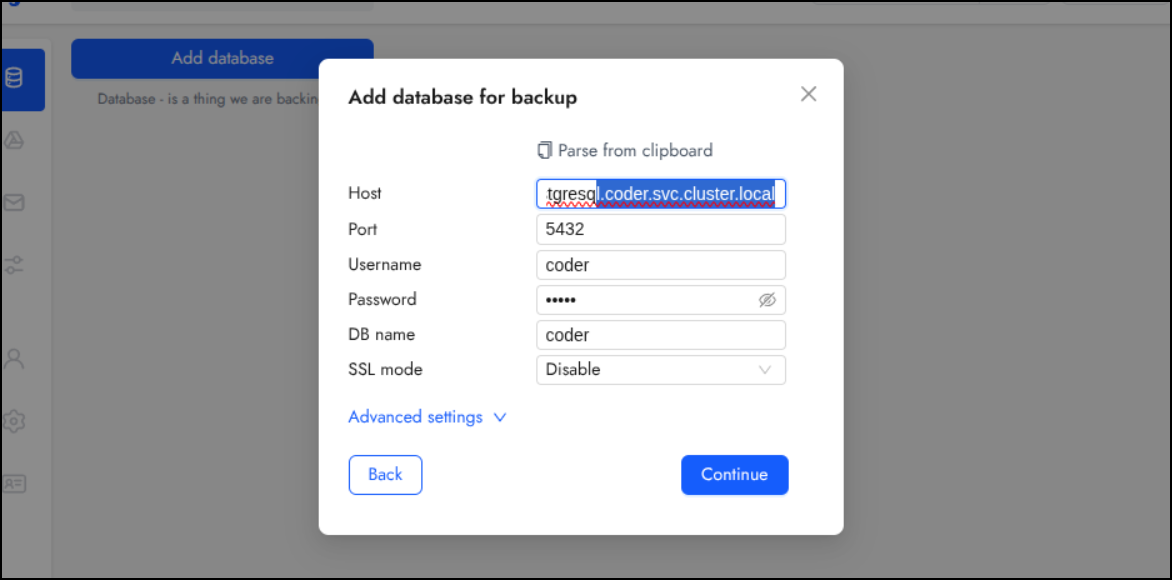
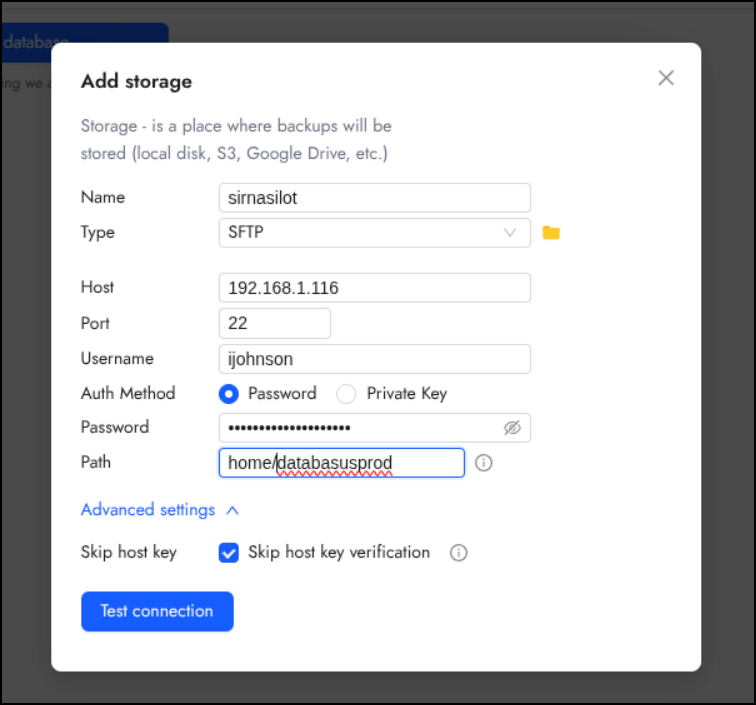
I added the same SFTP location, but used a new prefix of “databasusprod”
This time, for a notifier, I’ll make a proper discord webhook bot
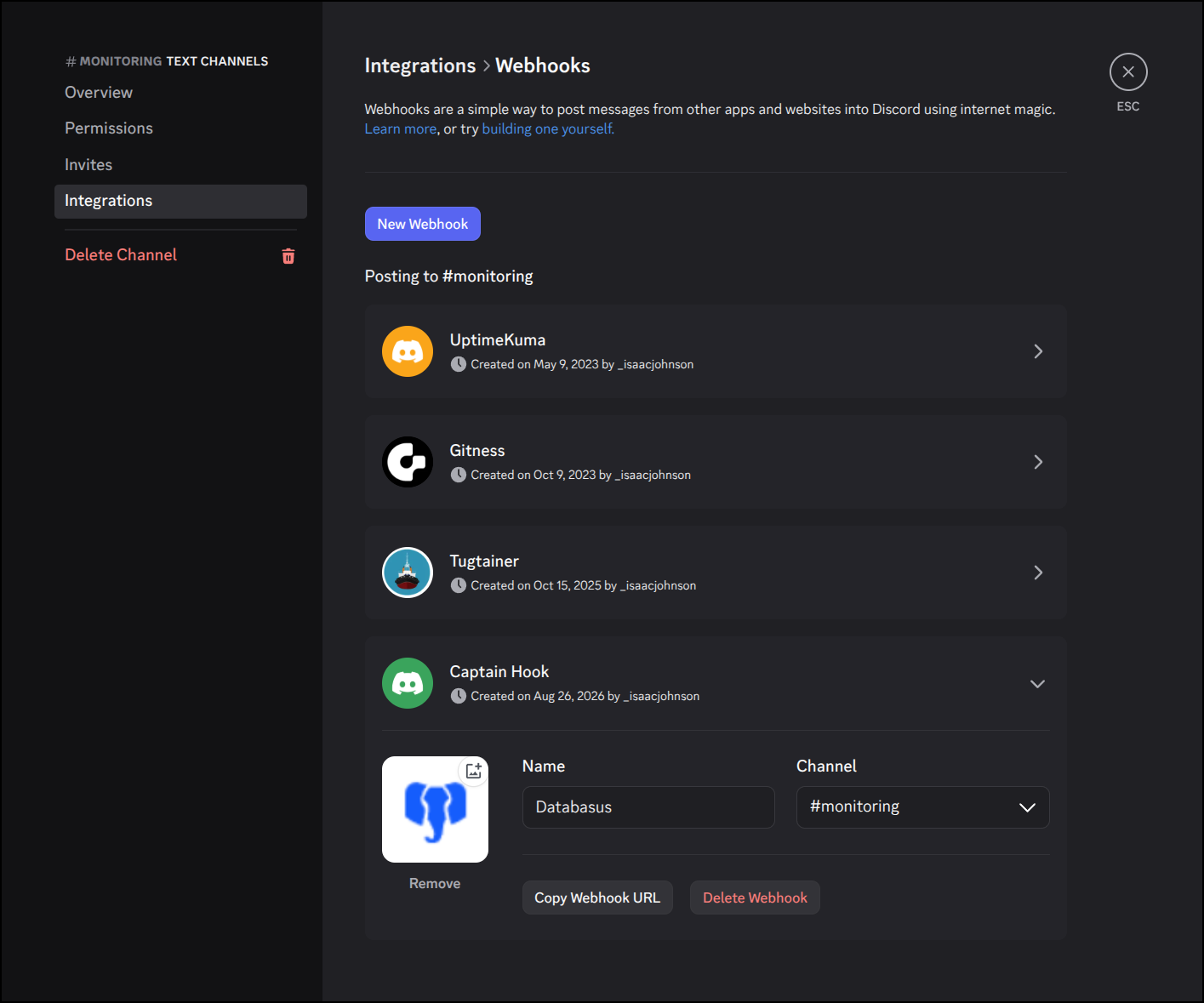
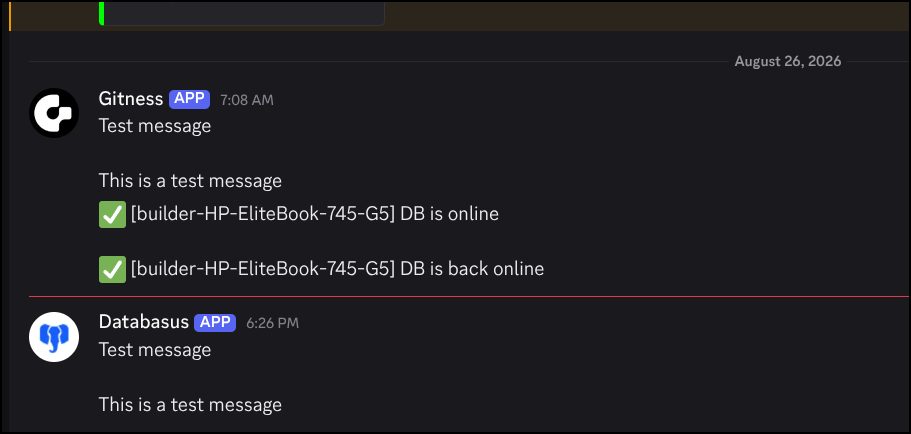
which looks a bit better than re-using the Gitness Webhook URL
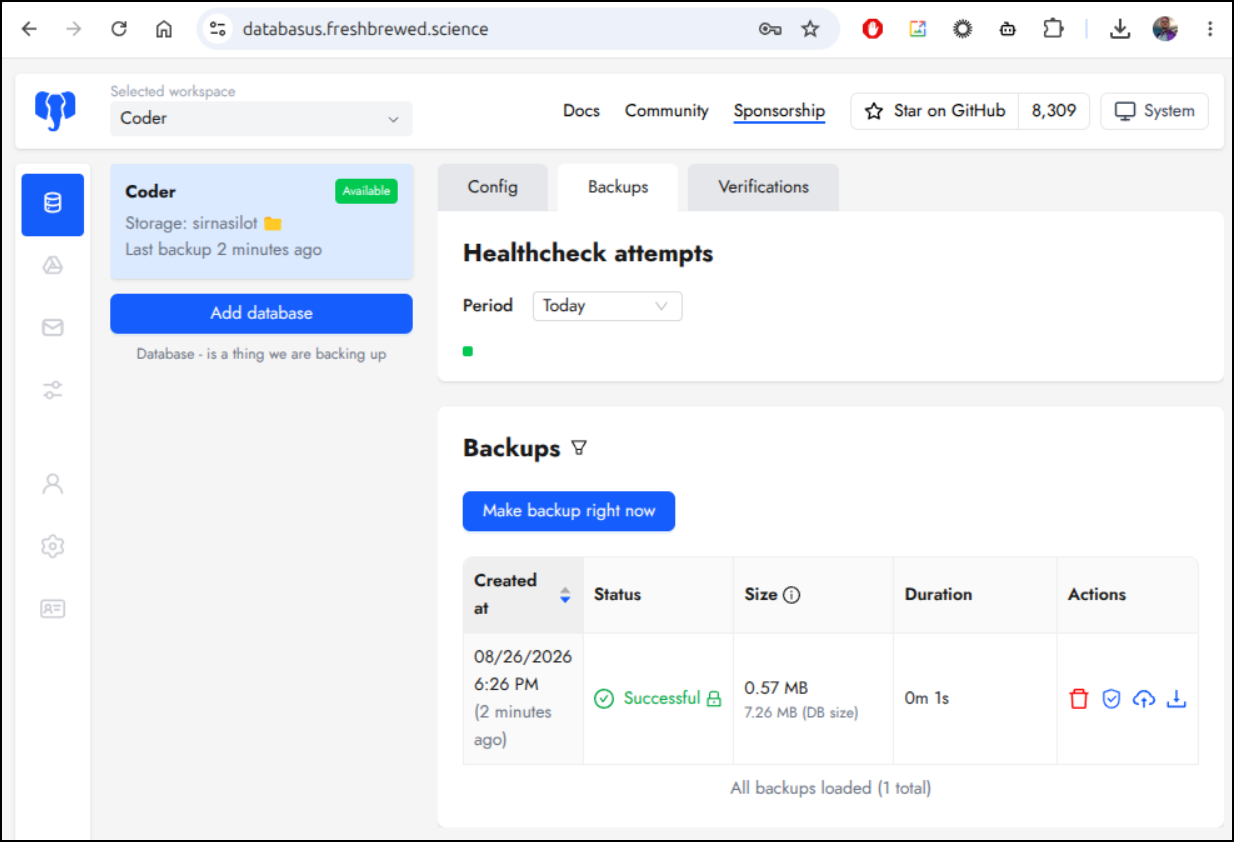
I can now see the backup was created locally
AWS S3
let’s use AWS as well this time for backups
I’ll create a new S3 bucket
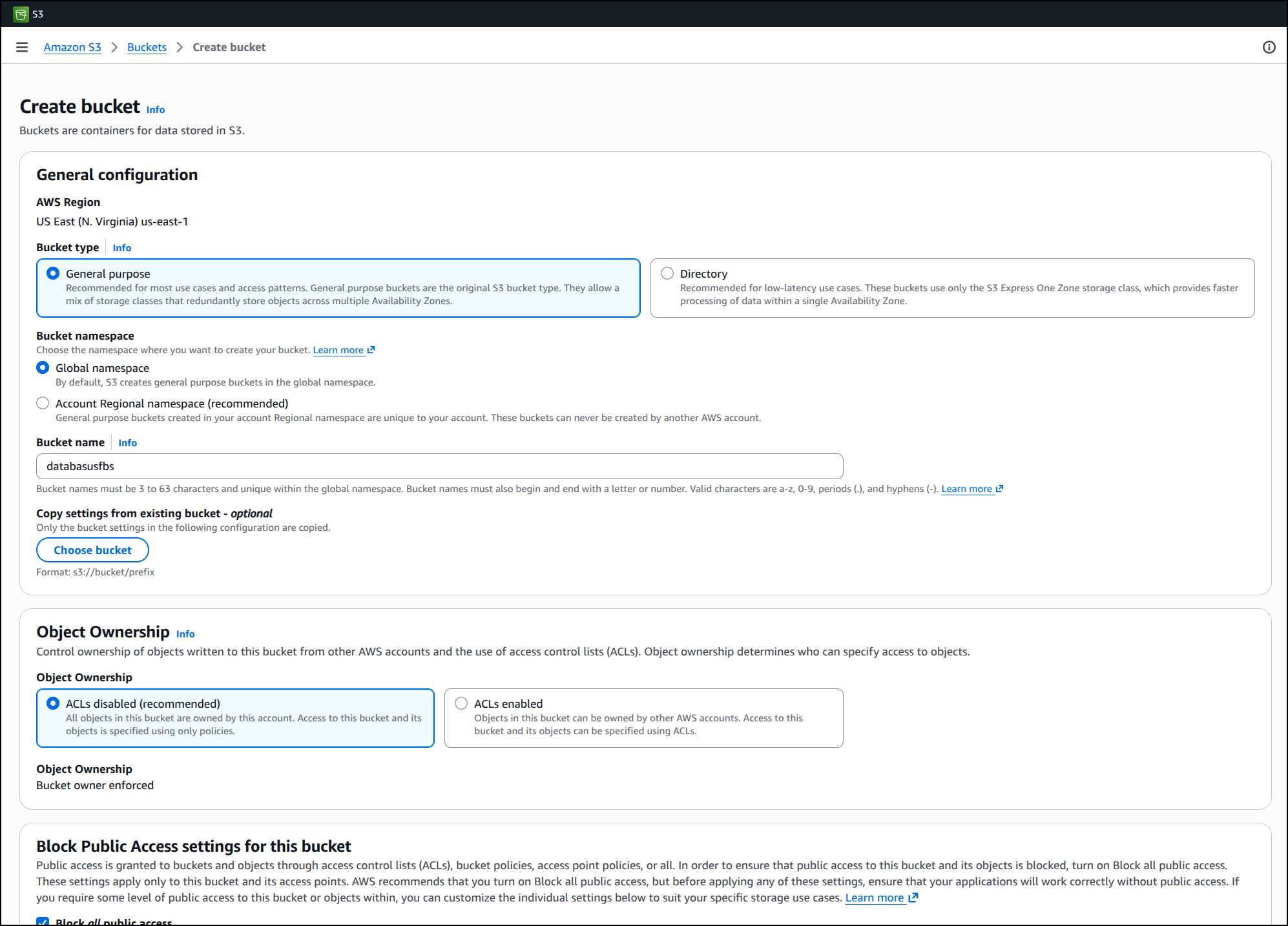
Let’s now create an SA user for Databasus with more narrow permissions - just accessing this bucket
$ aws iam create-user --user-name databasussa
{
    "User": {
        "Path": "/",
        "UserName": "databasussa",
        "UserId": "AIDARMVOGITWKVYMDWOUB",
        "Arn": "arn:aws:iam::095928337644:user/databasussa",
        "CreateDate": "2026-08-26T23:36:19+00:00"
    }
}
Next, let’s allow this IAM user to access just this bucket
$ vi databasus-policy.json
$ cat databasus-policy.json
{
  "Version": "2012-10-17",
  "Statement": [
    {
      "Effect": "Allow",
      "Action": "s3:*",
      "Resource": [
        "arn:aws:s3:::databasusfbs",
        "arn:aws:s3:::databasusfbs/*"
      ]
    }
  ]
}
Apply it to our user
$ aws iam put-user-policy \
  --user-name databasussa \
  --policy-name DatabasusS3FullAccess \
  --policy-document file://databasus-policy.json
Lastly, create the access key
$ aws iam create-access-key --user-name databasussa
{
    "AccessKey": {
        "UserName": "databasussa",
        "AccessKeyId": "AKIAXXXXXXXXXXXXXXXX",
        "Status": "Active",
        "SecretAccessKey": "xxxxxxxxxxxxxxxxxxxxxxxxxxxxxxxxxxxxxxxx",
        "CreateDate": "2026-08-27T00:32:53+00:00"
    }
}
Since I used the web UI, I assumed I had a global bucket (us-east-1) but just to be sure:
$ aws s3api get-bucket-location --bucket databasusfbs
{
    "LocationConstraint": null
}
null means we use “us-east-1” for the region
MariaDB / MySql
We showed PostgreSQL, but what about MariaDB/MySQL?
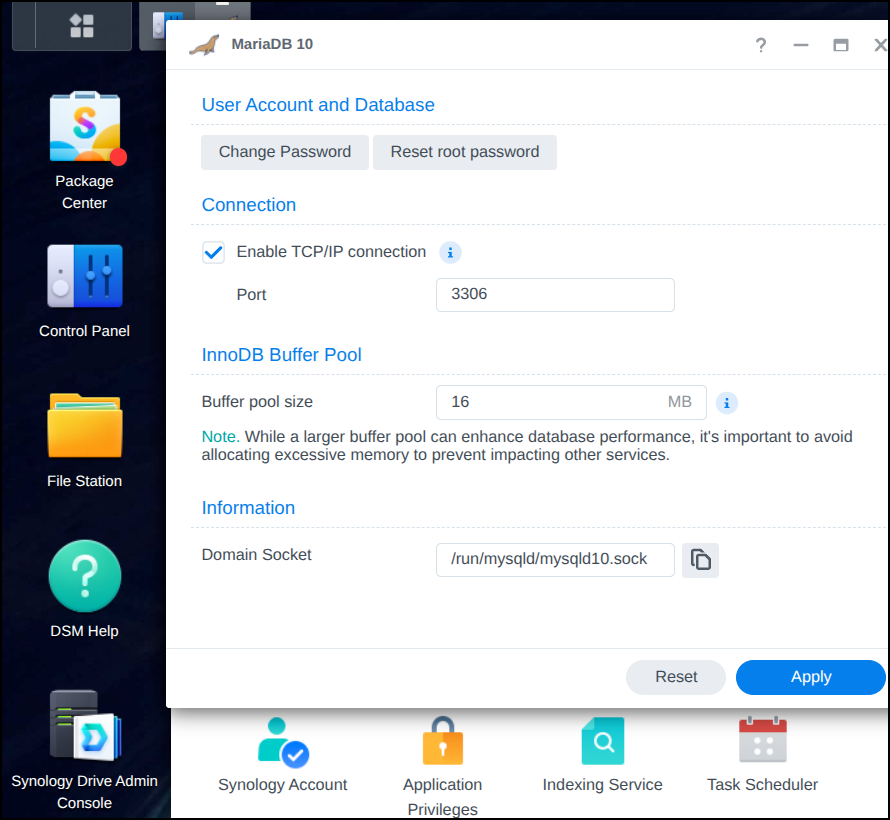
You can see I have MariaDB 10 running on my NAS
I can now add a connection string for the onedev user
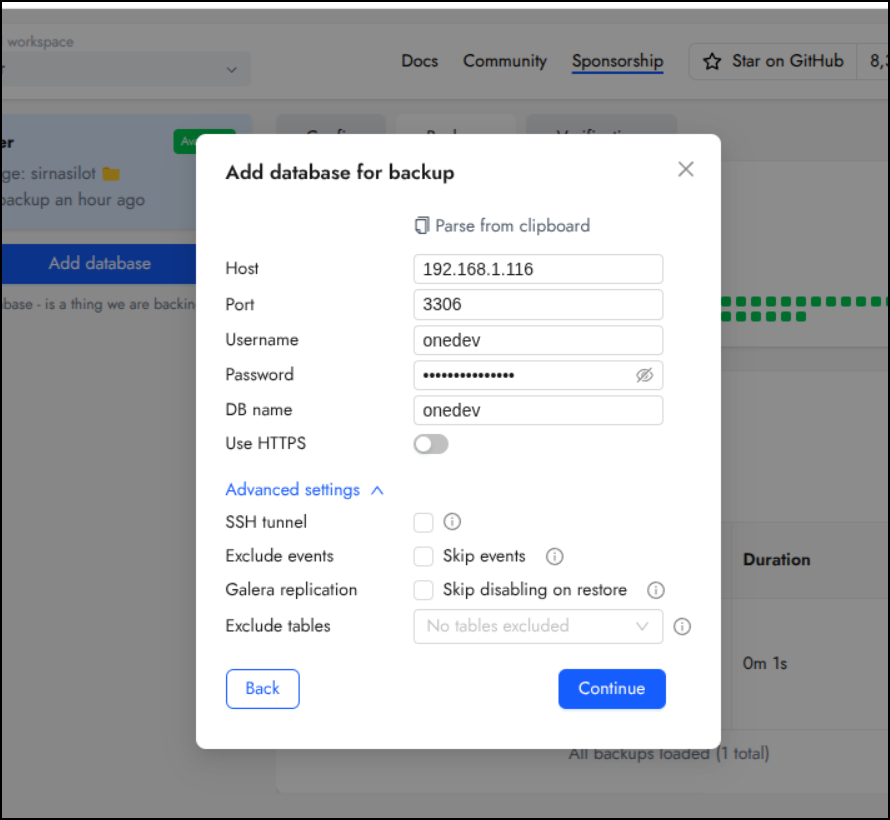
Since this is an old database that rarely changes, let’s set the backups for monthly to S3
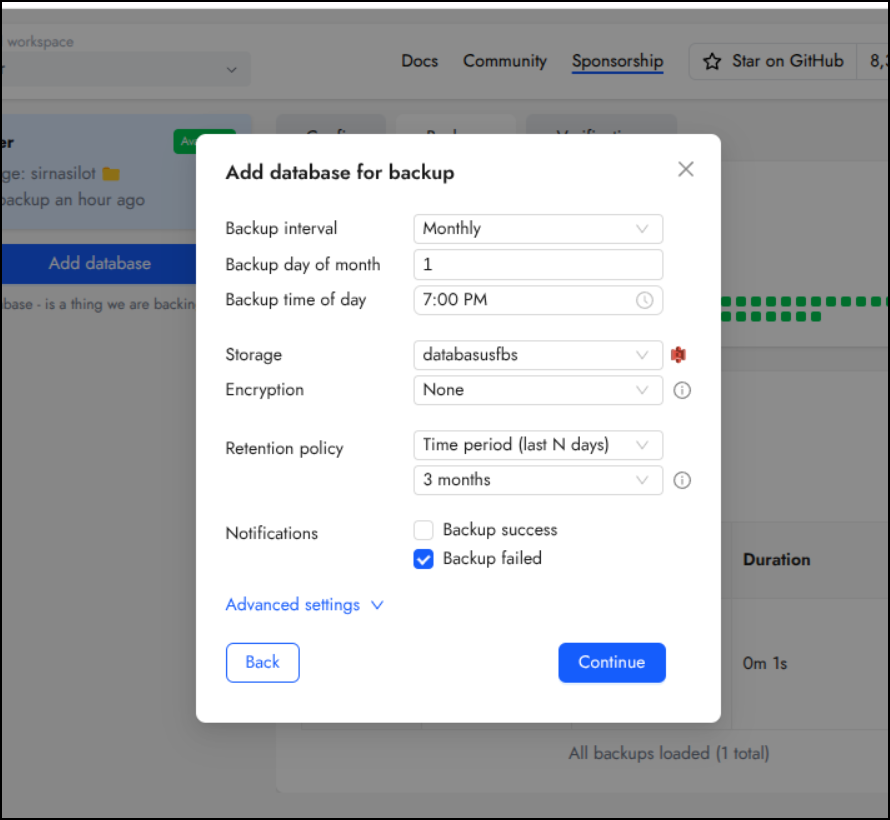
I can now see that was successful
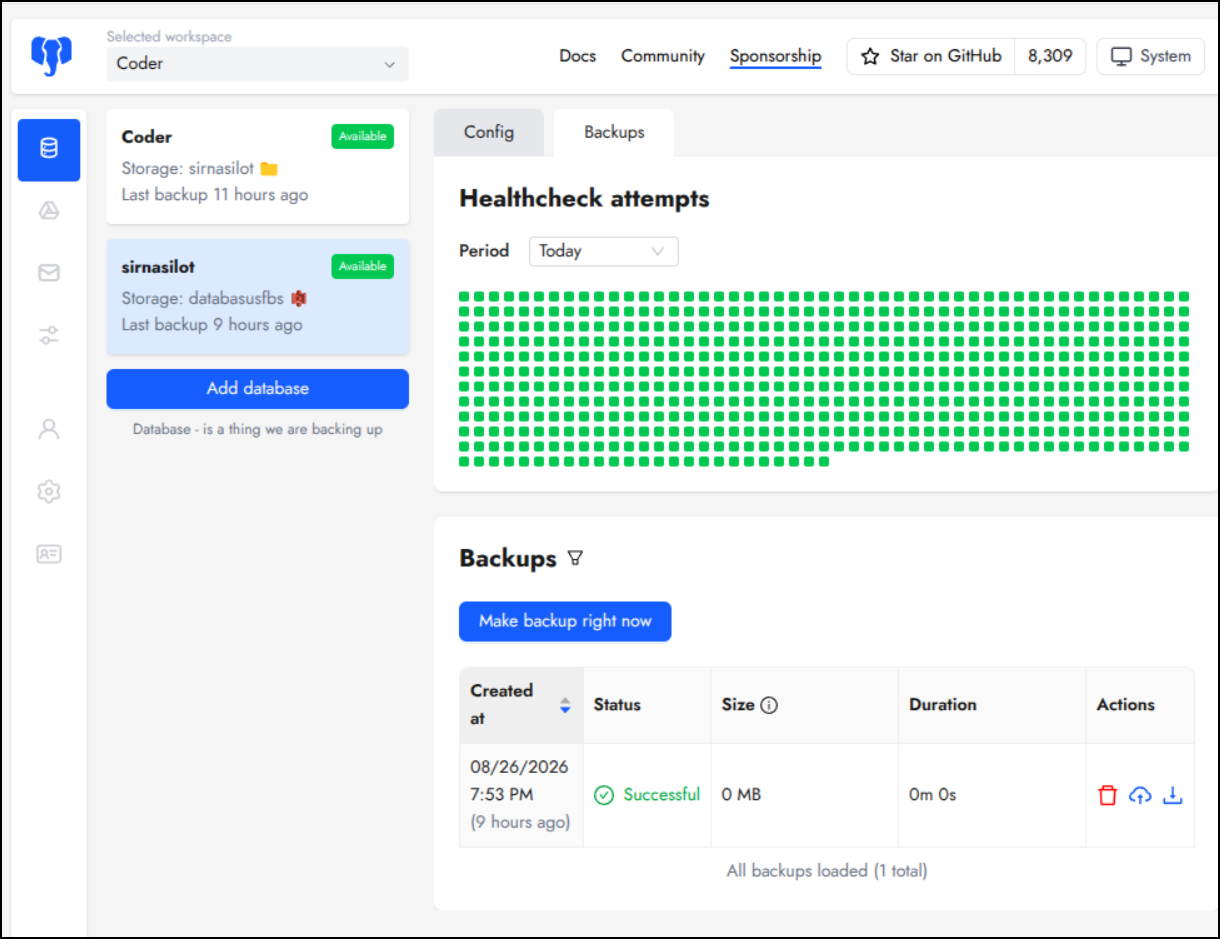
A database that has more regular updates is my Forgejo DB.
Here I’ll set it for dailies
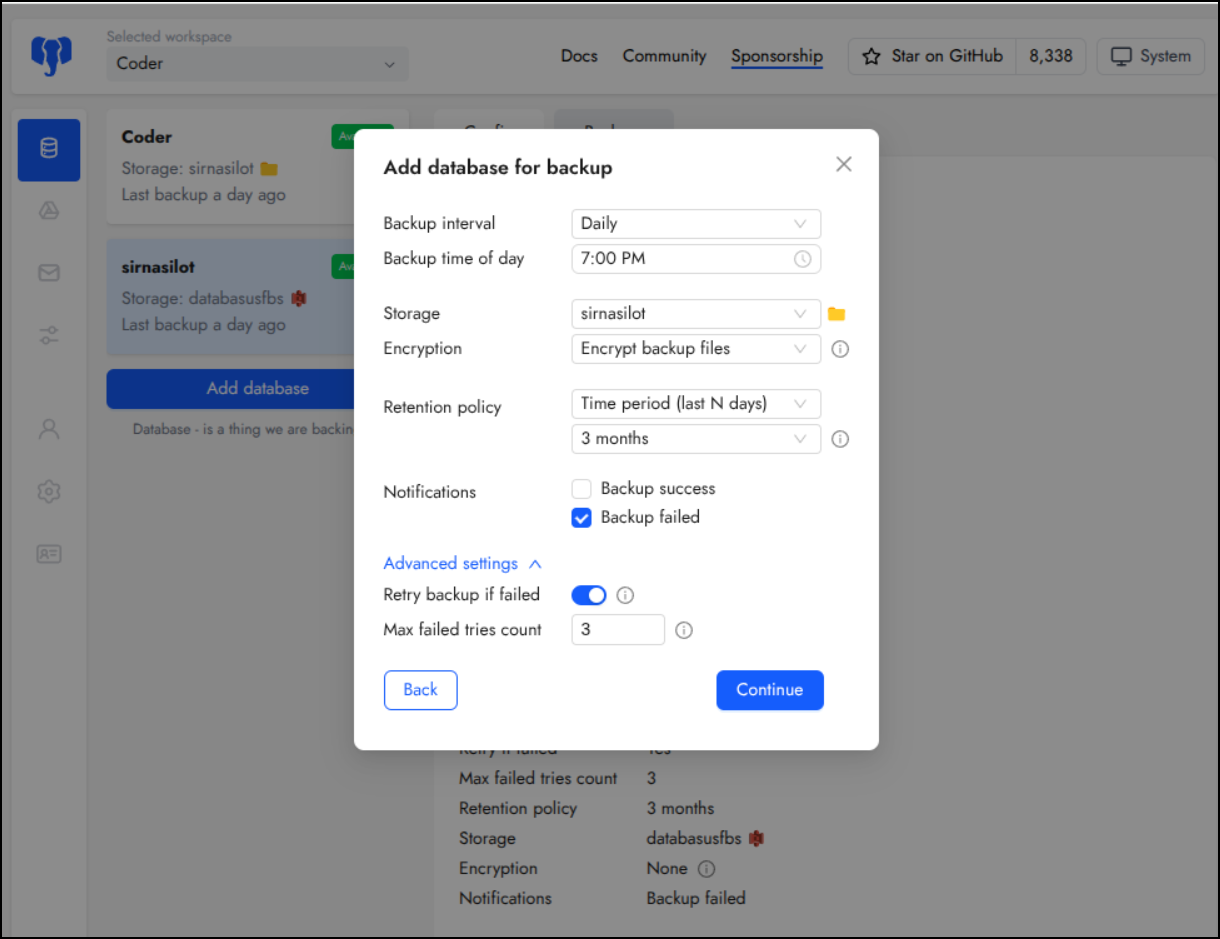
Because I really want a few backups for this DB, I’ll also sent it up to Azure
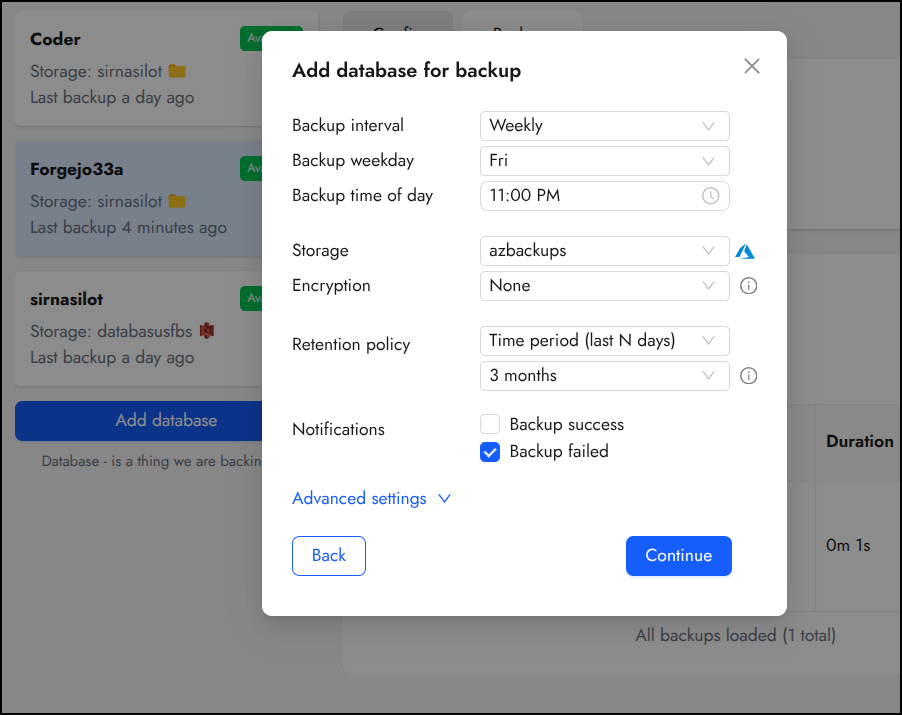
And S3
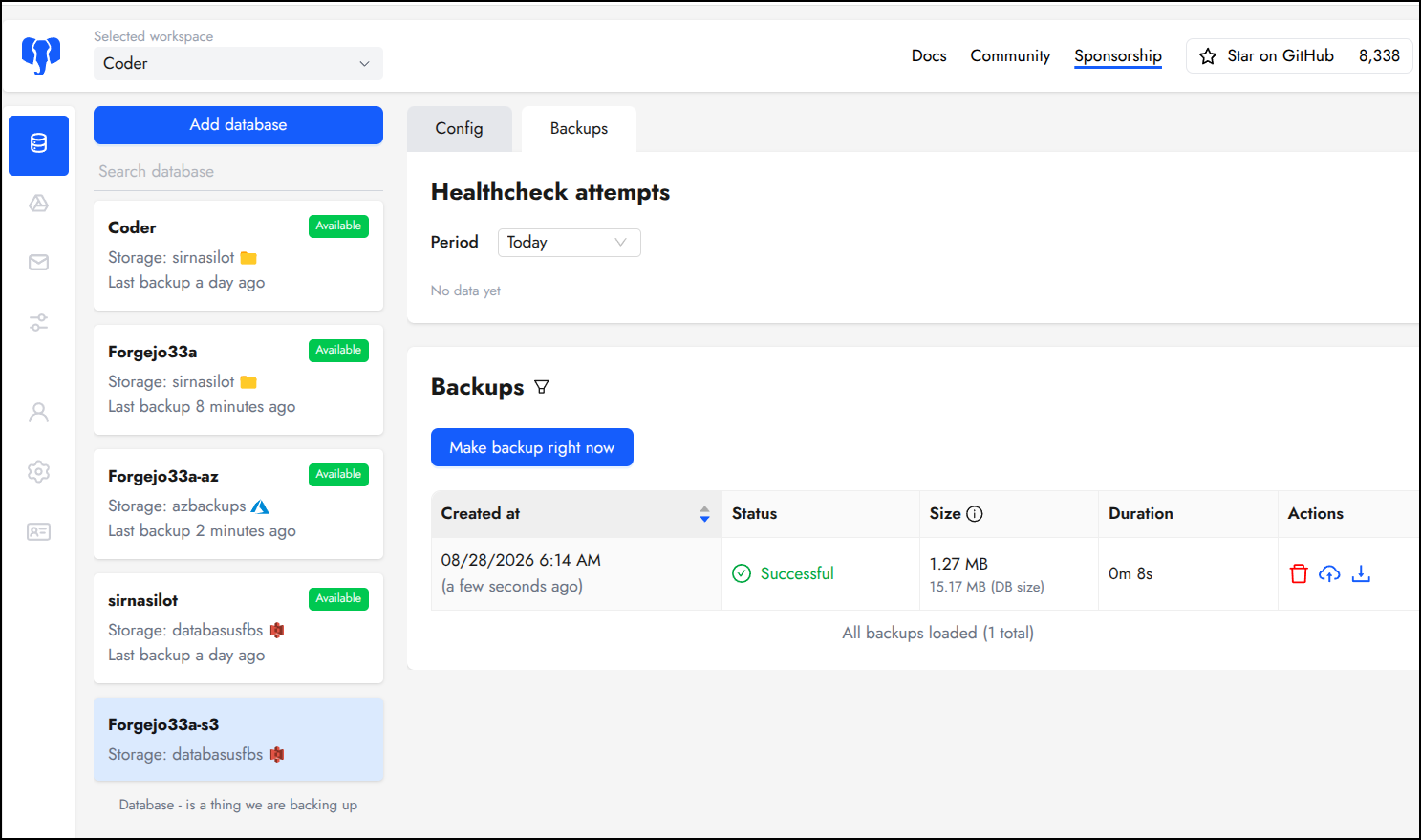
Lastly, I thought it might be a good idea to backup the helm values just in case into the cloud.
Both in Azure
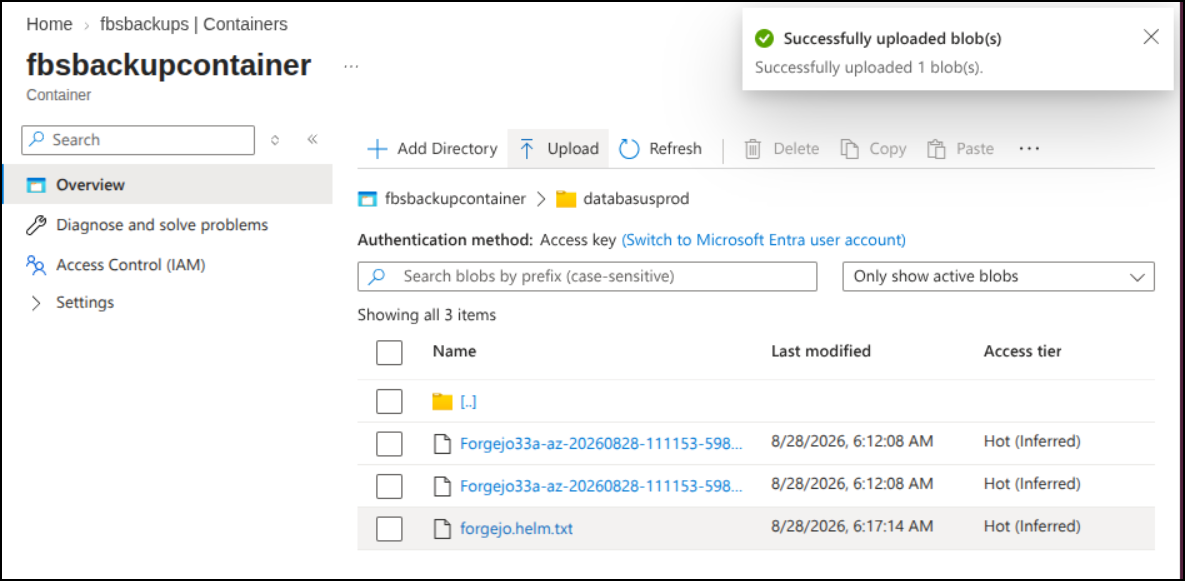
and S3
$ aws s3 cp ~/Documents/forgejo.helm.txt s3://databasusfbs/databasusprod/forgejo.helm.txt
upload: ../../Documents/forgejo.helm.txt to s3://databasusfbs/databasusprod/forgejo.helm.txt
That text has some notes on which container image, the helm values and helm chart version.
With that and the database, I should be able to restore Forgejo (database) from a full on crash.
Data (PVC) backups
So this old instance used local-path storage in k3s. Which is simple, but fundamentally is dangerous since it lives on a node
We can see my PVCs and Volumes in the namespace
$ kubectl get pvc -n forgejo
NAME                                      STATUS   VOLUME                                     CAPACITY   ACCESS MODES   STORAGECLASS   VOLUMEATTRIBUTESCLASS   AGE
act-runner-pvc                            Bound    pvc-3def9104-8ab1-4384-9c67-ca9492fe0410   1Gi        RWO            local-path     <unset>                 2y176d
data-forgejo-postgresql-ha-postgresql-0   Bound    pvc-84818992-e5f7-4d68-8901-b9465b49effb   8Gi        RWO            local-path     <unset>                 2y175d
data-forgejo-postgresql-ha-postgresql-1   Bound    pvc-6d5c0071-89df-4c62-a2cd-1e20e4c6efe4   8Gi        RWO            local-path     <unset>                 2y175d
data-forgejo-postgresql-ha-postgresql-2   Bound    pvc-b086053e-e604-41ce-be1e-727dd2cd0f25   8Gi        RWO            local-path     <unset>                 2y175d
gitea-shared-storage                      Bound    pvc-eb214297-2455-4984-82d6-c446c6c4e134   10Gi       RWO            local-path     <unset>                 2y175d
redis-data-forgejo-redis-cluster-0        Bound    pvc-1a00df06-f22b-4858-b84f-98af2700d5e7   8Gi        RWO            local-path     <unset>                 2y175d
redis-data-forgejo-redis-cluster-1        Bound    pvc-456925e6-b0c7-4a14-b11a-c5cd7073802b   8Gi        RWO            local-path     <unset>                 2y175d
redis-data-forgejo-redis-cluster-2        Bound    pvc-17ad0cc7-fdf9-4fc1-911e-774515dd996b   8Gi        RWO            local-path     <unset>                 2y175d
and then figure out which host holds that ‘gitea-shared-storage’ volume:
$ kubectl get pvc -n forgejo gitea-shared-storage
NAME                   STATUS   VOLUME                                     CAPACITY   ACCESS MODES   STORAGECLASS   VOLUMEATTRIBUTESCLASS   AGE
gitea-shared-storage   Bound    pvc-eb214297-2455-4984-82d6-c446c6c4e134   10Gi       RWO            local-path     <unset>                 2y175d
builder@bosgamerz9:~/Workspaces/GotifyMe$ kubectl describe pv pvc-eb214297-2455-4984-82d6-c446c6c4e134
Name:              pvc-eb214297-2455-4984-82d6-c446c6c4e134
Labels:            <none>
Annotations:       local.path.provisioner/selected-node: hp-hp-elitebook-850-g2
                   pv.kubernetes.io/provisioned-by: rancher.io/local-path
Finalizers:        [kubernetes.io/pv-protection]
StorageClass:      local-path
Status:            Bound
Claim:             forgejo/gitea-shared-storage
Reclaim Policy:    Delete
Access Modes:      RWO
VolumeMode:        Filesystem
Capacity:          10Gi
Node Affinity:
  Required Terms:
    Term 0:        kubernetes.io/hostname in [hp-hp-elitebook-850-g2]
Message:
Source:
    Type:          HostPath (bare host directory volume)
    Path:          /var/lib/rancher/k3s/storage/pvc-eb214297-2455-4984-82d6-c446c6c4e134_forgejo_gitea-shared-storage
    HostPathType:  DirectoryOrCreate
Events:            <none>
i double checked the IP for that ‘hp-hp-elitebook-850-g2’ machine
$ kubectl get nodes hp-hp-elitebook-850-g2 -o yaml | grep 192
    alpha.kubernetes.io/provided-node-ip: 192.168.1.57
Then hoped in there to see the files that are really in that PVC:
hp@hp-HP-EliteBook-850-G2:~$ sudo su -
[sudo] password for hp:
root@hp-HP-EliteBook-850-G2:~# cd /var/lib/rancher/k3s/storage/pvc-eb214297-2455-4984-82d6-c446c6c4e134_forgejo_gitea-shared-storage
root@hp-HP-EliteBook-850-G2:/var/lib/rancher/k3s/storage/pvc-eb214297-2455-4984-82d6-c446c6c4e134_forgejo_gitea-shared-storage# ls
actions_artifacts  actions_log  attachments  avatars  git  gitea  home  jwt  packages  repo-archive  repo-avatars  ssh  tmp
I noted I already had a backup mountpoint set for PSql backups on that host
# cat /etc/fstab | grep backups
192.168.1.129:/volume1/postgres-prod-dbbackups  /mnt/psqlbackups nfs    auto,nofail,noatime,nolock,intr,tcp,actimeo=1800       0       0
I figured I would do a quick test to see if I could touch a file
oot@hp-HP-EliteBook-850-G2:/var/lib/rancher/k3s/storage/pvc-eb214297-2455-4984-82d6-c446c6c4e134_forgejo_gitea-shared-storage# ls /mnt/psqlbackups/
 2023-05-21  '#recycle'   test
root@hp-HP-EliteBook-850-G2:/var/lib/rancher/k3s/storage/pvc-eb214297-2455-4984-82d6-c446c6c4e134_forgejo_gitea-shared-storage# touch /mnt/psqlbackups/test.txt
root@hp-HP-EliteBook-850-G2:/var/lib/rancher/k3s/storage/pvc-eb214297-2455-4984-82d6-c446c6c4e134_forgejo_gitea-shared-storage# ls /mnt/psqlbackups/
 2023-05-21  '#recycle'   test   test.txt
So I know that NFS mount is functional.
Here is a bash script that can backup the folder to our NFS mount
root@hp-HP-EliteBook-850-G2:~# cat /usr/local/bin/backup-forgejo-pvc.sh
#!/bin/bash

# Define variables
SOURCE_BASE="/var/lib/rancher/k3s/storage"
SOURCE_DIR="pvc-eb214297-2455-4984-82d6-c446c6c4e134_forgejo_gitea-shared-storage"
DEST_DIR="/mnt/psqlbackups"
DATESTAMP=$(date +"%Y%m%d_%H%M%S")
DEST_FILE="${DEST_DIR}/forgejo-prod-pvc-${DATESTAMP}.tgz"

# Ensure the destination directory exists
mkdir -p "$DEST_DIR"

# Create the tar archive
# Using -C changes to the base directory so the tarball doesn't contain the full absolute path
tar -czf "$DEST_FILE" -C "$SOURCE_BASE" "$SOURCE_DIR"

# Optional: Log the result
if [ $? -eq 0 ]; then
    echo "Backup completed successfully: $DEST_FILE"
else
    echo "Backup failed!" >&2
    exit 1
fi
The only issue I might modify is that it compresses into the NFS destination which, as you know, isn’t the fastest. It might be better to tgz to a /tmp folder, copy just that compressed tgz file (one single write operation) then remove the tmp file.
Even though the Kubernetes request was for 10Gb, we clearly exceed that already
root@hp-HP-EliteBook-850-G2:/var/lib/rancher/k3s/storage# du -chs ./pvc-eb214297-2455-4984-82d6-c446c6c4e134_forgejo_gitea-shared-storage
15G     ./pvc-eb214297-2455-4984-82d6-c446c6c4e134_forgejo_gitea-shared-storage
15G     total
i did a test which took a good 15 minutes on this old hardware
root@hp-HP-EliteBook-850-G2:~# /usr/local/bin/backup-forgejo-pvc.sh >> /var/log/forgejo-pvc-backup.log 2>&1
But did create a backup
ijohnson@SassyNassy:/volume1/postgres-prod-dbbackups$ ls -ltrah
total 15G
drwxrwxrwx+  2 root  root  4.0K May 21  2023 '#recycle'
-rwxrwxrwx+  1 admin users    5 May 21  2023  test
drwxrwxrwx+  2 admin users 4.0K May 21  2023  2023-05-21
drwxrwxrwx+  4 root  root  4.0K Sep 28  2025  @eaDir
drwxr-xr-x  45 root  root  4.0K Apr 17 02:51  ..
-rwxrwxrwx+  1 admin users    0 Aug 28 04:28  test.txt
drwxrwxrwx+  5 root  root  4.0K Aug 28 04:32  .
-rwxrwxrwx+  1 admin users  15G Aug 28 04:42  forgejo-prod-pvc-20260828_063243.tgz
Since it’s a bit much, I decided to set the crontab to be weekly
root@hp-HP-EliteBook-850-G2:~# crontab -l
# Edit this file to introduce tasks to be run by cron.
#
# Each task to run has to be defined through a single line
# indicating with different fields when the task will be run
# and what command to run for the task
#
# To define the time you can provide concrete values for
# minute (m), hour (h), day of month (dom), month (mon),
# and day of week (dow) or use '*' in these fields (for 'any').
#
# Notice that tasks will be started based on the cron's system
# daemon's notion of time and timezones.
#
# Output of the crontab jobs (including errors) is sent through
# email to the user the crontab file belongs to (unless redirected).
#
# For example, you can run a backup of all your user accounts
# at 5 a.m every week with:
# 0 5 * * 1 tar -zcf /var/backups/home.tgz /home/
#
# For more information see the manual pages of crontab(5) and cron(8)
#
# m h  dom mon dow   command
0 1 * * 1 /usr/local/bin/backup-forgejo-pvc.sh >> /var/log/forgejo-pvc-backup.log 2>&1
CTRoadMap
As stated at the start, CTRoadMap describes itself as “Homelab Server Network Diagram & Documentation for Mapping Function Topology”. I might suggest it is a bit like a simple web-based Visio.
Let’s first try launching it with Docker
builder@bosgamerz9:~/Workspaces$ git clone https://github.com/NoobCity99/CTRoadmap.git
Cloning into 'CTRoadmap'...
remote: Enumerating objects: 791, done.
remote: Counting objects: 100% (406/406), done.
remote: Compressing objects: 100% (237/237), done.
remote: Total 791 (delta 225), reused 319 (delta 152), pack-reused 385 (from 1)
Receiving objects: 100% (791/791), 13.91 MiB | 23.82 MiB/s, done.
Resolving deltas: 100% (440/440), done.
builder@bosgamerz9:~/Workspaces$ cd CTRoadmap/
builder@bosgamerz9:~/Workspaces/CTRoadmap$ docker compose up
[+] Building 11.6s (22/22) FINISHED
 => [internal] load local bake definitions                                                                                                   0.0s
 => => reading from stdin 536B                                                                                                               0.0s
 => [internal] load build definition from Dockerfile                                                                                         0.0s
 => => transferring dockerfile: 1.25kB                                                                                                       0.0s
 => [internal] load metadata for docker.io/library/node:22-alpine                                                                            0.9s
 => [internal] load metadata for docker.io/library/python:3.12-slim                                                                          0.9s
 => [internal] load .dockerignore                                                                                                            0.0s
 => => transferring context: 190B                                                                                                            0.0s
 => [stage-1 1/8] FROM docker.io/library/python:3.12-slim@sha256:229a2c5bfa27522db7815ea81f9bed70af17ccb9de9fc7ad142b1877b5830d36            1.5s
 => => resolve docker.io/library/python:3.12-slim@sha256:229a2c5bfa27522db7815ea81f9bed70af17ccb9de9fc7ad142b1877b5830d36                    0.0s
 => => sha256:26c307b5e35a59ce911f5fde5b9458120ec8734e831ea2da5649a9ad14abfd3d 29.78MB / 29.78MB                                             0.6s
 => => sha256:5a31db4cd47898e862a567028aa41f7a11d814cf69be6904173402a8b8eac5cb 1.29MB / 1.29MB                                               0.3s
 => => sha256:c85ad0bcaca895afa08053538ec1ea7642c7e9e05f5684d18e3627a2316ca8ae 12.11MB / 12.11MB                                             0.6s
 => => sha256:229a2c5bfa27522db7815ea81f9bed70af17ccb9de9fc7ad142b1877b5830d36 10.37kB / 10.37kB                                             0.0s
 => => sha256:d657ab0ade19f404a6ccc883ab399540de667aff751748ce23c07330c5a89e64 1.75kB / 1.75kB                                               0.0s
 => => sha256:54a0b2beae90fe14c2131f1e880e1388c9df77390bc260d7317e589765e064e8 5.64kB / 5.64kB                                               0.0s
 => => sha256:b3c7a9bdb4f2a30d0a1358438d1539c06b86da99135cfd9d92756863cc87ae18 249B / 249B                                                   0.4s
 => => extracting sha256:26c307b5e35a59ce911f5fde5b9458120ec8734e831ea2da5649a9ad14abfd3d                                                    0.5s
 => => extracting sha256:5a31db4cd47898e862a567028aa41f7a11d814cf69be6904173402a8b8eac5cb                                                    0.1s
 => => extracting sha256:c85ad0bcaca895afa08053538ec1ea7642c7e9e05f5684d18e3627a2316ca8ae                                                    0.2s
 => => extracting sha256:b3c7a9bdb4f2a30d0a1358438d1539c06b86da99135cfd9d92756863cc87ae18                                                    0.0s
 => [frontend-build 1/6] FROM docker.io/library/node:22-alpine@sha256:c610fcdfb1d5b4740dd70c284ed3cb16bb857e0f7166196e36a5501df7a3aa32       2.3s
 => => resolve docker.io/library/node:22-alpine@sha256:c610fcdfb1d5b4740dd70c284ed3cb16bb857e0f7166196e36a5501df7a3aa32                      0.0s
 => => sha256:c610fcdfb1d5b4740dd70c284ed3cb16bb857e0f7166196e36a5501df7a3aa32 6.41kB / 6.41kB                                               0.0s
 => => sha256:76789712cd1ae89a1225eac9077010d68987a423588042dac30446f502f1858c 1.72kB / 1.72kB                                               0.0s
 => => sha256:395425e54d98ebbd748d388685a0c2de151a30fa92fffc10ba30fa63f3db64d6 6.56kB / 6.56kB                                               0.0s
 => => sha256:efbef6f9e333972a10ca323e700496a64e7ddcc3a6725e6afbbae52e690f4a4a 50.33MB / 52.63MB                                            10.5s
 => => sha256:a2980c1fee17dfd6263234b253955e0e9d5f38d47c0e71c001139897134899d0 1.26MB / 1.26MB                                               0.8s
 => => sha256:16da5a6403776464b5bf551ef294de57da242eac594527ea551a46e7f76ac2d6 445B / 445B                                                   0.9s
 => => extracting sha256:efbef6f9e333972a10ca323e700496a64e7ddcc3a6725e6afbbae52e690f4a4a                                                    0.6s
 => => extracting sha256:a2980c1fee17dfd6263234b253955e0e9d5f38d47c0e71c001139897134899d0                                                    0.0s
 => => extracting sha256:16da5a6403776464b5bf551ef294de57da242eac594527ea551a46e7f76ac2d6                                                    0.0s
 => [internal] load build context                                                                                                            0.0s
 => => transferring context: 447.03kB                                                                                                        0.0s
 => [stage-1 2/8] WORKDIR /app                                                                                                               0.1s
 => [stage-1 3/8] COPY backend/requirements.txt ./backend/requirements.txt                                                                   0.0s
 => [stage-1 4/8] RUN pip install --no-cache-dir -r backend/requirements.txt                                                                 7.2s
 => [frontend-build 2/6] WORKDIR /app/frontend                                                                                               0.1s
 => [frontend-build 3/6] COPY frontend/package.json frontend/package-lock.json ./                                                            0.0s
 => [frontend-build 4/6] RUN npm ci                                                                                                          2.7s
 => [frontend-build 5/6] COPY frontend/ ./                                                                                                   0.0s
 => [frontend-build 6/6] RUN npm run build                                                                                                   5.1s
 => [stage-1 5/8] COPY backend ./backend                                                                                                     0.0s
 => [stage-1 6/8] COPY data ./data                                                                                                           0.0s
 => [stage-1 7/8] COPY exports ./exports                                                                                                     0.0s
 => [stage-1 8/8] COPY --from=frontend-build /app/frontend/dist ./frontend/dist                                                              0.0s
 => exporting to image                                                                                                                       0.1s
 => => exporting layers                                                                                                                      0.1s
 => => writing image sha256:711240775bdb3b34d7b207182a665ab684922c0aaf9b79773feaf6a9e68bb7b6                                                 0.0s
 => => naming to docker.io/library/ctroadmap-ctroadmap                                                                                       0.0s
 => resolving provenance for metadata file                                                                                                   0.0s
[+] up 3/3
 ✔ Image ctroadmap-ctroadmap Built                                                                                                           11.6s
 ✔ Network ctroadmap_default Created                                                                                                          0.0s
 ✔ Container ctroadmap       Created                                                                                                          0.0s
Attaching to ctroadmap
ctroadmap  | INFO:     Started server process [1]
ctroadmap  | INFO:     Waiting for application startup.
ctroadmap  | INFO:     Application startup complete.
ctroadmap  | INFO:     Uvicorn running on http://0.0.0.0:8088 (Press CTRL+C to quit)
The page loaded immediately:
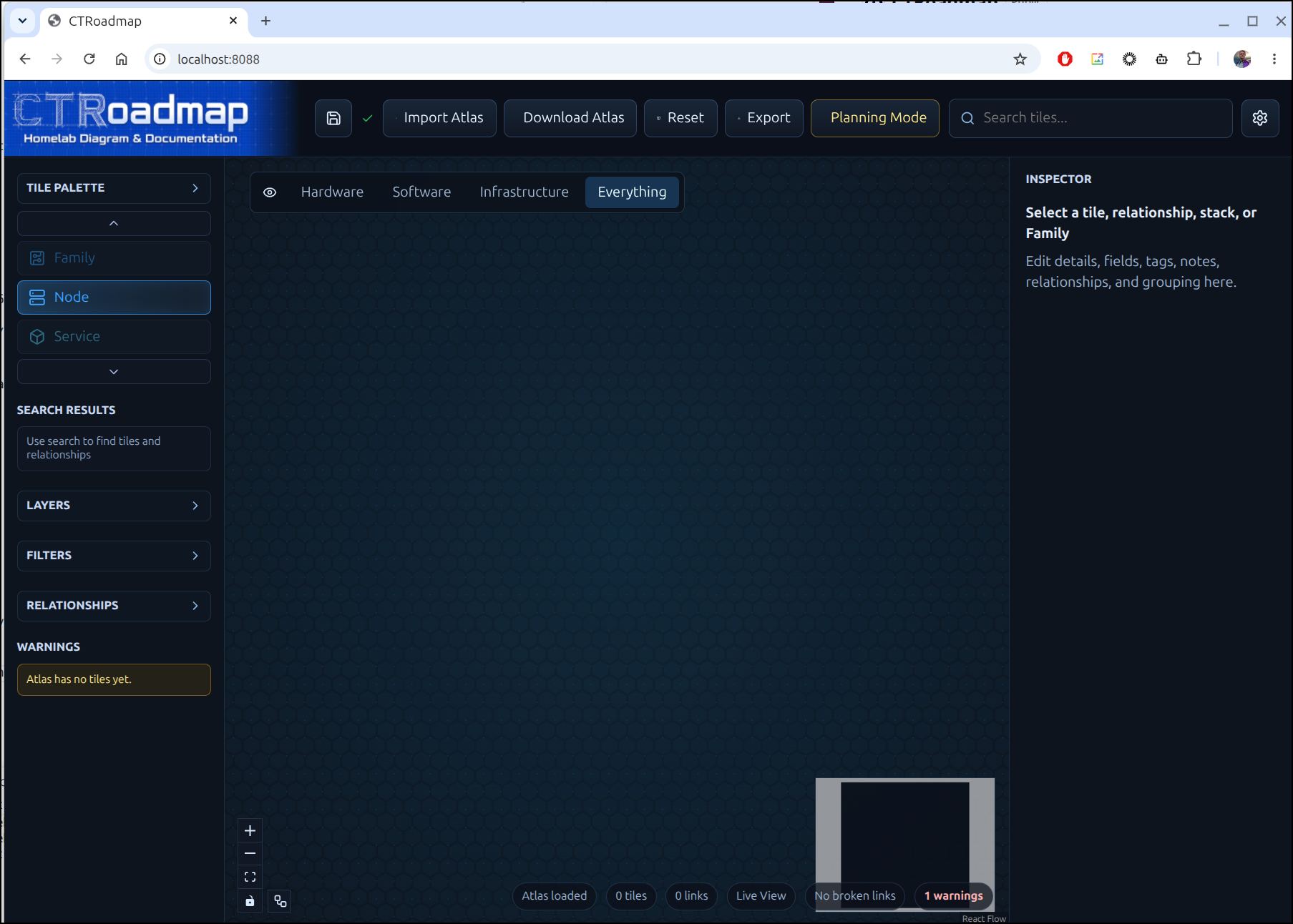
I can make new layers like homelab
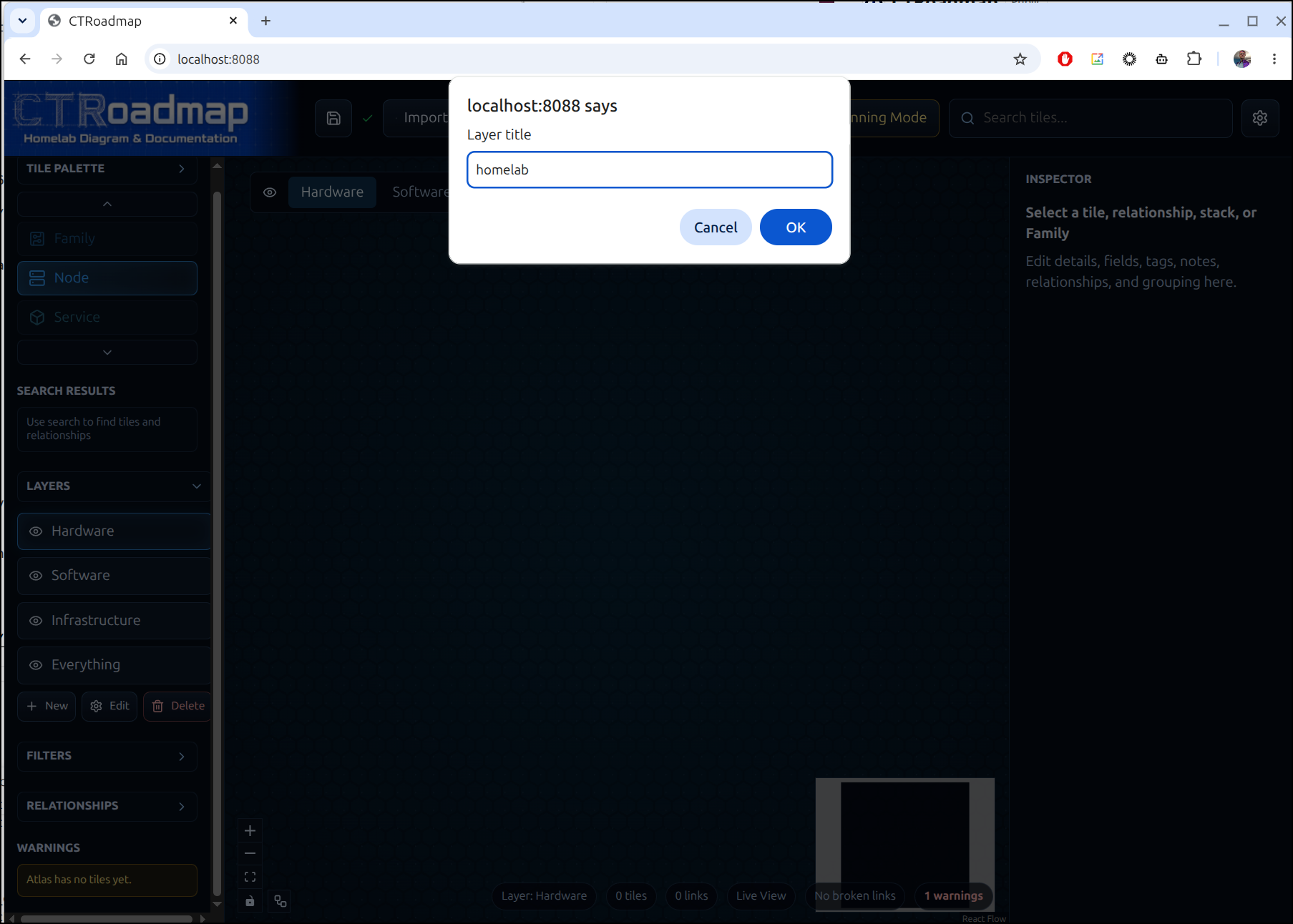
And then view them in layers
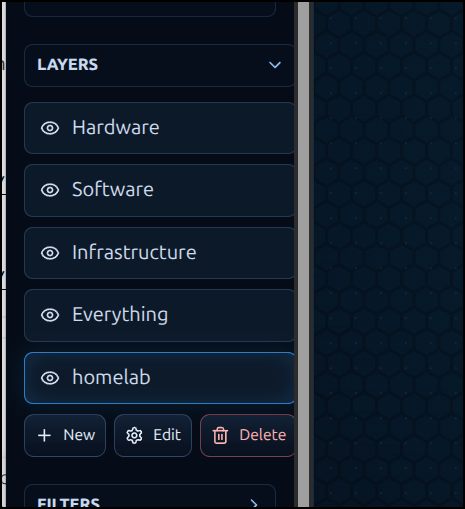
We just need to drag and drop nodes in to create new infra
Let’s see if we can create some basic mappings of my homelab
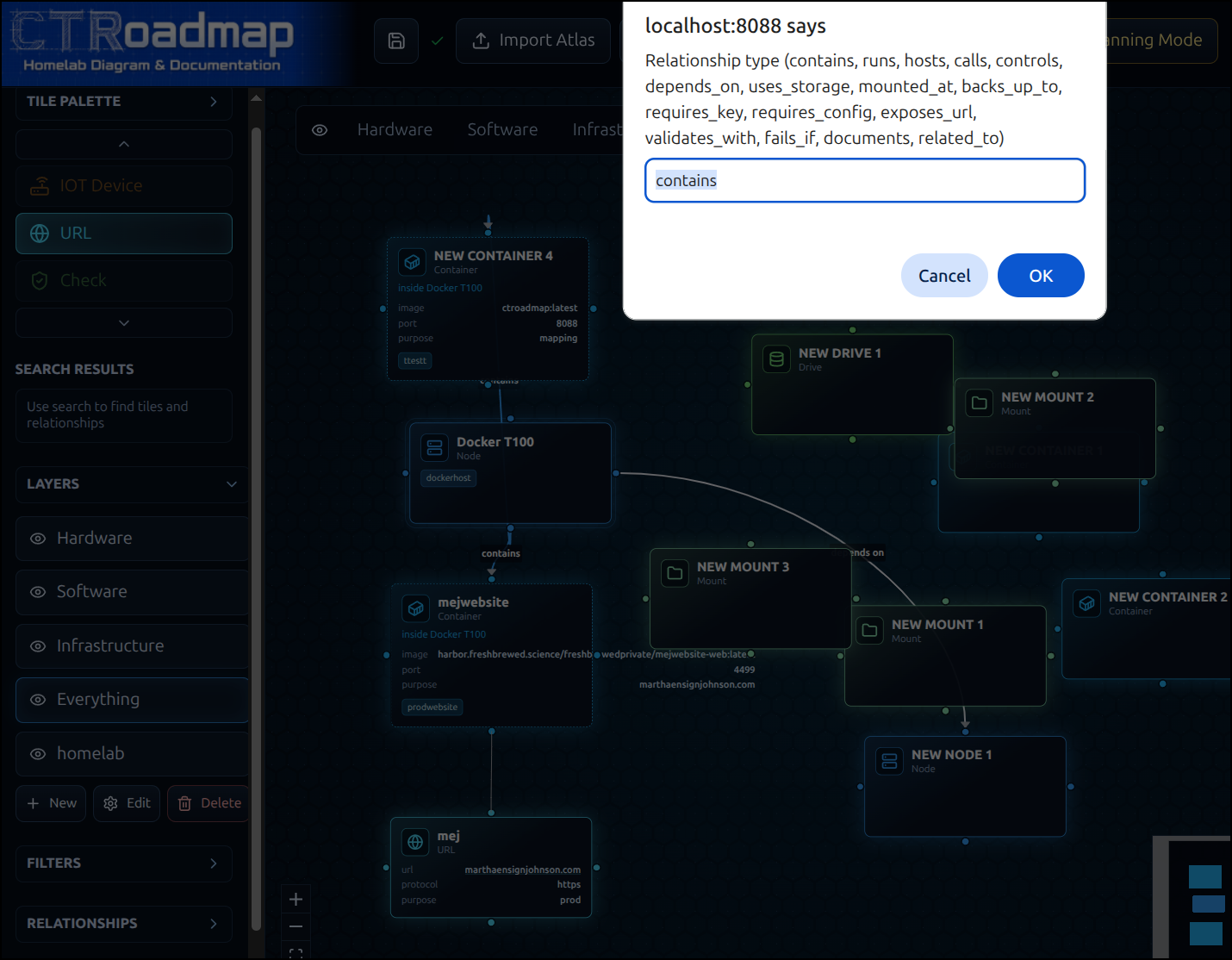
Some of the features could be improved such as link creation - which makes me hand type in from a displayed list:
Or the fact that on a larger display, the list of items to create is still limited to a small 3 shown pick list (would be a lot nicer to have that expand to fit the space)
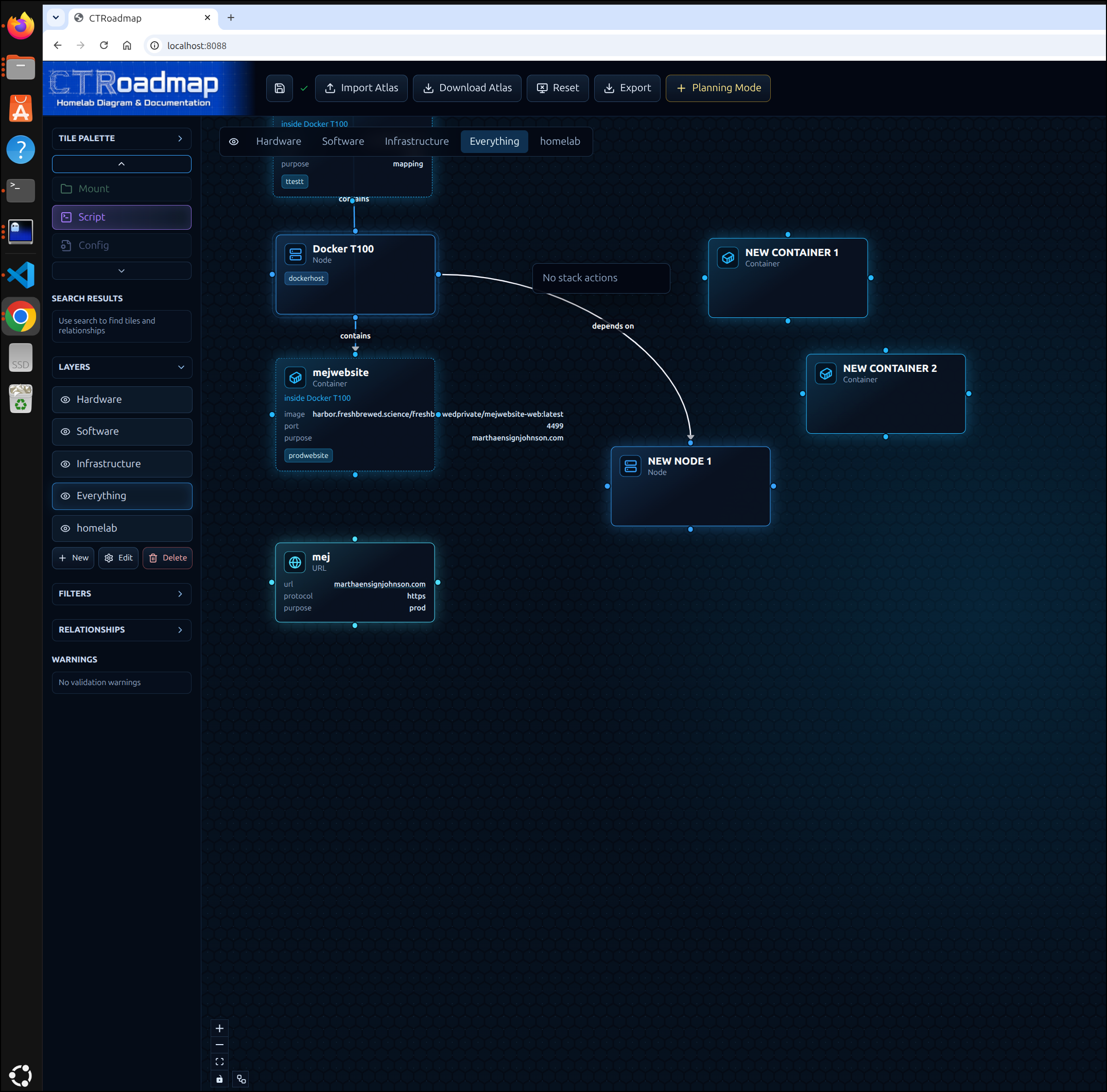
Once I have a reasonable diagram ready
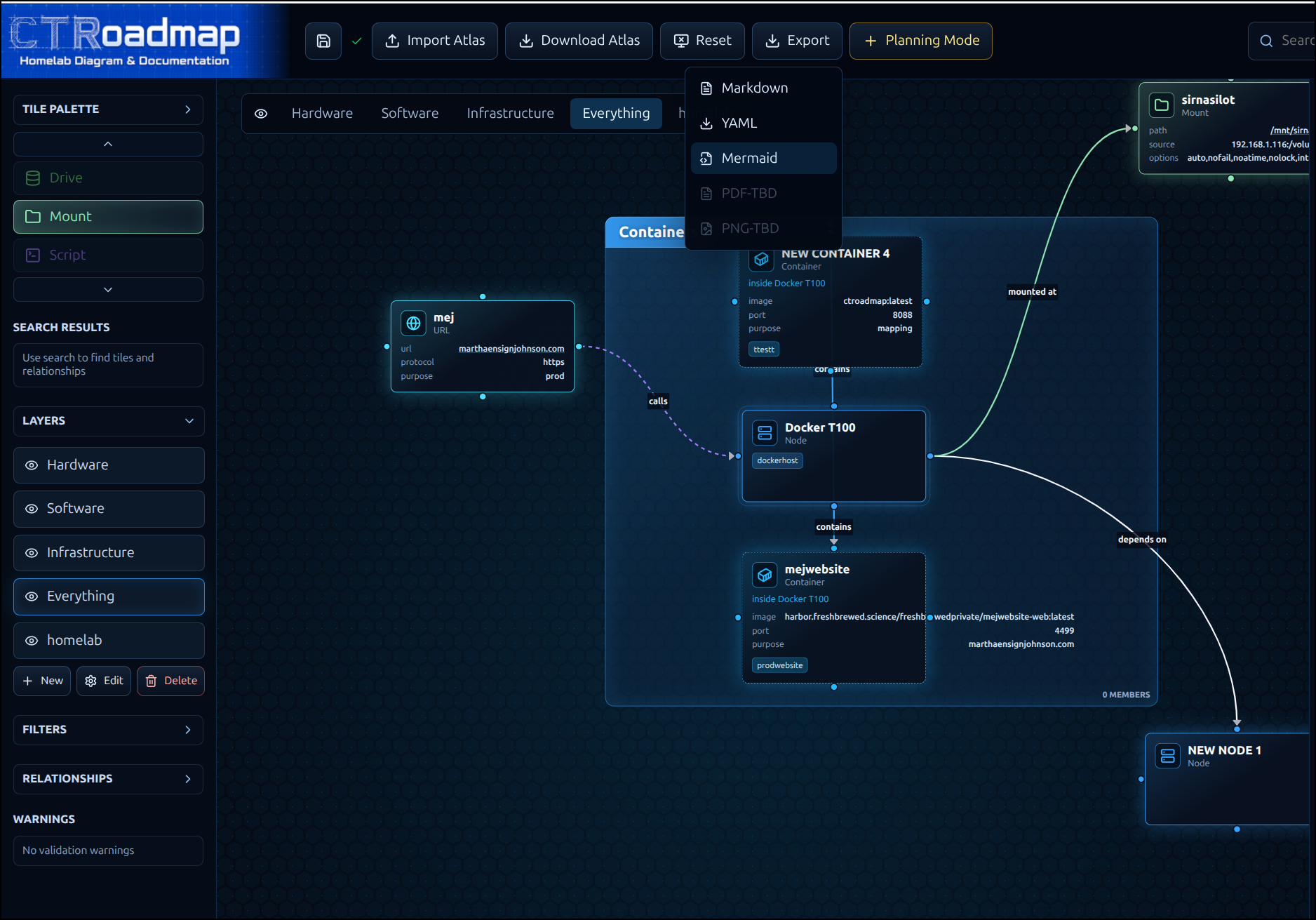
I can now export to Mermaid, markdown or YAML
Here is the Markdown output:
CTRoadmap Atlas
Local infrastructure atlas
Metadata
- Version: 0.1
- Name: CTRoadmap
- Updated At: 2026-08-10T12:24:29.113134+00:00
- Tiles: 6
- Relationships: 5
- Layers: 5
- Families: 1
- Stacks: 0
Nodes
Docker T100
- ID:
node_new_node_2 - Type:
node - Lifecycle:
live - Tags: dockerhost
Fields
- role:
- hostname:
- ip:
- os:
- purpose:
- primary_node: False
Children
- mejwebsite (
container) - NEW CONTAINER 4 (
container)
Relationships
- Docker T100 -> NEW NODE 1: depends on (
depends_on) [out -> parent]live - Docker T100 -> NEW CONTAINER 4: contains (
contains) [child -> parent]live - Docker T100 -> mejwebsite: contains (
contains) [child -> parent]live - Docker T100 -> sirnasilot: mounted at (
mounted_at) [out -> in]live - mej -> Docker T100: calls (
calls) [out -> in]live
NEW NODE 1
- ID:
node_new_node_1 - Type:
node - Lifecycle:
live
Fields
- role:
- hostname:
- ip:
- os:
- purpose:
- primary_node: False
Relationships
- Docker T100 -> NEW NODE 1: depends on (
depends_on) [out -> parent]live
Containers
mejwebsite
- ID:
container_new_container_3 - Type:
container - Lifecycle:
live - Parent: Docker T100
- Tags: prodwebsite
Notes
exposed via k3s
Fields
- image: harbor.freshbrewed.science/freshbrewedprivate/mejwebsite-web:latest
- compose_service:
- port: 4499
- purpose: marthaensignjohnson.com
Relationships
- Docker T100 -> mejwebsite: contains (
contains) [child -> parent]live
NEW CONTAINER 4
- ID:
container_new_container_4 - Type:
container - Lifecycle:
live - Parent: Docker T100
- Tags: ttestt
Notes
exposed via k3s ctroadmap.tpk.pw
Fields
- image: ctroadmap:latest
- compose_service:
- port: 8088
- purpose: mapping
Relationships
- Docker T100 -> NEW CONTAINER 4: contains (
contains) [child -> parent]live
Mounts
sirnasilot
- ID:
mount_new_mount_1 - Type:
mount - Lifecycle:
live
Fields
- path: /mnt/sirnasilotk3sprimary01
- source: 192.168.1.116:/volume1/k3sPrimary01
- options: auto,nofail,noatime,nolock,intr,tcp,actimeo=1800
Relationships
- Docker T100 -> sirnasilot: mounted at (
mounted_at) [out -> in]live
Urls
mej
- ID:
url_new_url_1 - Type:
url - Lifecycle:
live
Fields
- url: marthaensignjohnson.com
- protocol: https
- purpose: prod
Relationships
- mej -> Docker T100: calls (
calls) [out -> in]live
Relationships
- Docker T100 -> NEW NODE 1: depends on (
depends_on) [out -> parent]live - Docker T100 -> NEW CONTAINER 4: contains (
contains) [child -> parent]live - Docker T100 -> mejwebsite: contains (
contains) [child -> parent]live - Docker T100 -> sirnasilot: mounted at (
mounted_at) [out -> in]live - mej -> Docker T100: calls (
calls) [out -> in]live
Layers
Hardware
- ID:
hardware - Visible Tile Types: node, drive, iot_device
- Visible Relationship Types: All
Physical nodes, drives, and IoT devices
Software
- ID:
software - Visible Tile Types: service, container, url
- Visible Relationship Types: All
Services, containers, and URLs
Infrastructure
- ID:
infrastructure - Visible Tile Types: script, secret_ref, config, note, mount, flow, check
- Visible Relationship Types: All
Scripts, secrets, configs, notes, mounts, flows, and checks
Everything
- ID:
everything - Visible Tile Types: All
- Visible Relationship Types: All
All atlas objects and relationships
homelab
- ID:
view_homelab - Visible Tile Types: node, drive, iot_device
- Visible Relationship Types: All
Families
Containers
- ID:
family_new_family - Order: 0
- Members: 0
- Color:
#38a3ff
YAML looks to be primarily for backup:
version: '0.1'
metadata:
  name: CTRoadmap
  description: Local infrastructure atlas
  updated_at: '2026-08-10T12:25:01.472697+00:00'
tiles:
- id: node_new_node_1
  type: node
  title: NEW NODE 1
  position:
    x: -1241.9891311973004
    y: -849.9475176371382
  size:
    width: 240.0
    height: 132.0
  lifecycle: live
  fields:
    role: ''
    hostname: ''
    ip: ''
    os: ''
    purpose: ''
    primary_node: false
  notes: ''
  tags: []
- id: node_new_node_2
  type: node
  title: Docker T100
  position:
    x: -1784.7011828430523
    y: -1284.8540655516579
  size:
    width: 240.0
    height: 132.0
  lifecycle: live
  fields:
    role: ''
    hostname: ''
    ip: ''
    os: ''
    purpose: ''
    primary_node: false
  notes: ''
  tags:
  - dockerhost
- id: container_new_container_3
  type: container
  title: mejwebsite
  parent: node_new_node_2
  position:
    x: -1784.8613379927194
    y: -1093.439603742297
  size:
    width: 240.0
    height: 132.0
  lifecycle: live
  fields:
    image: 'harbor.freshbrewed.science/freshbrewedprivate/mejwebsite-web:latest '
    compose_service: ''
    port: '4499'
    purpose: marthaensignjohnson.com
  notes: exposed via k3s
  tags:
  - prodwebsite
- id: container_new_container_4
  type: container
  title: NEW CONTAINER 4
  parent: node_new_node_2
  position:
    x: -1789.3675240943198
    y: -1518.8467534327146
  size:
    width: 240.0
    height: 132.0
  lifecycle: live
  fields:
    image: ctroadmap:latest
    compose_service: ''
    port: '8088'
    purpose: mapping
  notes: exposed via k3s ctroadmap.tpk.pw
  tags:
  - ttestt
- id: url_new_url_1
  type: url
  title: mej
  position:
    x: -2257.9061744132982
    y: -1432.414688133746
  size:
    width: 240.0
    height: 132.0
  lifecycle: live
  fields:
    url: marthaensignjohnson.com
    protocol: https
    purpose: prod
  notes: ''
  tags: []
- id: mount_new_mount_1
  type: mount
  title: sirnasilot
  position:
    x: -1250.2563297783865
    y: -1726.0354011232598
  size:
    width: 240.0
    height: 132.0
  lifecycle: live
  fields:
    path: /mnt/sirnasilotk3sprimary01
    source: 192.168.1.116:/volume1/k3sPrimary01
    options: auto,nofail,noatime,nolock,intr,tcp,actimeo=1800
  notes: ''
  tags: []
links:
- id: link_node_new_node_2_node_new_node_1_depends_on
  from: node_new_node_2
  to: node_new_node_1
  type: depends_on
  from_port: out
  to_port: parent
  lifecycle: live
  label: depends on
  notes: ''
  directional: true
- id: link_contains_node_new_node_2_container_new_container_4
  from: node_new_node_2
  to: container_new_container_4
  type: contains
  from_port: child
  to_port: parent
  lifecycle: live
  label: contains
  notes: ''
  directional: true
- id: link_contains_node_new_node_2_container_new_container_3
  from: node_new_node_2
  to: container_new_container_3
  type: contains
  from_port: child
  to_port: parent
  lifecycle: live
  label: contains
  notes: ''
  directional: true
- id: link_node_new_node_2_mount_new_mount_1_mounted_at
  from: node_new_node_2
  to: mount_new_mount_1
  type: mounted_at
  from_port: out
  to_port: in
  lifecycle: live
  label: mounted at
  notes: ''
  directional: true
- id: link_url_new_url_1_node_new_node_2_calls
  from: url_new_url_1
  to: node_new_node_2
  type: calls
  from_port: out
  to_port: in
  lifecycle: live
  label: calls
  notes: ''
  directional: true
views:
- id: hardware
  title: Hardware
  description: Physical nodes, drives, and IoT devices
  visible_types:
  - node
  - drive
  - iot_device
  visible_links: []
  camera:
    x: 0.0
    y: 0.0
    zoom: 1.0
- id: software
  title: Software
  description: Services, containers, and URLs
  visible_types:
  - service
  - container
  - url
  visible_links: []
  camera:
    x: 0.0
    y: 0.0
    zoom: 1.0
- id: infrastructure
  title: Infrastructure
  description: Scripts, secrets, configs, notes, mounts, flows, and checks
  visible_types:
  - script
  - secret_ref
  - config
  - note
  - mount
  - flow
  - check
  visible_links: []
  camera:
    x: 0.0
    y: 0.0
    zoom: 1.0
- id: everything
  title: Everything
  description: All atlas objects and relationships
  visible_types: []
  visible_links: []
  camera:
    x: 0.0
    y: 0.0
    zoom: 1.0
- id: view_homelab
  title: homelab
  description: ''
  visible_types:
  - node
  - drive
  - iot_device
  visible_links: []
  camera:
    x: 0.0
    y: 0.0
    zoom: 1.0
stacks: []
families:
- id: family_new_family
  title: Containers
  description: ''
  member_tile_ids: []
  position:
    x: -1969.0
    y: -1545.0
  size:
    width: 745.0
    height: 659.0
  order: 0
  color: '#38a3ff'
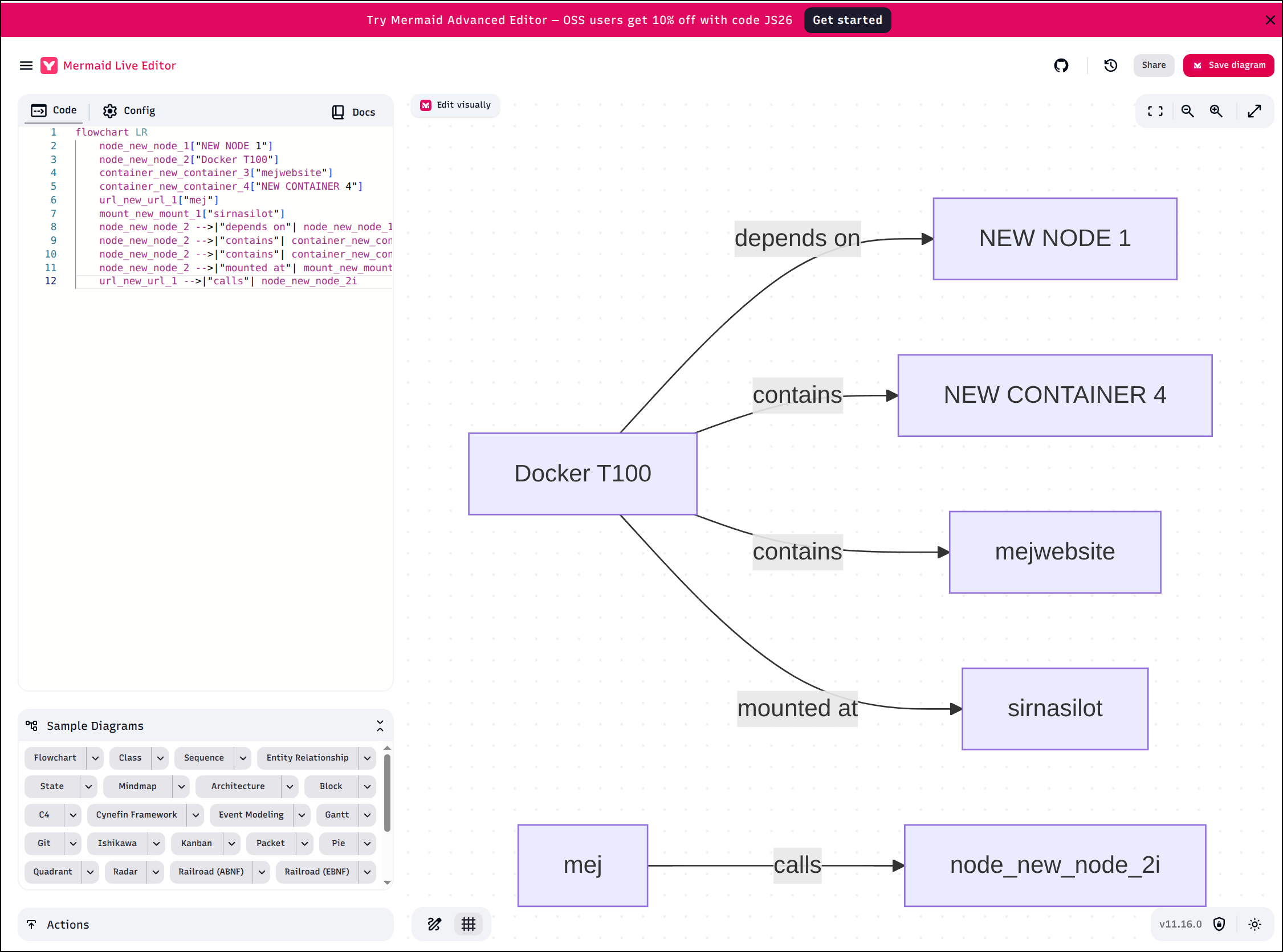
And the MermaidJS chart is a very basic representation
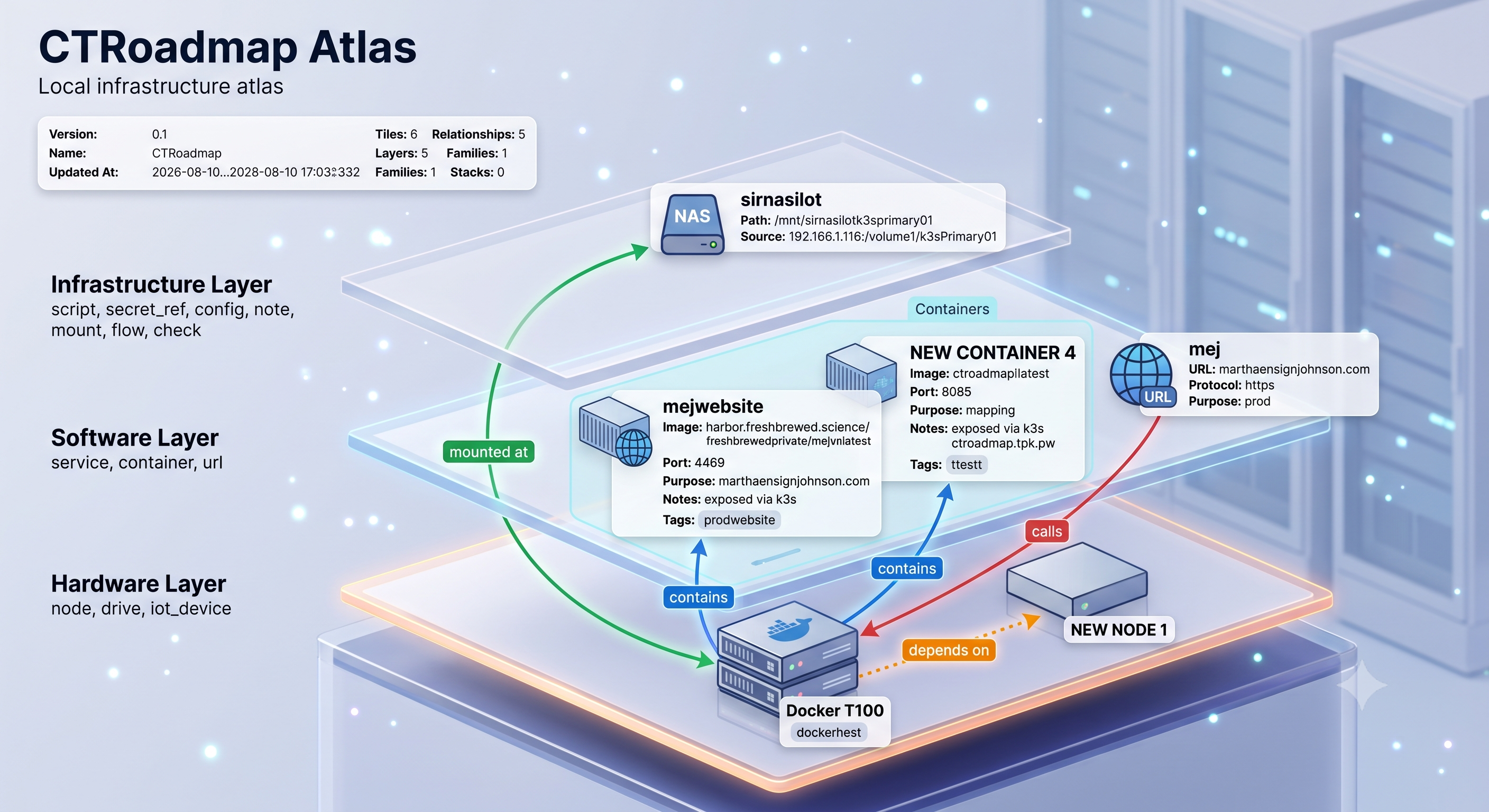
I asked Gemini to create a diagram based on the markdown output to see what it could do:
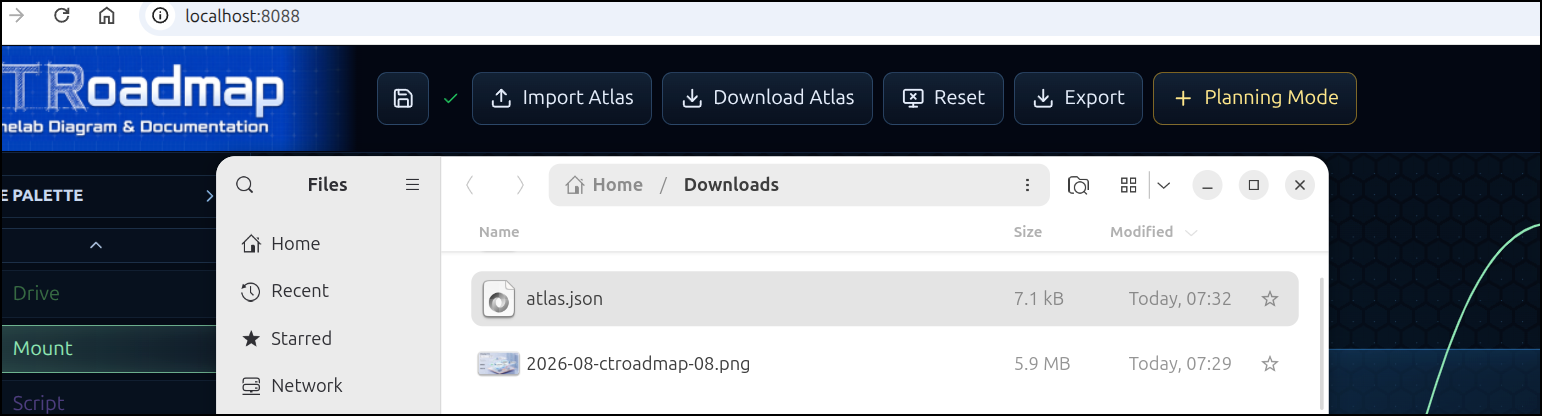
I can download the “atlas.json” and import it. It’s pretty small and serves as a backup
Exposing
let’s add this to the Docker host, though I’ll need to use a different port than 8088 as that is in use already
builder@builder-T100:~$ git clone https://github.com/NoobCity99/CTRoadmap.git
Cloning into 'CTRoadmap'...
remote: Enumerating objects: 791, done.
remote: Counting objects: 100% (406/406), done.
remote: Compressing objects: 100% (237/237), done.
remote: Total 791 (delta 225), reused 319 (delta 152), pack-reused 385 (from 1)
Receiving objects: 100% (791/791), 13.91 MiB | 27.71 MiB/s, done.
Resolving deltas: 100% (440/440), done.
builder@builder-T100:~$ cd CTRoadmap/
builder@builder-T100:~/CTRoadmap$ ls
assets   CTRBETA_release-compose.yml  CTR_uninstall.sh  docker-compose.yml  exports   latest.json  readmebanner4.png  README.md
backend  CTR_install.sh               data              Dockerfile          frontend  LICENSE      readmebanner.png   reference
builder@builder-T100:~/CTRoadmap$ vi docker-compose.yml
builder@builder-T100:~/CTRoadmap$ cat docker-compose.yml | grep 8088
      - "8089:8088"
I can now use it to test the import
I’ll need a DNS entry to expose, so I’ll add an A Record to Azure DNS
$ az account set --subscription "Pay-As-You-Go" && az network dns record-set a add-record -g idjdnsrg -z tpk.pw -a 76.156.69.232 -n ctroadmap
{
  "ARecords": [
    {
      "ipv4Address": "76.156.69.232"
    }
  ],
  "TTL": 3600,
  "etag": "6efecdc3-3b42-433a-aef5-6a3553c9c850",
  "fqdn": "ctroadmap.tpk.pw.",
  "id": "/subscriptions/d955c0ba-13dc-44cf-a29a-8fed74cbb22d/resourceGroups/idjdnsrg/providers/Microsoft.Network/dnszones/tpk.pw/A/ctroadmap",
  "name": "ctroadmap",
  "provisioningState": "Succeeded",
  "resourceGroup": "idjdnsrg",
  "targetResource": {},
  "trafficManagementProfile": {},
  "type": "Microsoft.Network/dnszones/A"
}
Then apply a service, endpoint and ingress
builder@bosgamerz9:~/Workspaces/CTRoadmap$ cat ./ctroadmap.ingress.yaml
apiVersion: v1
kind: Endpoints
metadata:
  name: ctroadmap-external-ip
subsets:
- addresses:
  - ip: 192.168.1.99
  ports:
  - name: ctroadmapint
    port: 8089
    protocol: TCP
---
apiVersion: v1
kind: Service
metadata:
  name: ctroadmap-external-ip
spec:
  clusterIP: None
  clusterIPs:
  - None
  internalTrafficPolicy: Cluster
  ipFamilies:
  - IPv4
  - IPv6
  ipFamilyPolicy: RequireDualStack
  ports:
  - name: ctroadmap
    port: 80
    protocol: TCP
    targetPort: 8089
  sessionAffinity: None
  type: ClusterIP
---
apiVersion: networking.k8s.io/v1
kind: Ingress
metadata:
  annotations:
    cert-manager.io/cluster-issuer: azuredns-tpkpw
    ingress.kubernetes.io/ssl-redirect: "true"
    kubernetes.io/ingress.class: nginx
    kubernetes.io/tls-acme: "true"
    nginx.ingress.kubernetes.io/proxy-read-timeout: "3600"
    nginx.ingress.kubernetes.io/proxy-send-timeout: "3600"
    nginx.org/websocket-services: ctroadmap-external-ip
  generation: 1
  name: ctroadmapingress
spec:
  rules:
  - host: ctroadmap.tpk.pw
    http:
      paths:
      - backend:
          service:
            name: ctroadmap-external-ip
            port:
              number: 80
        path: /
        pathType: ImplementationSpecific
  tls:
  - hosts:
    - ctroadmap.tpk.pw
    secretName: ctroadmap-tls
builder@bosgamerz9:~/Workspaces/CTRoadmap$ kubectl apply -f ./ctroadmap.ingress.yaml
endpoints/ctroadmap-external-ip created
service/ctroadmap-external-ip created
Warning: annotation "kubernetes.io/ingress.class" is deprecated, please use 'spec.ingressClassName' instead
ingress.networking.k8s.io/ctroadmapingress created
builder@bosgamerz9:~/Workspaces/CTRoadmap$
Once the cert is sorted
$ kubectl get cert ctroadmap-tls
NAME            READY   SECRET          AGE
ctroadmap-tls   True    ctroadmap-tls   113s
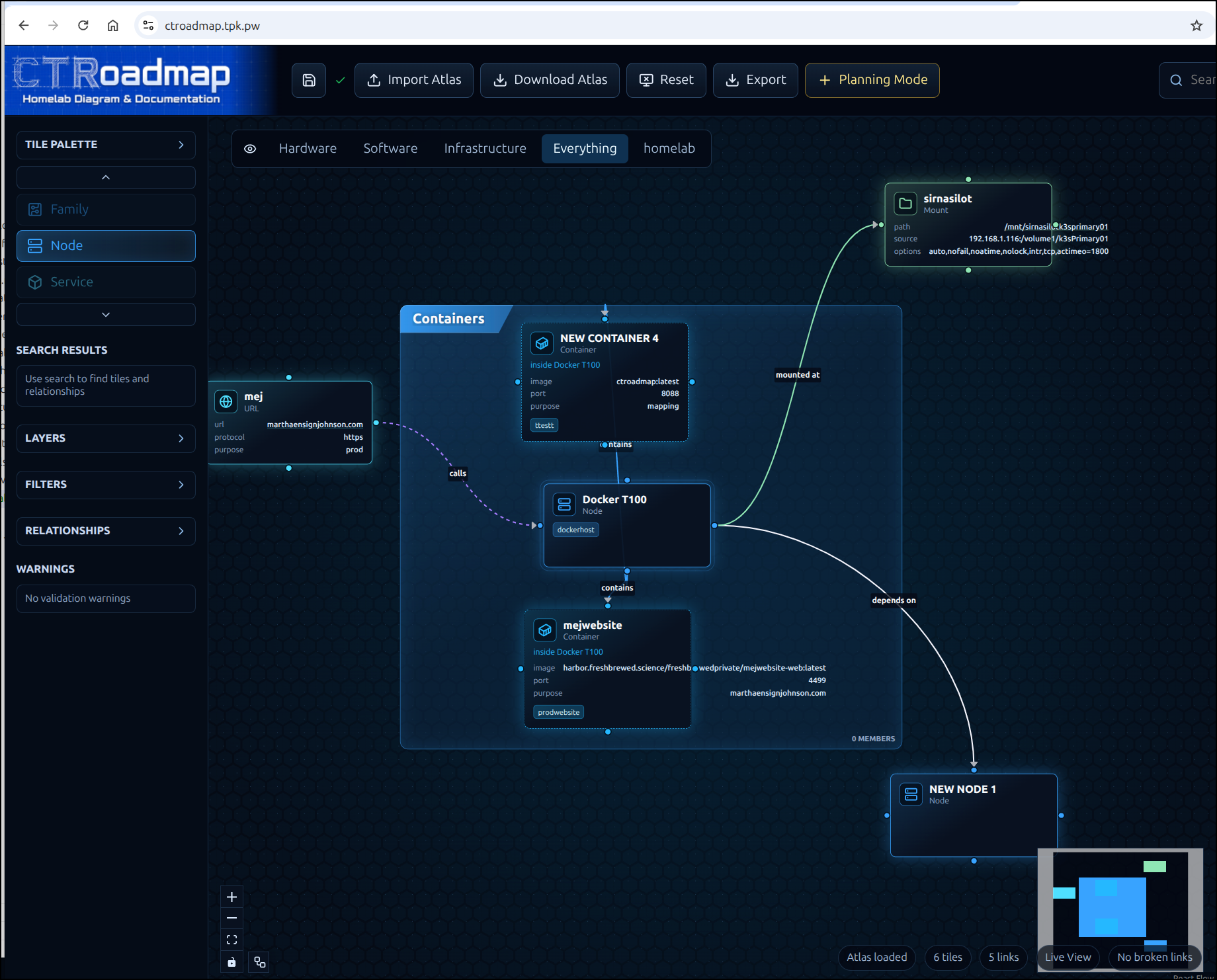
We can access the website:
We likely don’t want to keep our chart for others, so we can use reset to clear it
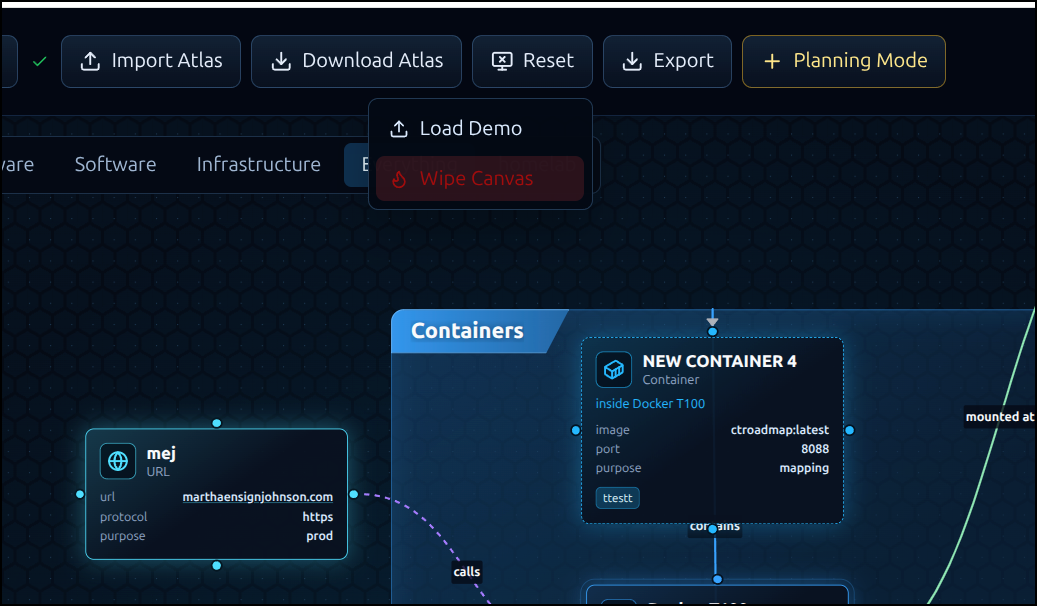
i tried to load the demo
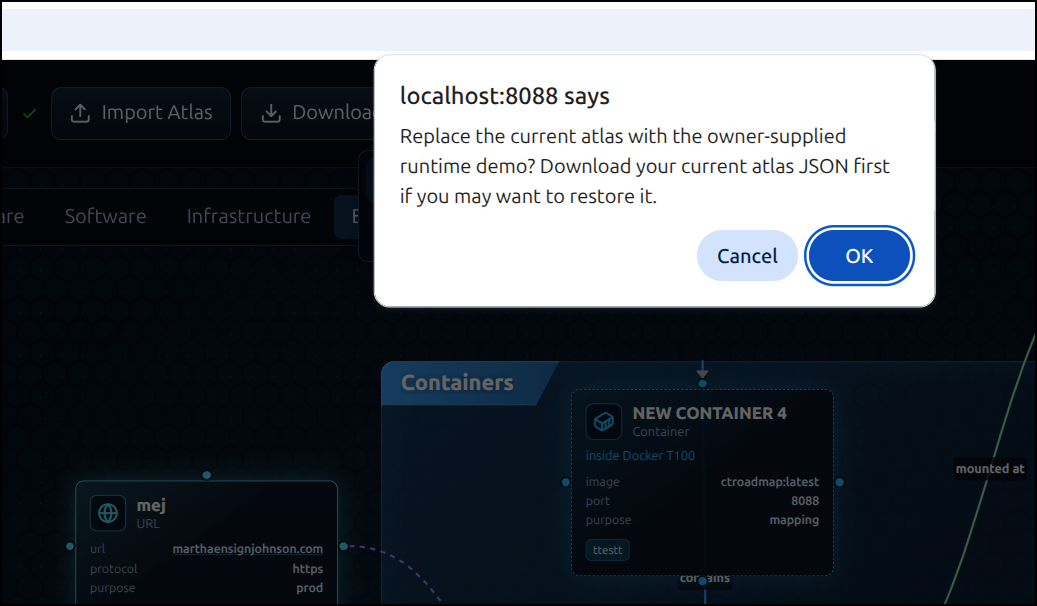
But it seemed unhappy with that
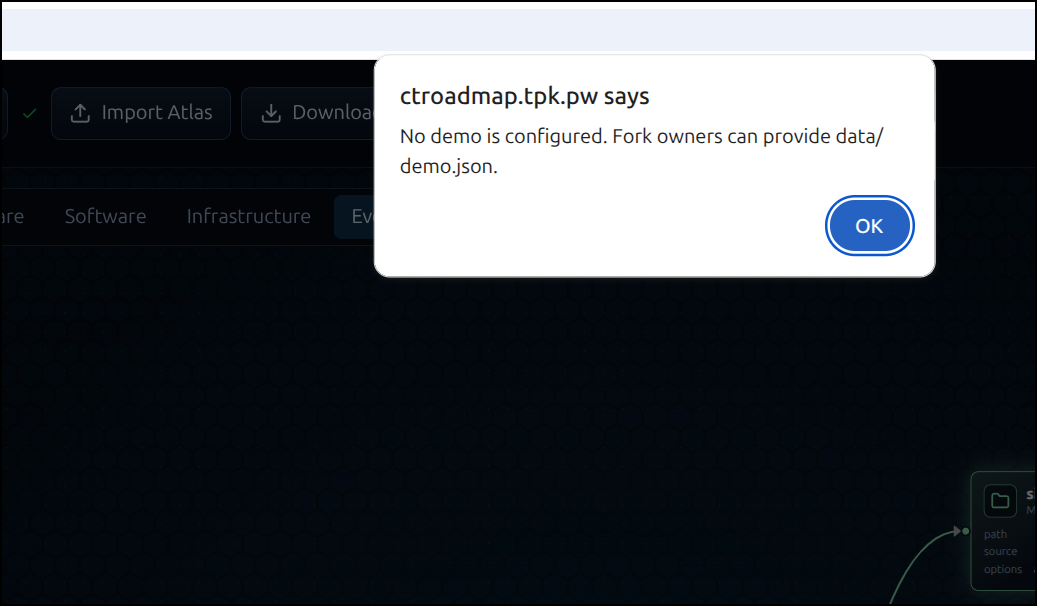
I built out a functional demo page, then copied that over from “atlas.json” (which is the current live) to “demo.json”
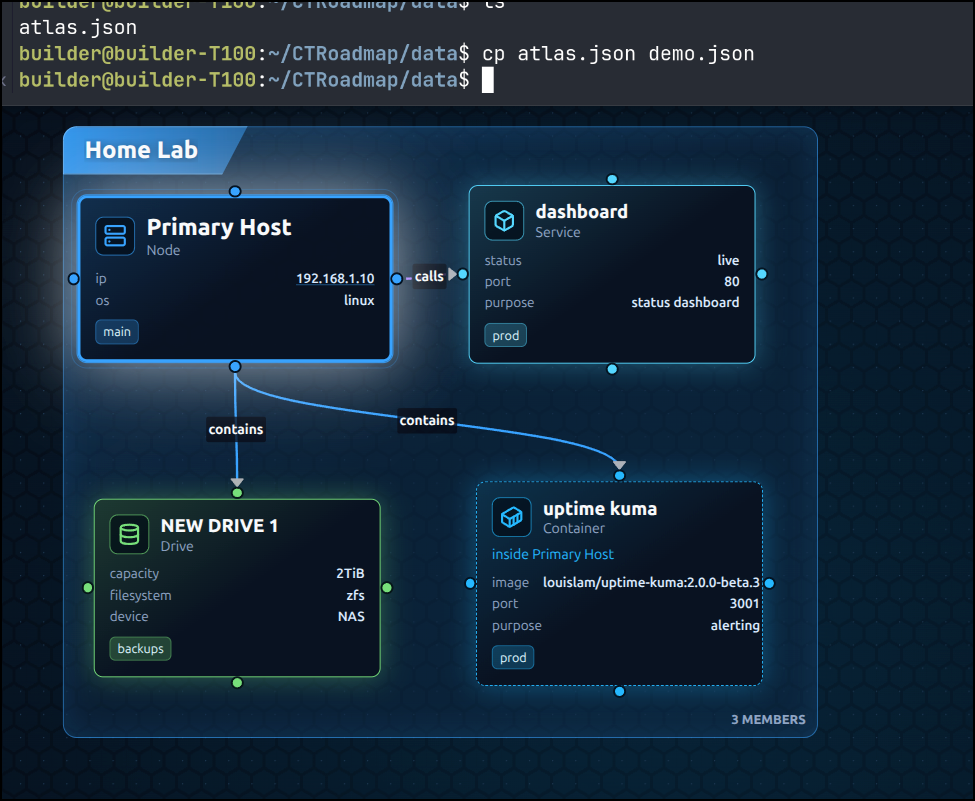
Resetting to Demo now worked just fine.
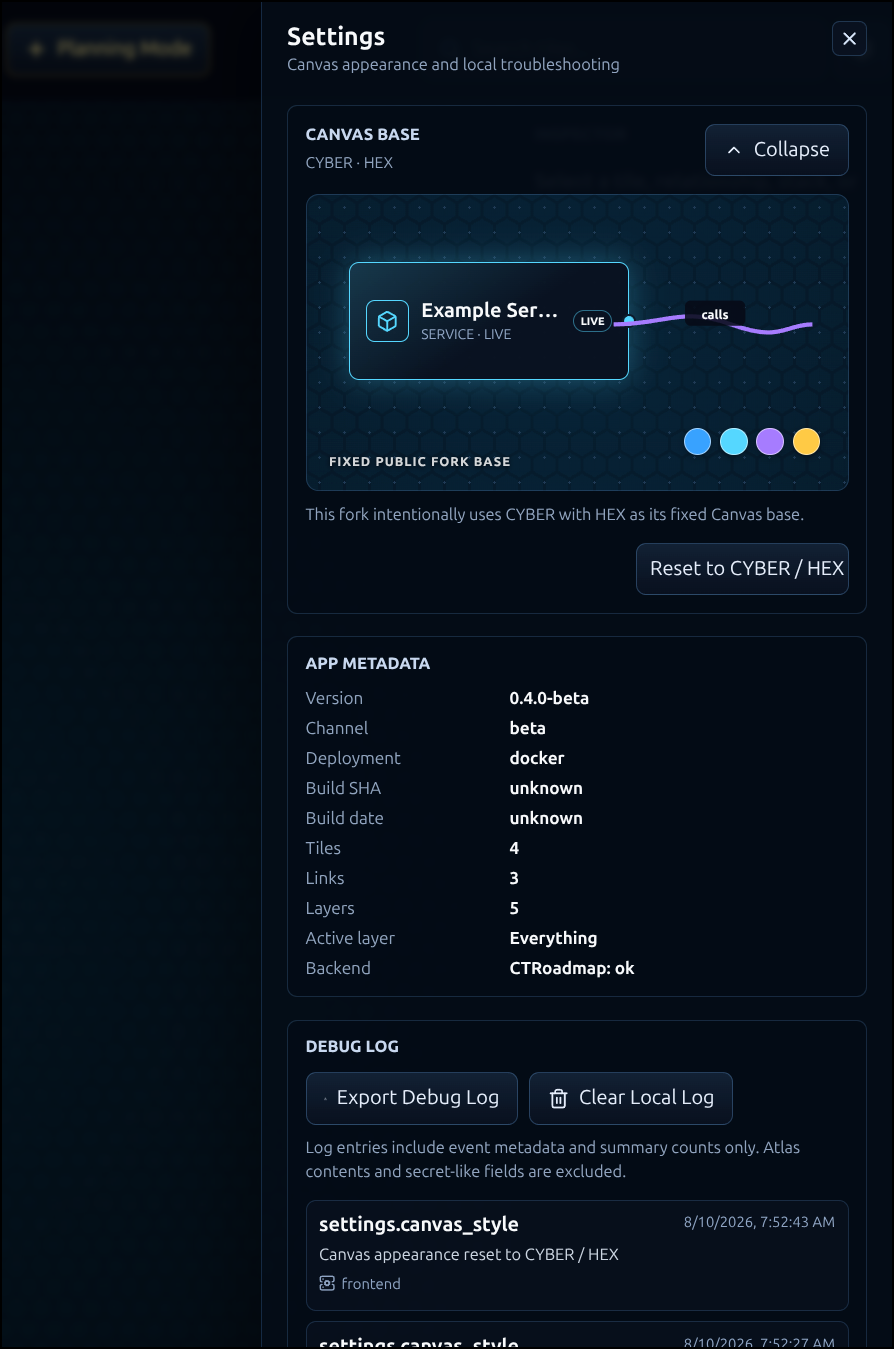
Settings
I’m not seeing much to change in settings
Summary
We looked at “Databasus”, an excellent database backup offering that made it easy to create various backup schedules to NFS, SFTP, Azure and AWS S3 storage. Sadly, Google Cloud Buckets weren’t really supported - there was a Google Drive option that was a bit jenky to setup and we could of course use something like GCSFuse to get it done, but I was happy with local NAS and two leading cloud providers to cover my bases.
Then we took a look at CTRoadMap which is live at ctroadmap.tpk.pw. It’s pretty good but without having proper authentication, it’s more of a scratch pad then something I would use on the regular.
I plan to keep Databasus as a primary tool going forward. My only complaint is each database destination had to be a new entry so, for instance, my Forgejo backups are done as 3 entirely separate backups. It would be nice if they changed it to let me pick a database and then multiple schedules and destinations. Or, put another way, if I have to change the host or credentials for that root database (it is on a laptop after all), I would need to edit 3 different database backup entries.