

Published: Jun 16, 2026 by Isaac Johnson
A while back there was a Marius post about LifeGLANCE. As I checked into it, I found the author, krelltunez has another interesting app, dayGLANCE which is a standalone planner with integrations and minimal lockins.
Let’s give both a fair shake, running in both Docker and Kubernetes. Let’s start with lifeGLANCE
lifeGLANCE
We can begin by using the docker invokation
$ docker run -d \
  -p 8080:80 \
  --restart unless-stopped \
  ghcr.io/krelltunez/lifeglance:latest
Since port 8080 is already in use for me, I’ll use 8088
$ docker run -d -p 8088:80 --restart unless-stopped ghcr.io/krelltunez/lifeglance:latest
0561550355c092ff91109a2ab94624537f7763f9817f949371d5180783f1dcc3
I can see it up and running on 8088
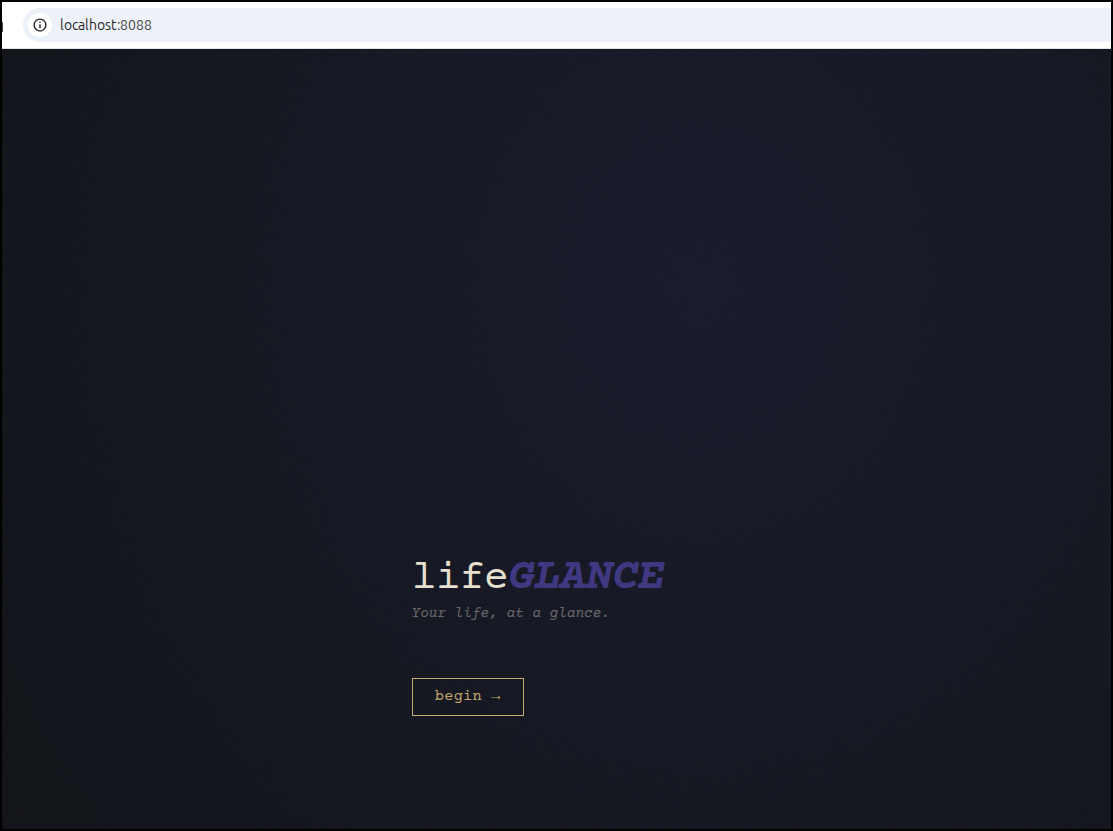
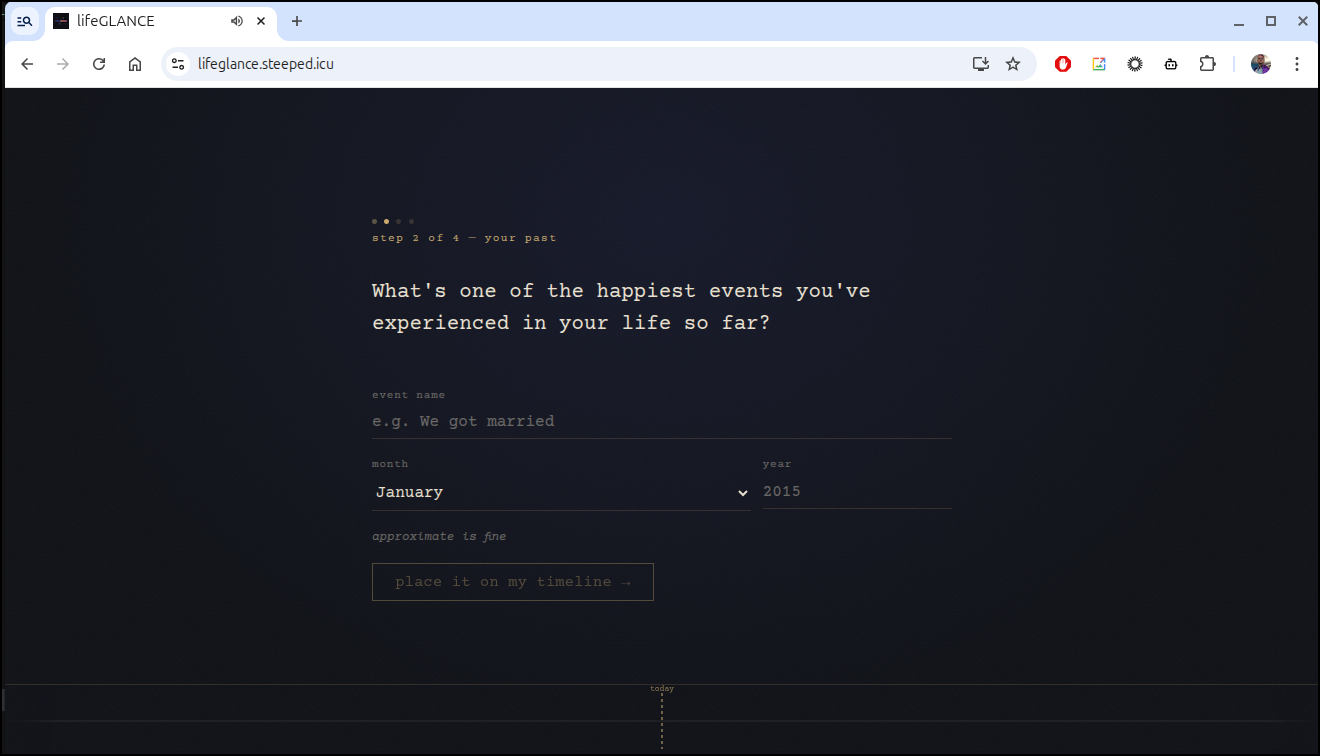
It now starts to ask me some questions
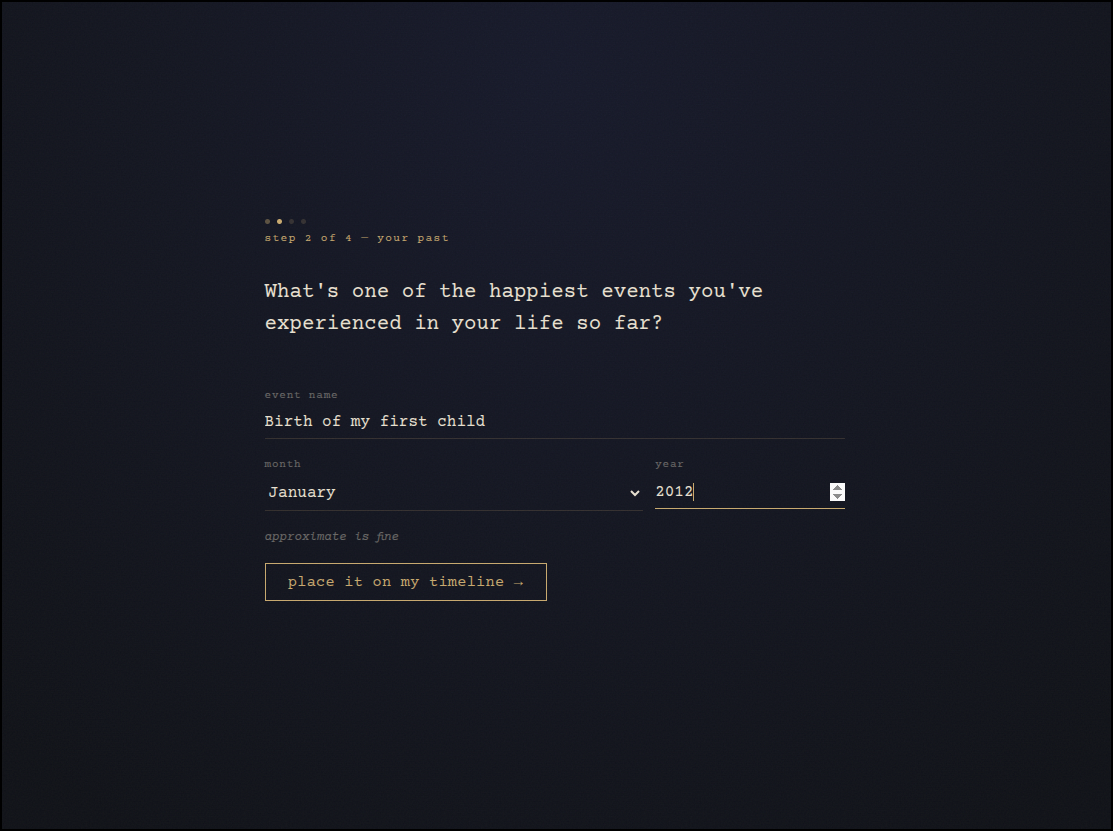
It’s easy to add in or edit entries
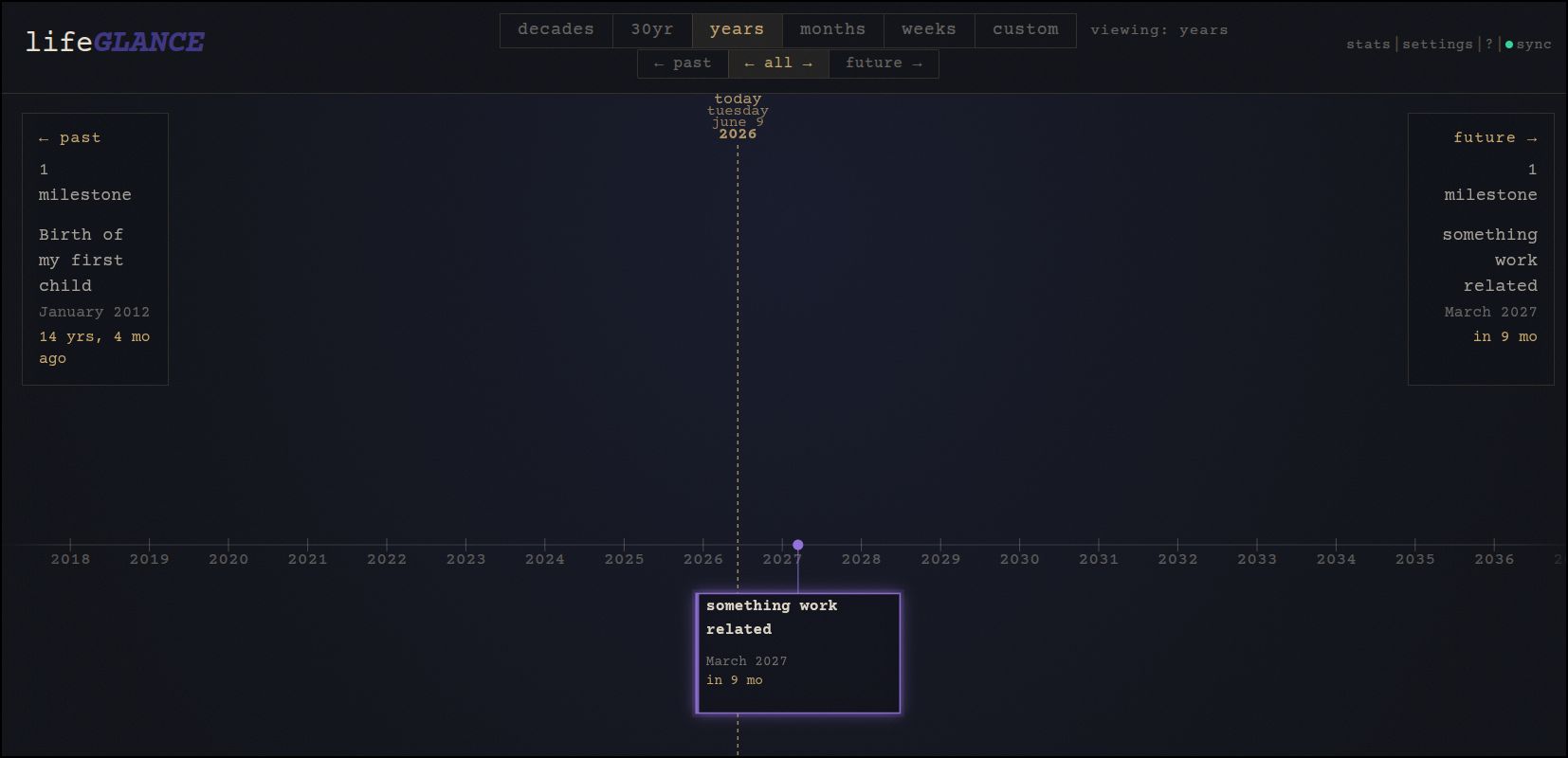
You can put in events like birth of kids
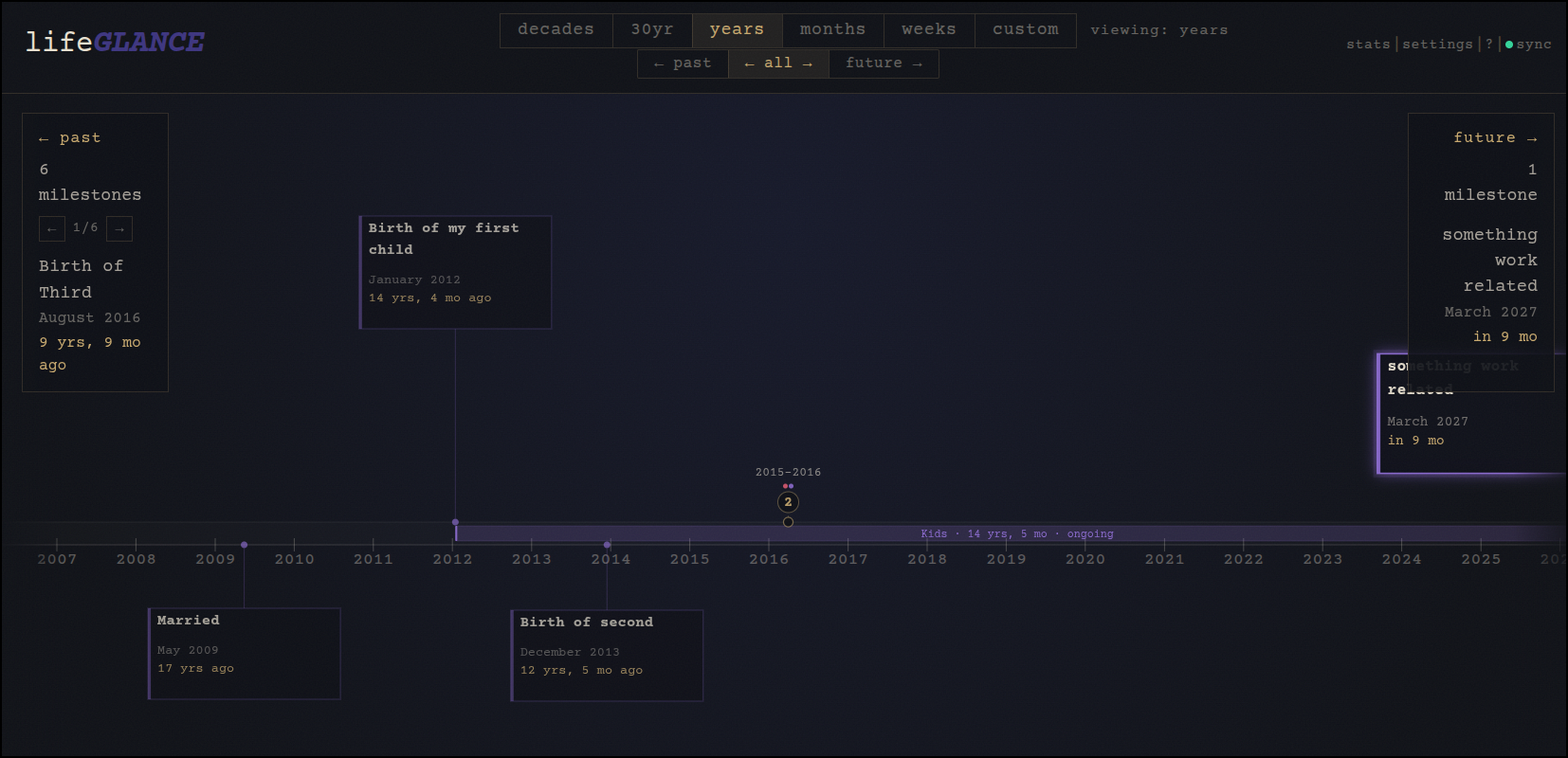
But when events are close as you see above, there is a “2” which we can click in on and see more details
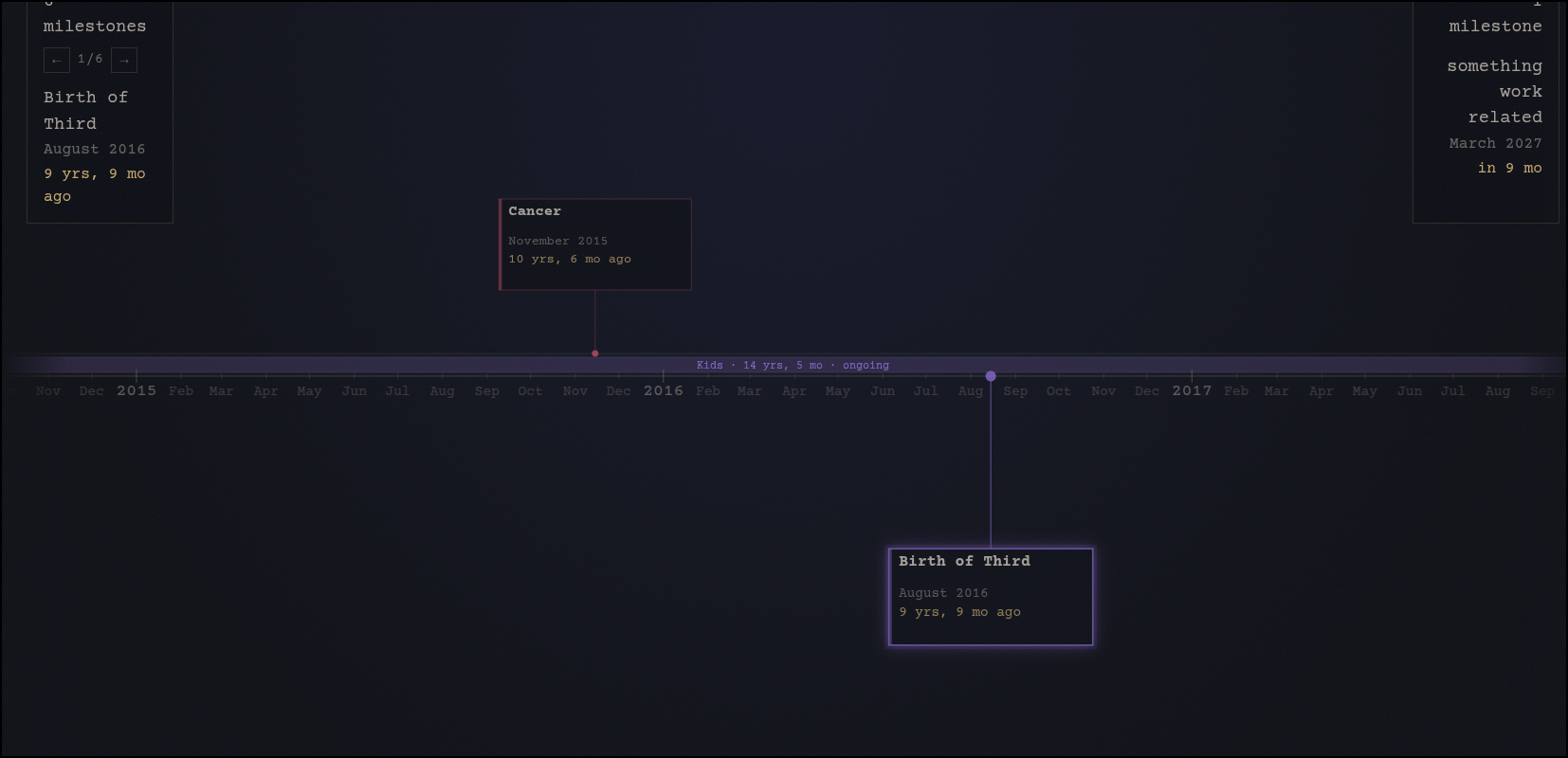
Now, I could imagine adding lots of things but for now, that can suffice for personal things
We can pull stats
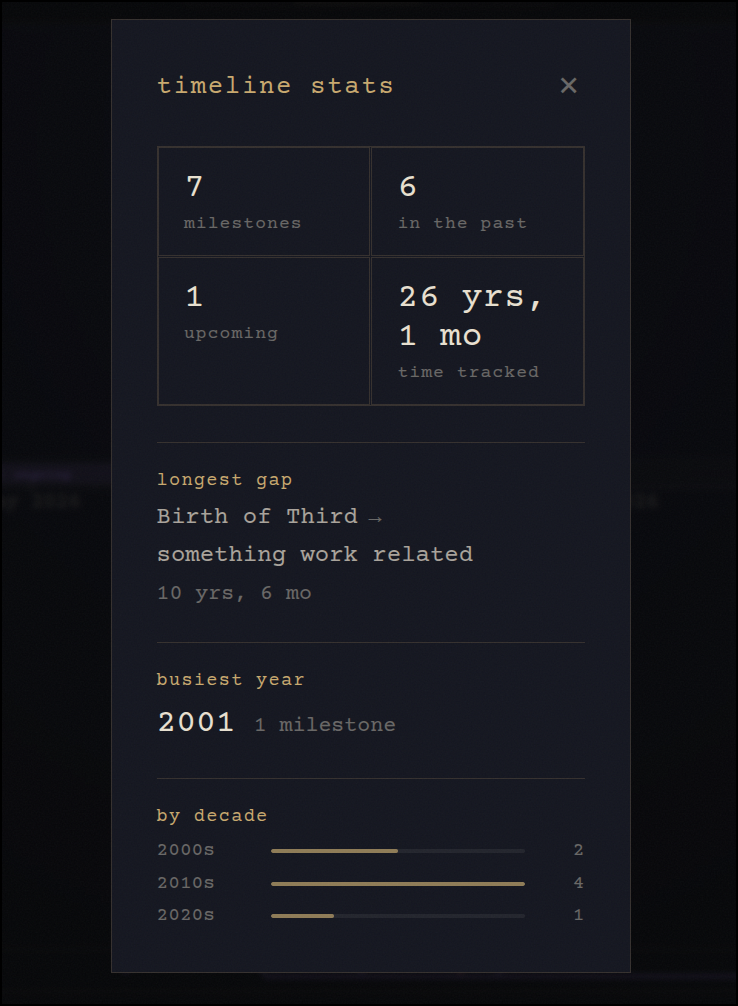
While there does not appear to be a REST API I do see we can export and import JSON that looks like
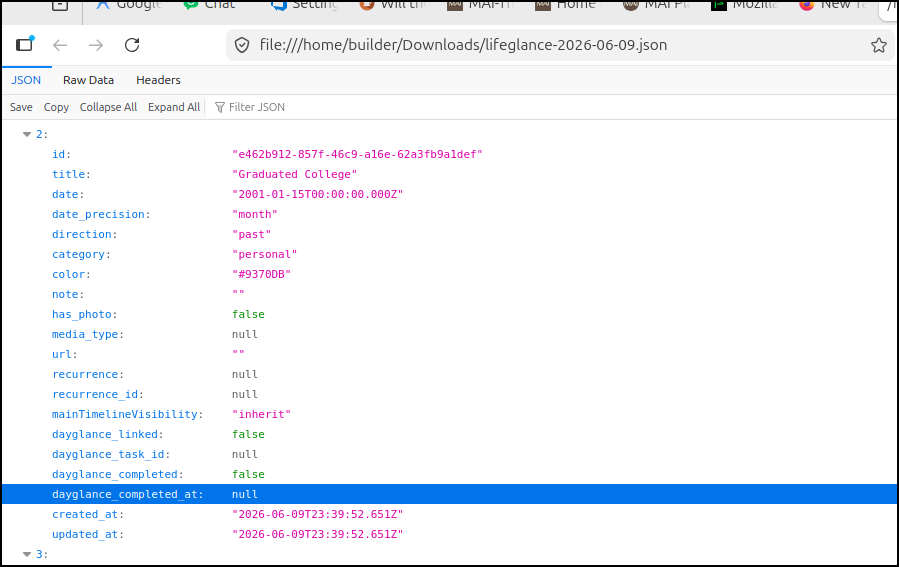
I thought, what if I asked Gemini CLI?
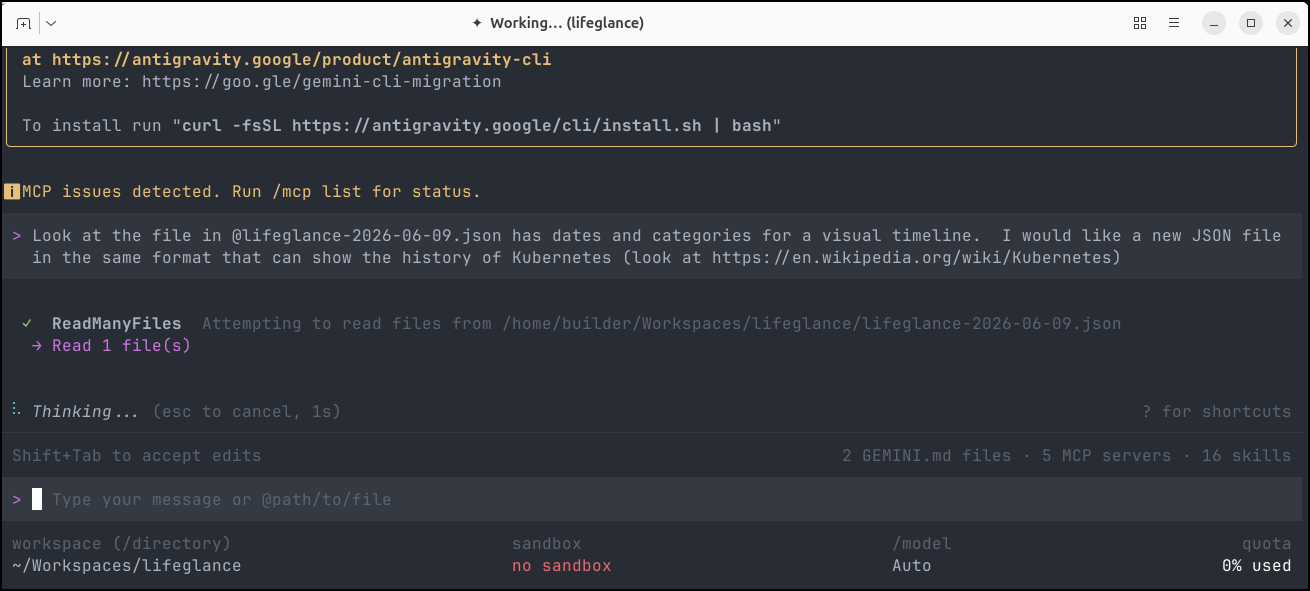
It looked like this
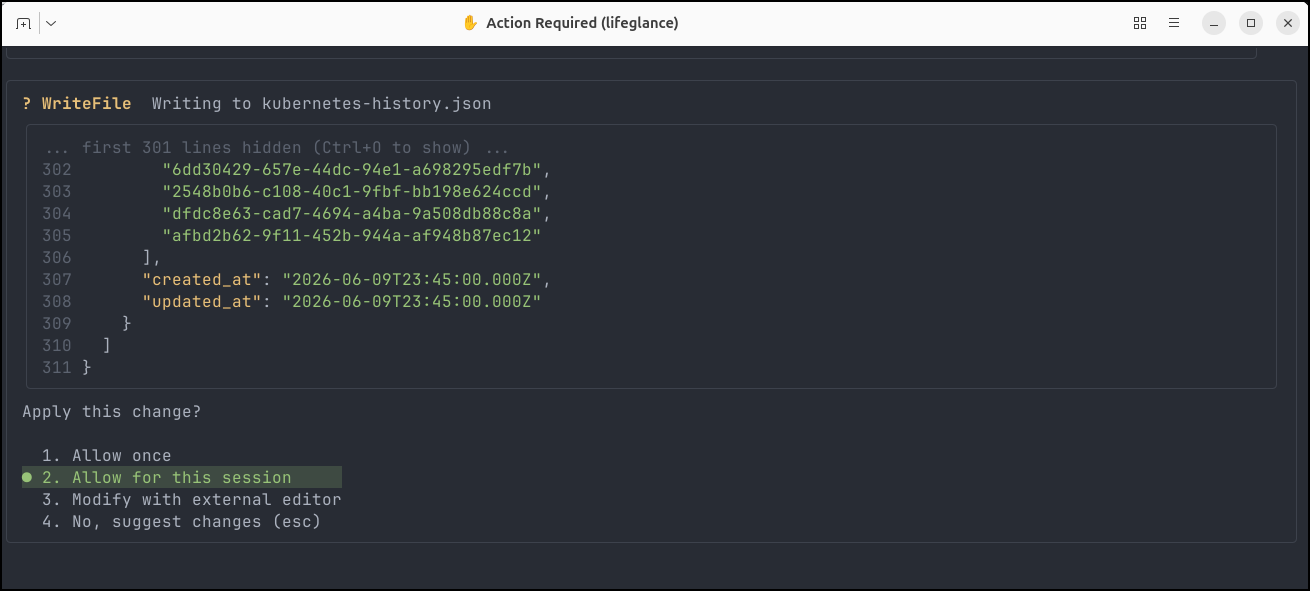
It suggested it worked
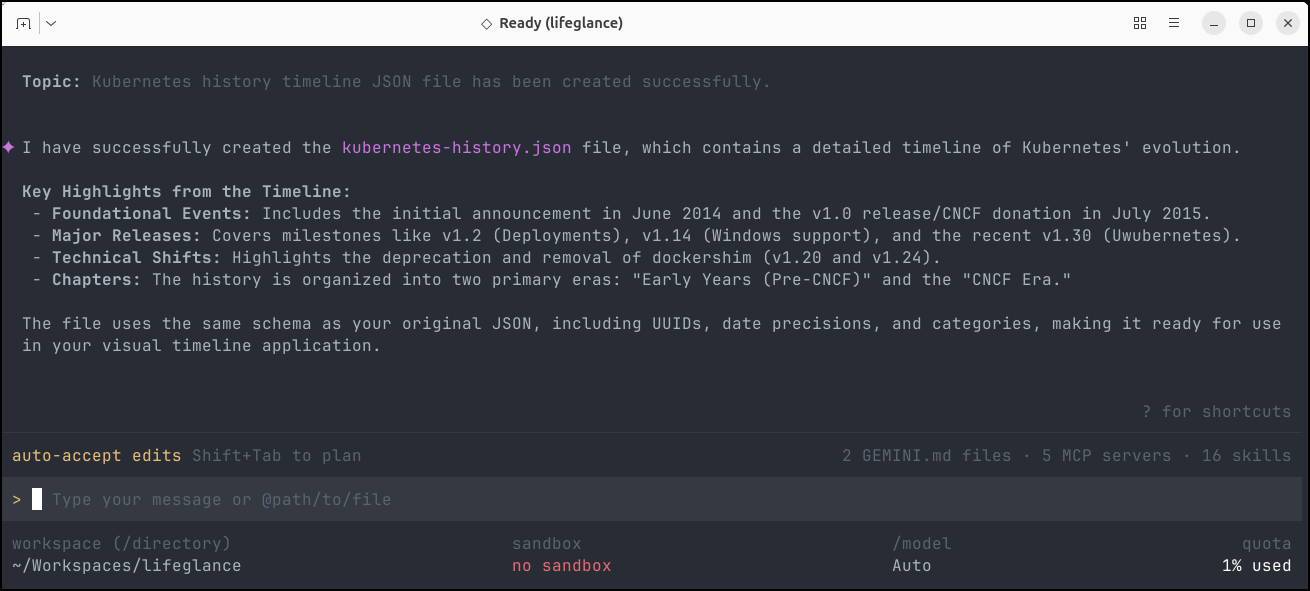
I’ll import it now
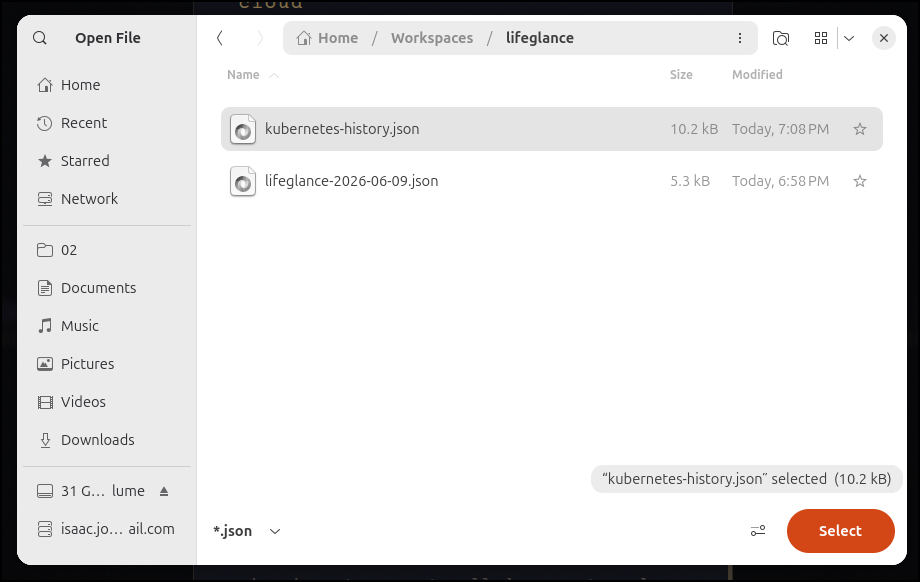
I now have a nice interactive timeline for Kubernetes
I then asked for one with Google Pixel phones
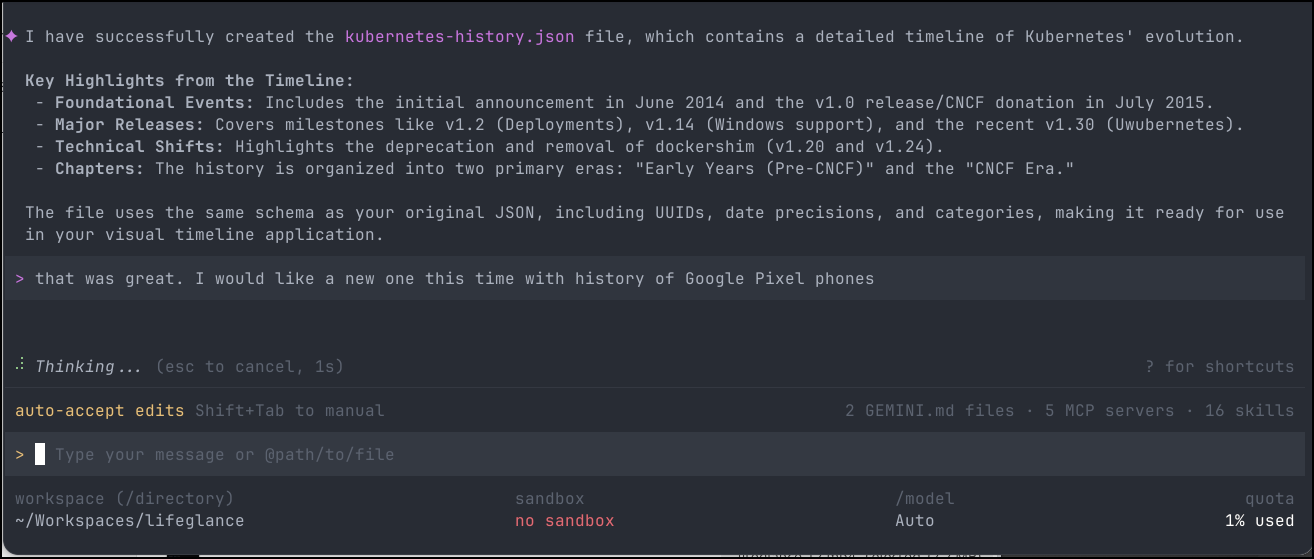
It did some lookups on UUIDs
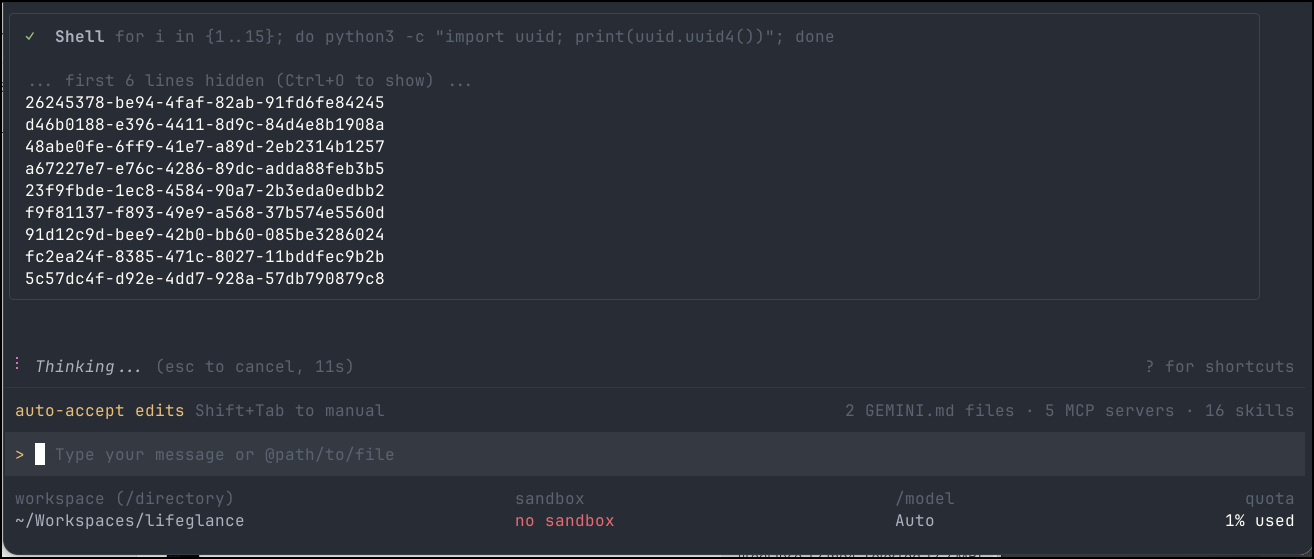
Which worked great
Let’s get a Kubernetes YAML manifest going
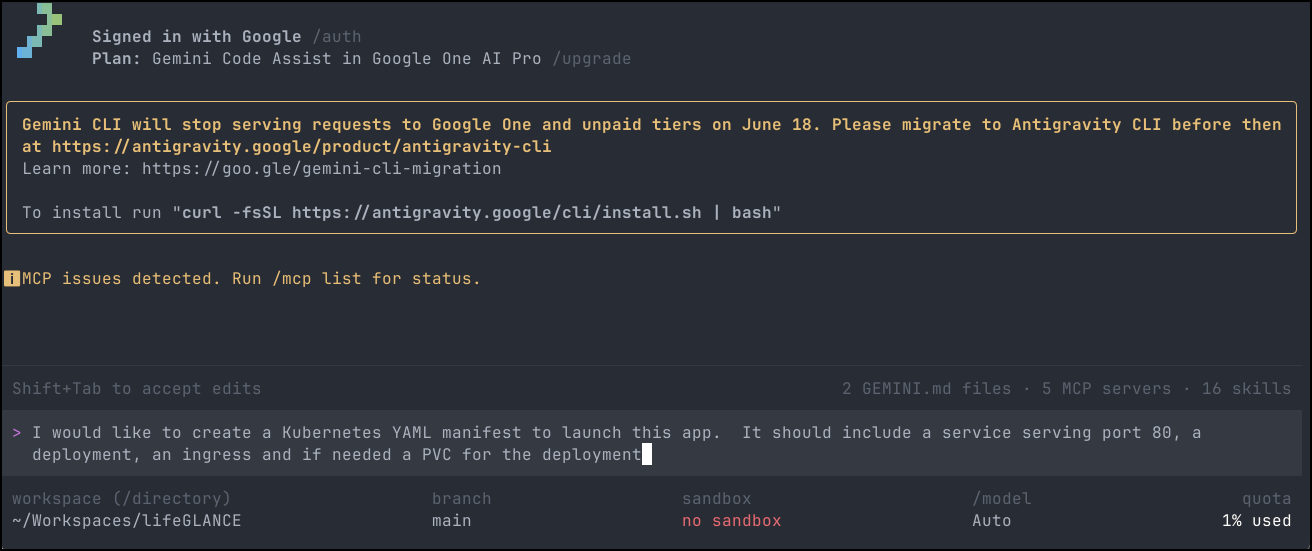
It finished pretty quickly
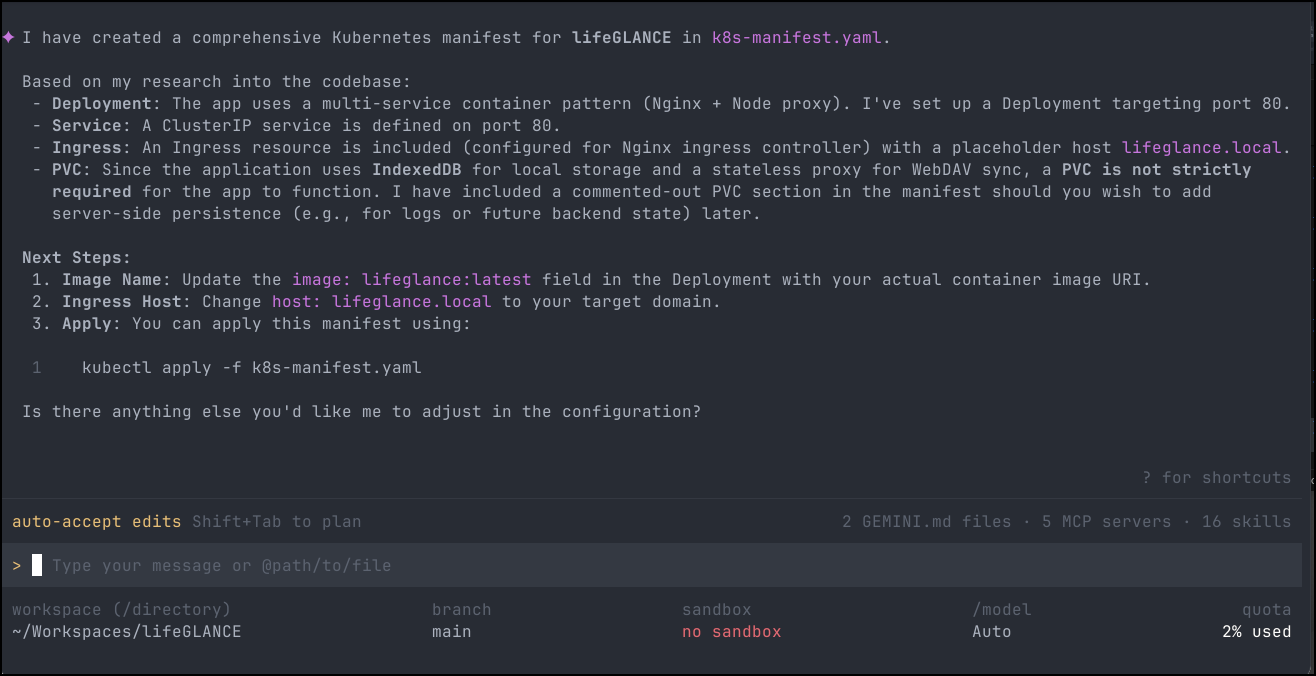
It created
apiVersion: v1
kind: Namespace
metadata:
  name: lifeglance

---
apiVersion: apps/v1
kind: Deployment
metadata:
  name: lifeglance
  namespace: lifeglance
  labels:
    app: lifeglance
spec:
  replicas: 1
  selector:
    matchLabels:
      app: lifeglance
  template:
    metadata:
      labels:
        app: lifeglance
    spec:
      containers:
      - name: lifeglance
        image: lifeglance:latest # Replace with your actual image
        imagePullPolicy: IfNotPresent
        ports:
        - containerPort: 80
        # volumeMounts:
        # - name: storage
        #   mountPath: /app/data # Optional path if the app ever needs server-side storage
      # volumes:
      # - name: storage
      #   persistentVolumeClaim:
      #     claimName: lifeglance-pvc

---
apiVersion: v1
kind: Service
metadata:
  name: lifeglance
  namespace: lifeglance
spec:
  selector:
    app: lifeglance
  ports:
    - protocol: TCP
      port: 80
      targetPort: 80
  type: ClusterIP

---
apiVersion: networking.k8s.io/v1
kind: Ingress
metadata:
  name: lifeglance
  namespace: lifeglance
  annotations:
    kubernetes.io/ingress.class: nginx
    # Uncomment and adjust for SSL if needed
    # cert-manager.io/cluster-issuer: "letsencrypt-prod"
spec:
  rules:
  - host: lifeglance.local # Replace with your domain
    http:
      paths:
      - path: /
        pathType: Prefix
        backend:
          service:
            name: lifeglance
            port:
              number: 80
  # tls:
  # - hosts:
  #   - lifeglance.local
  #   secretName: lifeglance-tls

---
# Optional: PVC if server-side persistence is needed in the future
# apiVersion: v1
# kind: PersistentVolumeClaim
# metadata:
#   name: lifeglance-pvc
#   namespace: lifeglance
# spec:
#   accessModes:
#     - ReadWriteOnce
#   resources:
#     requests:
#       storage: 1Gi
Let’s create a DNS entry
$ gcloud dns --project=myanthosproject2 record-sets create lifeglance.steeped.icu --zone="steepedicu" --type="A" --ttl="300" --rrdatas="76.156.69.232"
NAME                     TYPE  TTL  DATA
lifeglance.steeped.icu.  A     300  76.156.69.232
I tweaked the manifest, removing the namespace and fixing the ingress
$ cat ./k8s-manifest.yaml
apiVersion: apps/v1
kind: Deployment
metadata:
  name: lifeglance
  labels:
    app: lifeglance
spec:
  replicas: 1
  selector:
    matchLabels:
      app: lifeglance
  template:
    metadata:
      labels:
        app: lifeglance
    spec:
      containers:
      - name: lifeglance
        image:  ghcr.io/krelltunez/lifeglance
        imagePullPolicy: IfNotPresent
        ports:
        - containerPort: 80
        volumeMounts:
        - name: storage
          mountPath: /app/data # Optional path if the app ever needs server-side storage
      volumes:
      - name: storage
        persistentVolumeClaim:
          claimName: lifeglance-pvc
---
apiVersion: v1
kind: Service
metadata:
  name: lifeglance
spec:
  selector:
    app: lifeglance
  ports:
    - protocol: TCP
      port: 80
      targetPort: 80
  type: ClusterIP

---
apiVersion: networking.k8s.io/v1
kind: Ingress
metadata:
  name: lifeglance-ingress
  annotations:
    kubernetes.io/ingress.class: nginx
    cert-manager.io/cluster-issuer: gcpleprod2
    ingress.kubernetes.io/proxy-body-size: "0"
    ingress.kubernetes.io/ssl-redirect: "true"
    kubernetes.io/tls-acme: "true"
    nginx.ingress.kubernetes.io/proxy-body-size: "0"
    nginx.ingress.kubernetes.io/proxy-read-timeout: "3600"
    nginx.ingress.kubernetes.io/proxy-send-timeout: "3600"
    nginx.ingress.kubernetes.io/ssl-redirect: "true"
    nginx.org/client-max-body-size: "0"
    nginx.org/proxy-connect-timeout: "3600"
    nginx.org/proxy-read-timeout: "3600"
    nginx.org/websocket-services: lifeglance
spec:
  rules:
  - host: lifeglance.steeped.icu
    http:
      paths:
      - path: /
        pathType: Prefix
        backend:
          service:
            name: lifeglance
            port:
              number: 80
  tls:
  - hosts:
    - lifeglance.steeped.icu
    secretName: lifeglancegcp-tls
---
# Optional: PVC if server-side persistence is needed in the future
apiVersion: v1
kind: PersistentVolumeClaim
metadata:
  name: lifeglance-pvc
spec:
  accessModes:
    - ReadWriteOnce
  resources:
    requests:
      storage: 1Gi
Once I see the cert is satisfied
$ kubectl get cert | grep lifeglance
lifeglancegcp-tls                   True    lifeglancegcp-tls                   2m20s
which worked
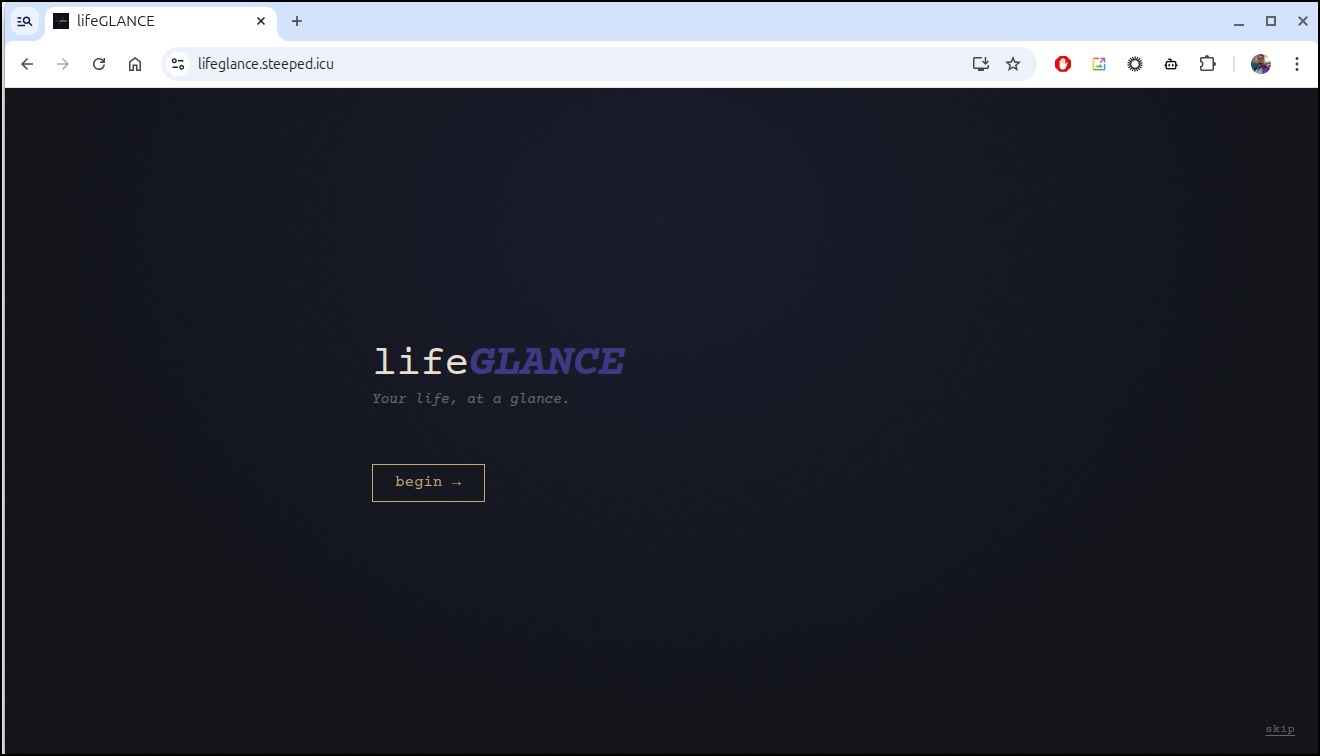
However, without auth or limits, anyone could come in and change things
DayGLANCE
Another one from Marius and Krelltunez comes Dayglance.
I can pull the repo and do a docker compose up
(base) builder@LuiGi:~/Workspaces/dayGLANCE$ docker compose up
[+] Running 15/15
 ✔ dayglance Pulled                                                                                                                                                                                                                                       9.7s
   ✔ 6a0ac1617861 Already exists                                                                                                                                                                                                                          0.0s
   ✔ abaae85d1626 Pull complete                                                                                                                                                                                                                           0.9s
   ✔ 43f834d60d8a Pull complete                                                                                                                                                                                                                           1.0s
   ✔ de1b677d8c00 Pull complete                                                                                                                                                                                                                           1.0s
   ✔ 94d083cf706a Pull complete                                                                                                                                                                                                                           1.1s
   ✔ e654dbbbb9e1 Pull complete                                                                                                                                                                                                                           1.2s
   ✔ a5008f4a4b25 Pull complete                                                                                                                                                                                                                           1.2s
   ✔ fbaed3f7fcbe Pull complete                                                                                                                                                                                                                           4.9s
   ✔ 00b2445c86b6 Pull complete                                                                                                                                                                                                                           8.2s
   ✔ 3f5ad9a9facb Pull complete                                                                                                                                                                                                                           8.3s
   ✔ a2a9beac1ed4 Pull complete                                                                                                                                                                                                                           8.3s
   ✔ db0cd702728e Pull complete                                                                                                                                                                                                                           8.4s
   ✔ c2ef2a718465 Pull complete                                                                                                                                                                                                                           8.5s
   ✔ f62856b017a8 Pull complete                                                                                                                                                                                                                           8.5s
[+] Running 2/2
 ✔ Network dayglance_default  Created                                                                                                                                                                                                                     0.1s
 ✔ Container dayglance        Created                                                                                                                                                                                                                     0.1s
Attaching to dayglance
dayglance  | 2026/06/11 21:49:41 [notice] 1#1: using the "epoll" event method
dayglance  | 2026/06/11 21:49:41 [notice] 1#1: nginx/1.31.1
dayglance  | 2026/06/11 21:49:41 [notice] 1#1: built by gcc 15.2.0 (Alpine 15.2.0)
dayglance  | 2026/06/11 21:49:41 [notice] 1#1: OS: Linux 6.17.0-23-generic
dayglance  | 2026/06/11 21:49:41 [notice] 1#1: getrlimit(RLIMIT_NOFILE): 1073741816:1073741816
dayglance  | Proxy server listening on 127.0.0.1:3001
dayglance  | 2026/06/11 21:49:41 [notice] 1#1: start worker processes
dayglance  | 2026/06/11 21:49:41 [notice] 1#1: start worker process 13
dayglance  | 2026/06/11 21:49:41 [notice] 1#1: start worker process 14
dayglance  | 2026/06/11 21:49:41 [notice] 1#1: start worker process 15
dayglance  | 2026/06/11 21:49:41 [notice] 1#1: start worker process 16
dayglance  | 2026/06/11 21:49:41 [notice] 1#1: start worker process 17
dayglance  | 2026/06/11 21:49:41 [notice] 1#1: start worker process 18
dayglance  | 2026/06/11 21:49:41 [notice] 1#1: start worker process 19
dayglance  | 2026/06/11 21:49:41 [notice] 1#1: start worker process 20
dayglance  | 2026/06/11 21:49:41 [notice] 1#1: start worker process 21
dayglance  | 2026/06/11 21:49:41 [notice] 1#1: start worker process 22
dayglance  | 2026/06/11 21:49:41 [notice] 1#1: start worker process 23
dayglance  | 2026/06/11 21:49:41 [notice] 1#1: start worker process 24
dayglance  | 2026/06/11 21:49:41 [notice] 1#1: start worker process 25
dayglance  | 2026/06/11 21:49:41 [notice] 1#1: start worker process 26
dayglance  | 2026/06/11 21:49:41 [notice] 1#1: start worker process 27
dayglance  | 2026/06/11 21:49:41 [notice] 1#1: start worker process 28
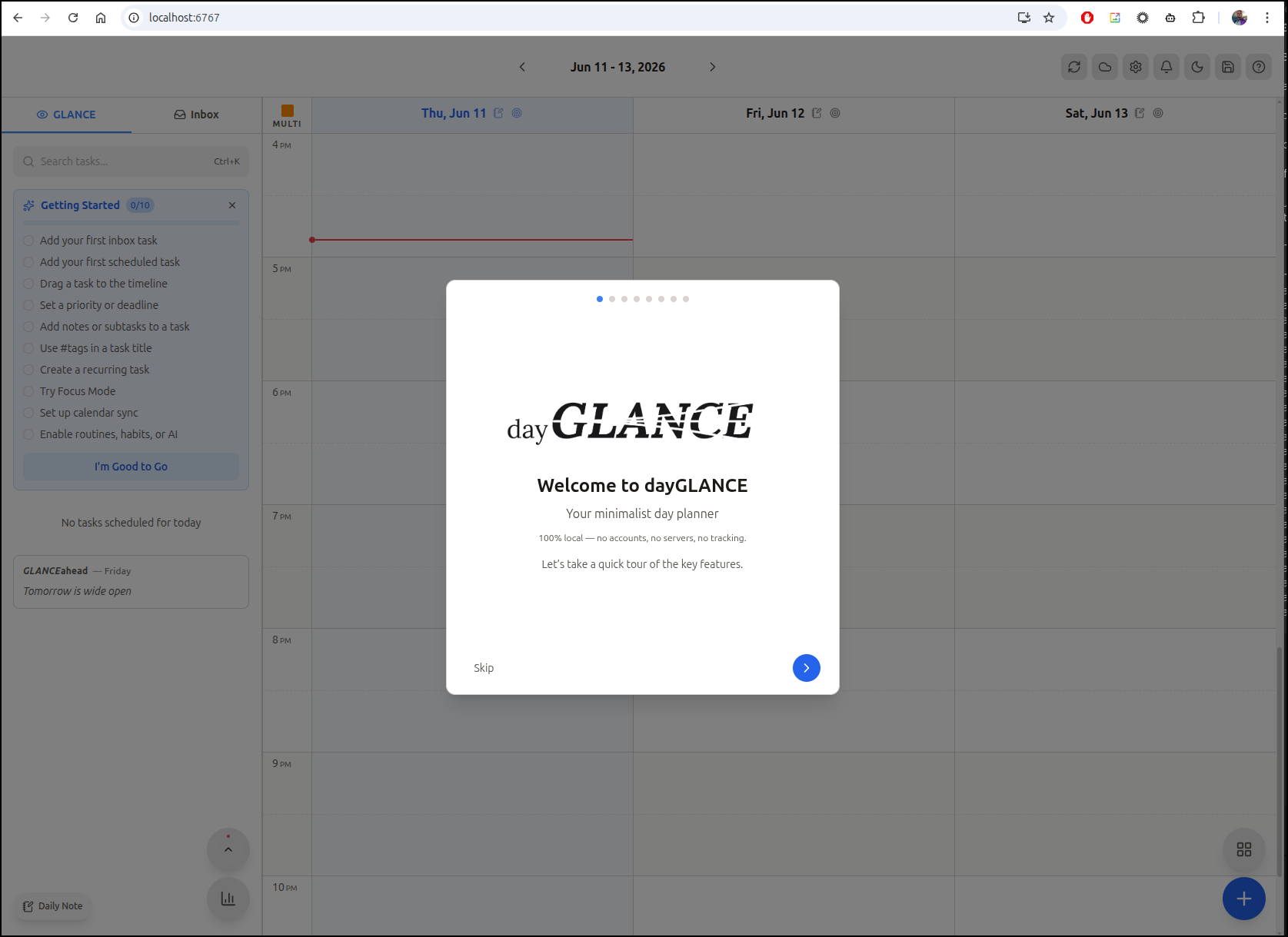
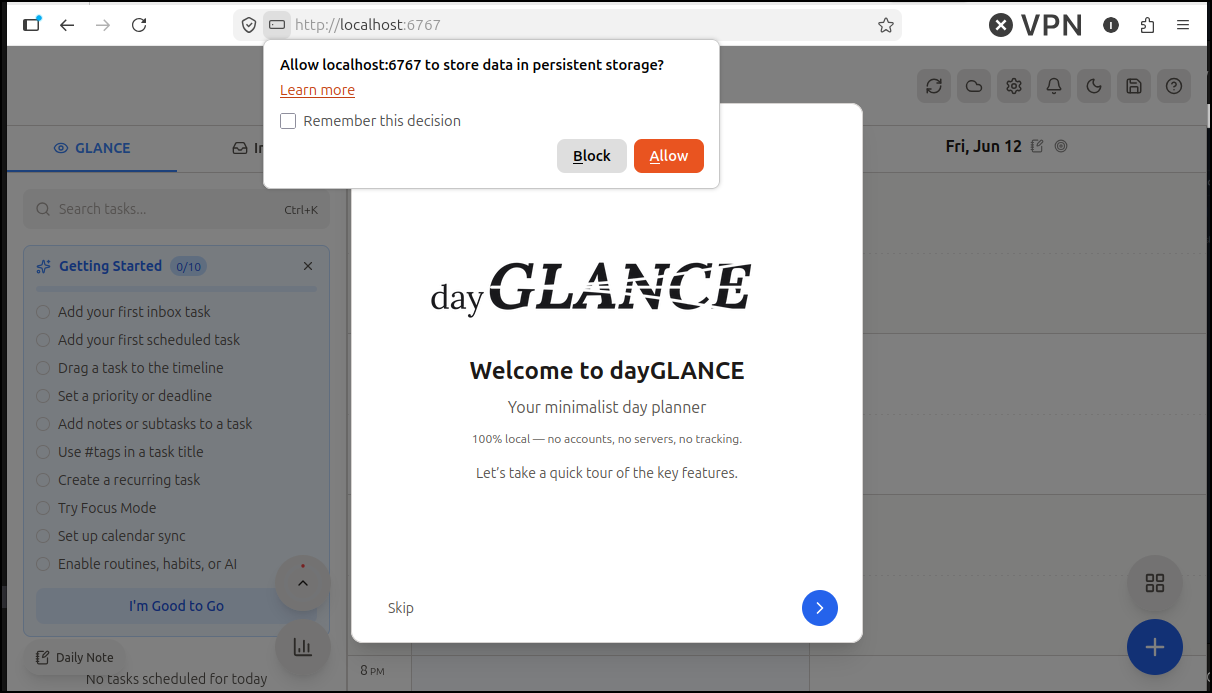
Now localhost:6767 brings up the welcome page
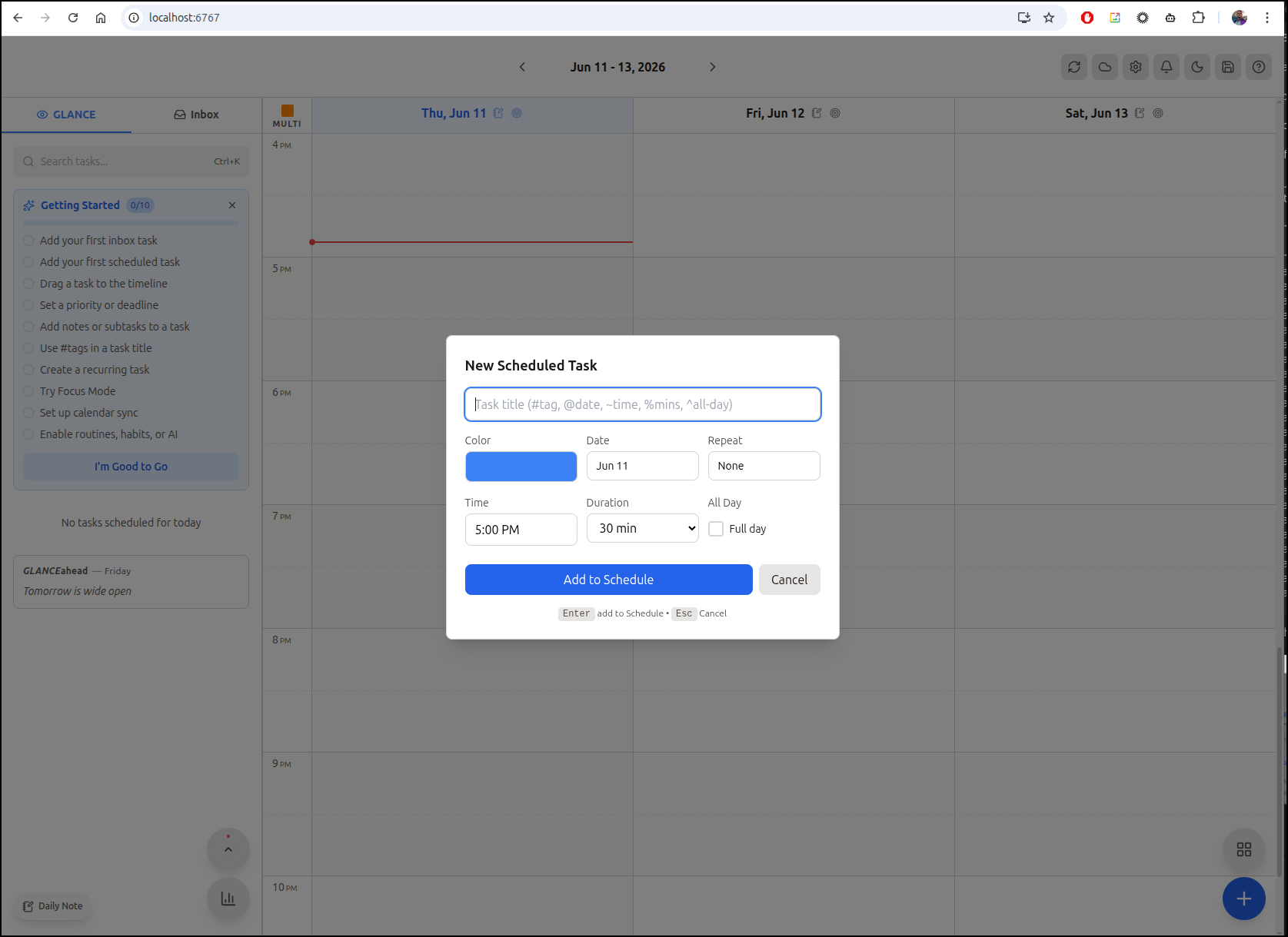
We can now use the “+” to add a new scheduled task
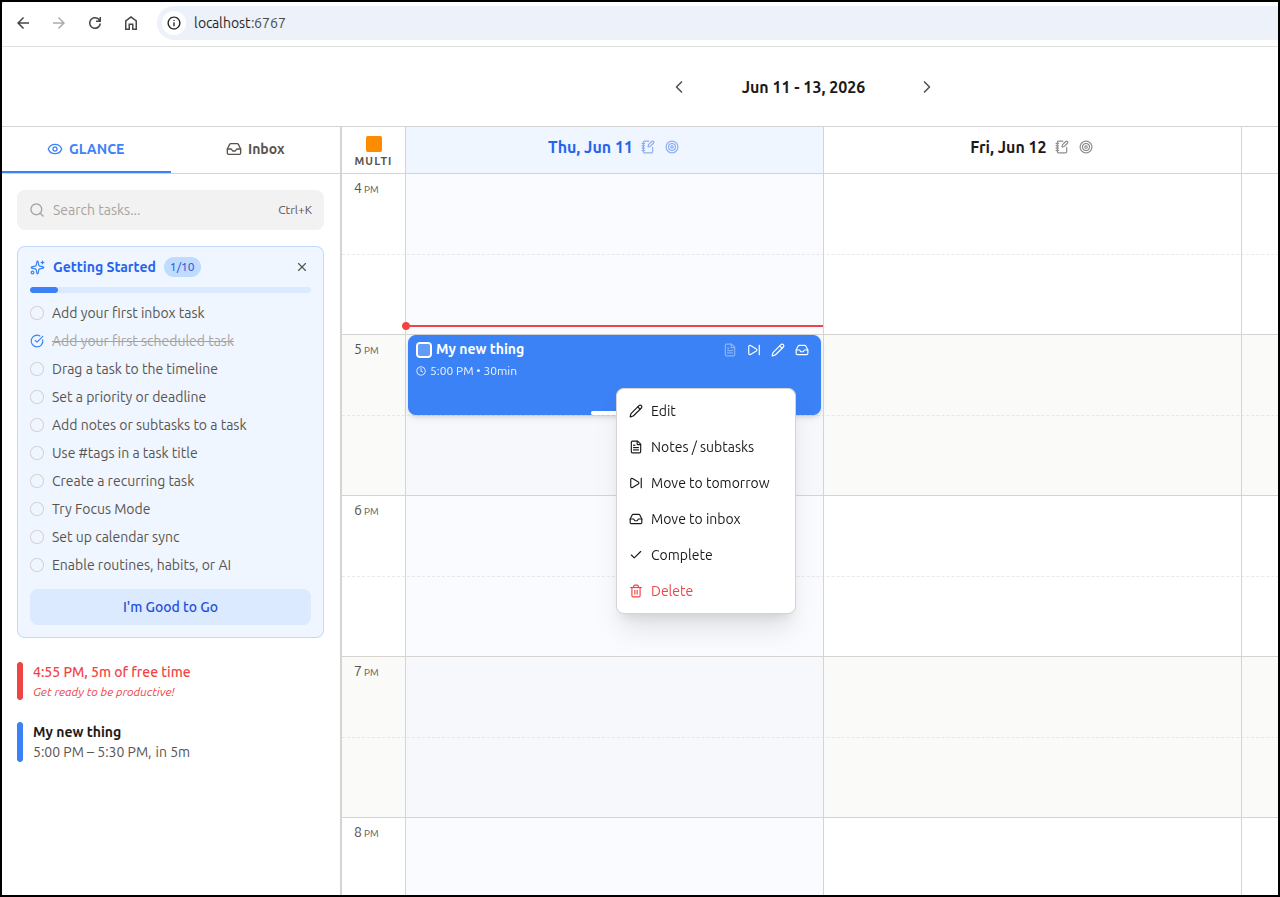
Once a scheduled task is created, we can setup subtasks, notes, move to tomorrow, etc
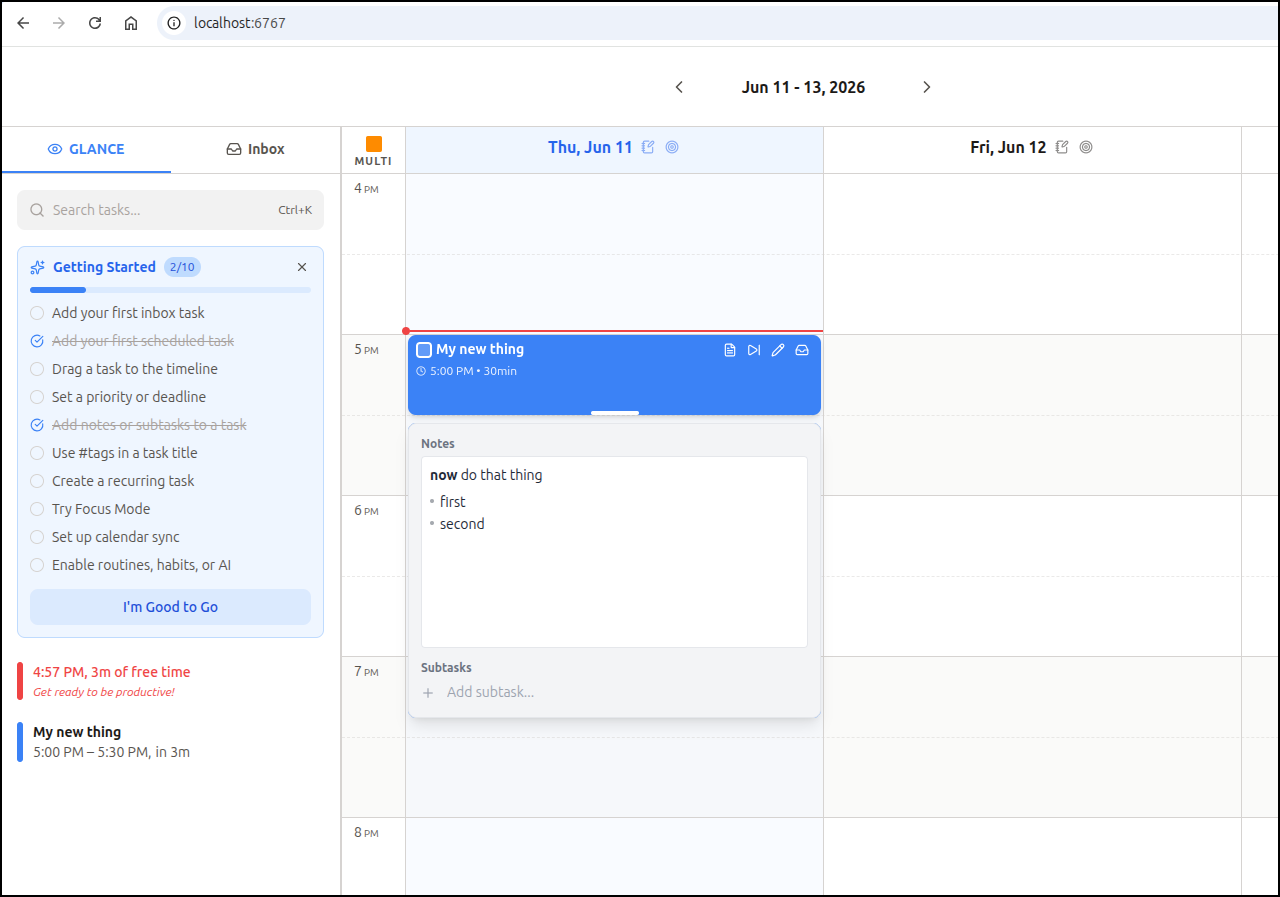
Notes take in markdown
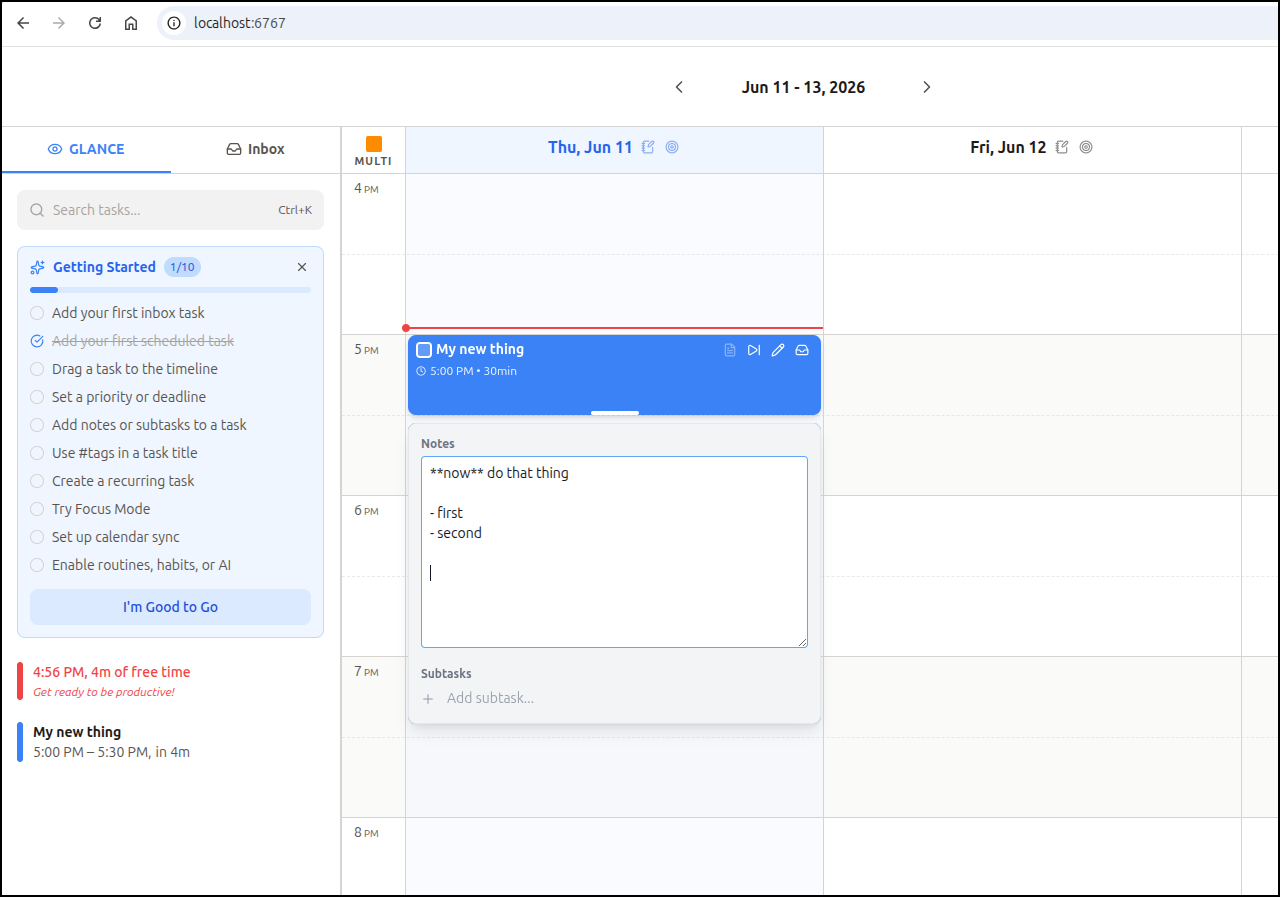
So when viewed later, you can see things like bold or bulleted lists
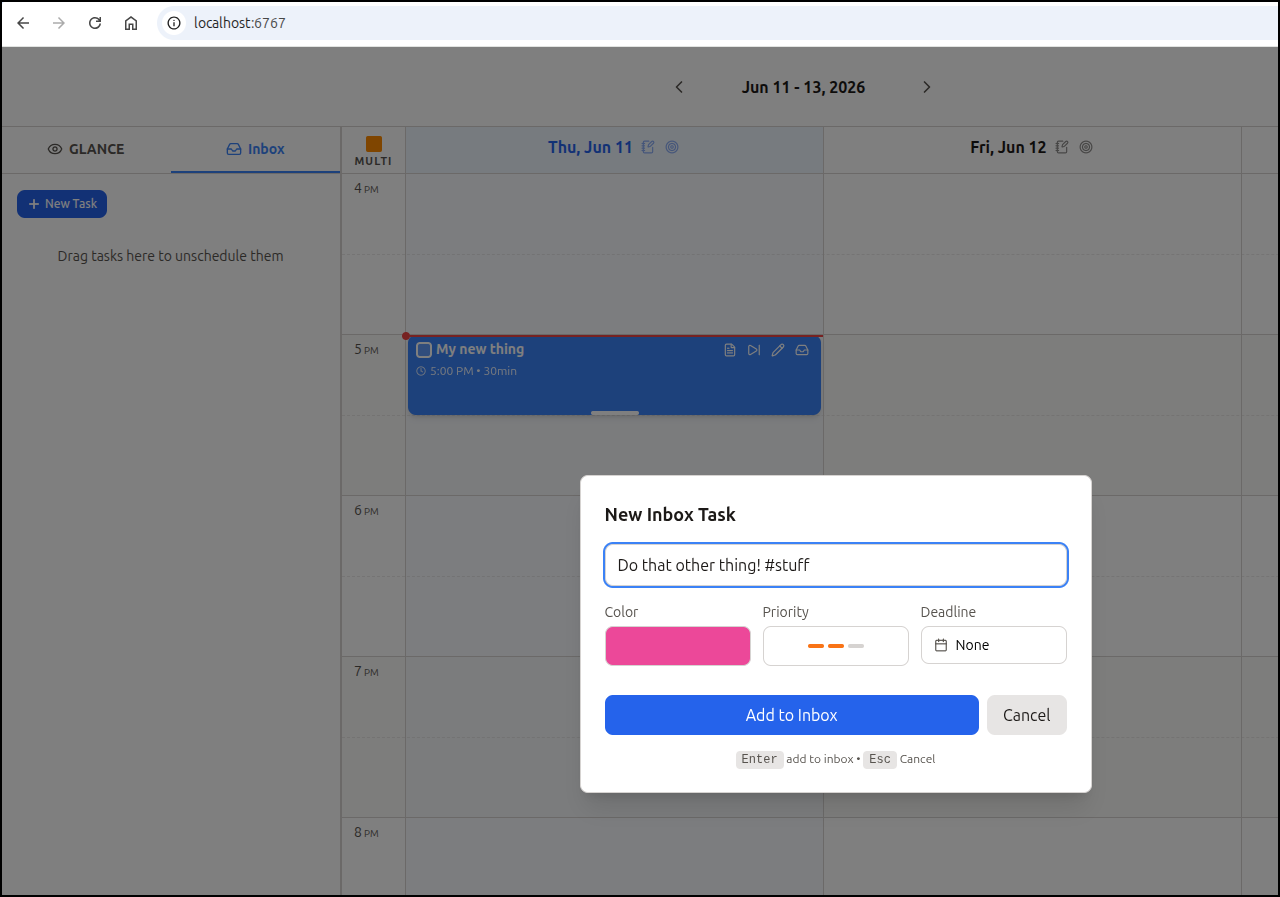
We then have inbox tasks which can have colour, priority and tags
I can then easily drag an inbox task into the timeline
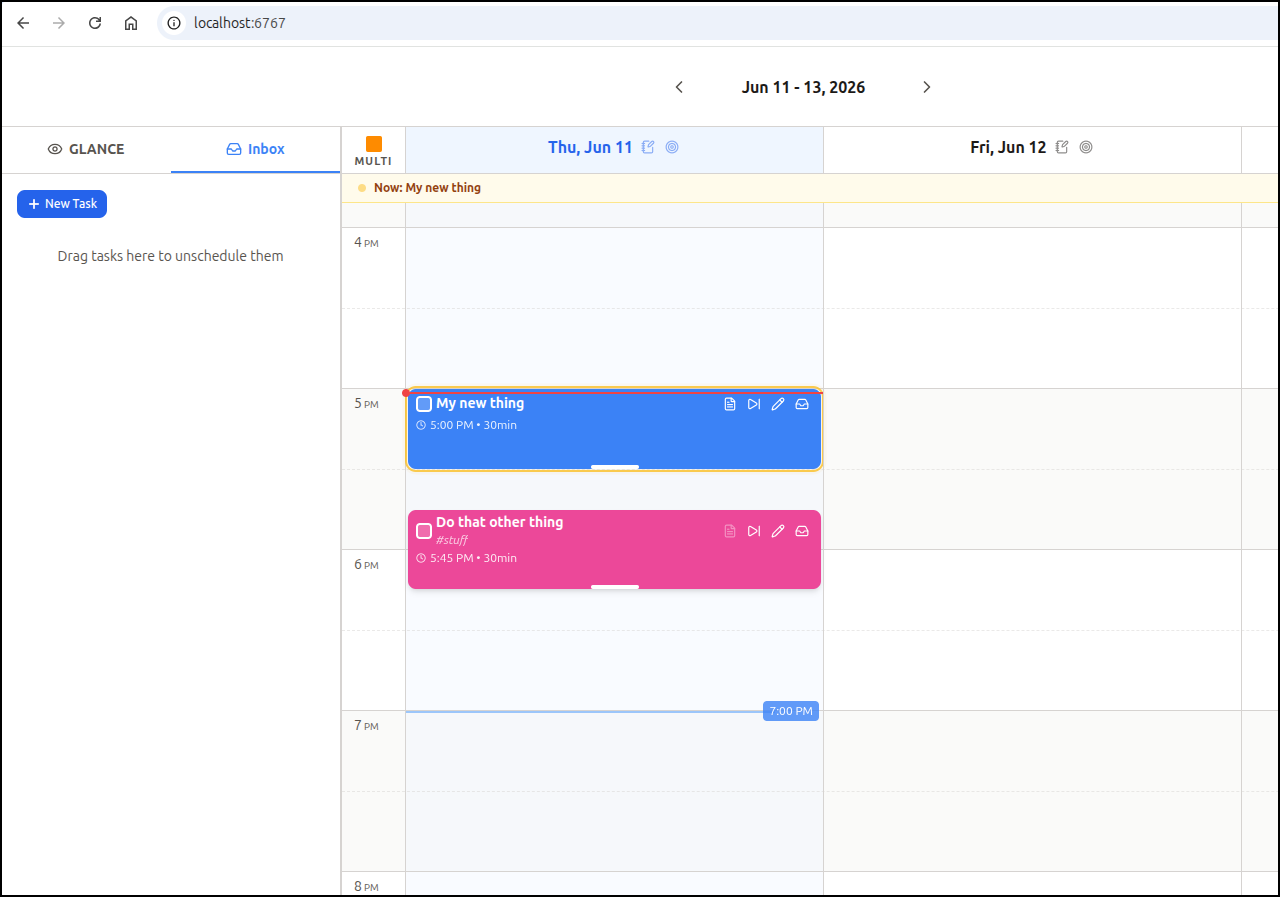
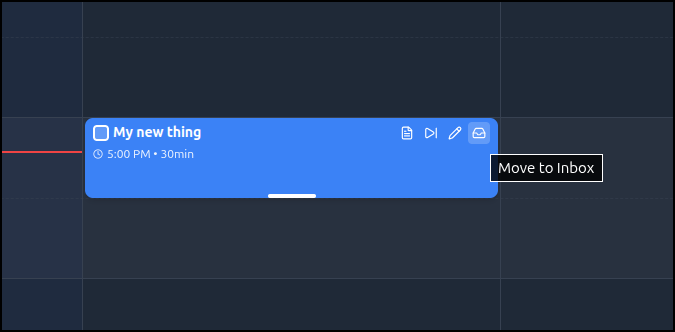
However you can move it back out of the timeline using the inbox icon
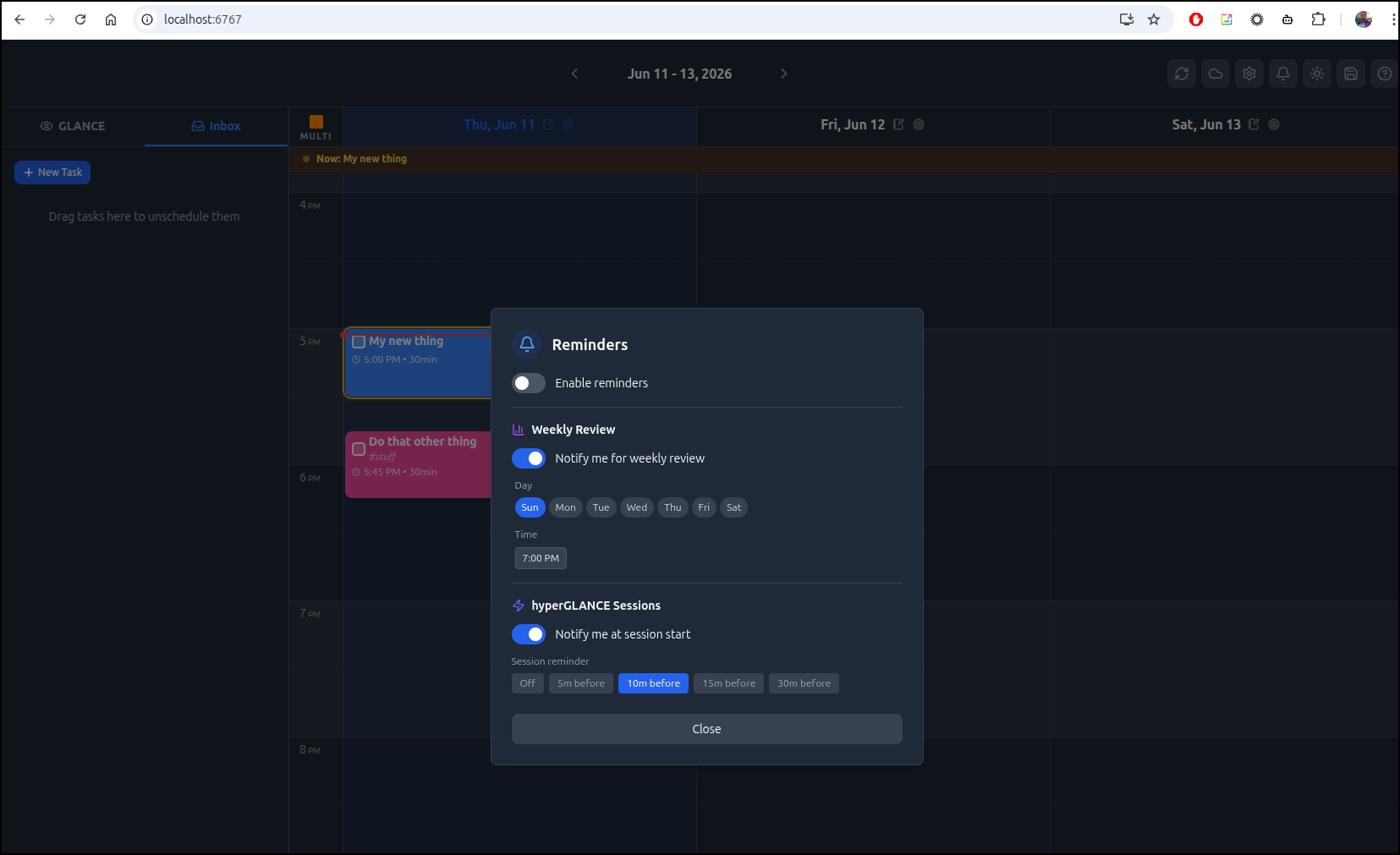
We can also create reminders
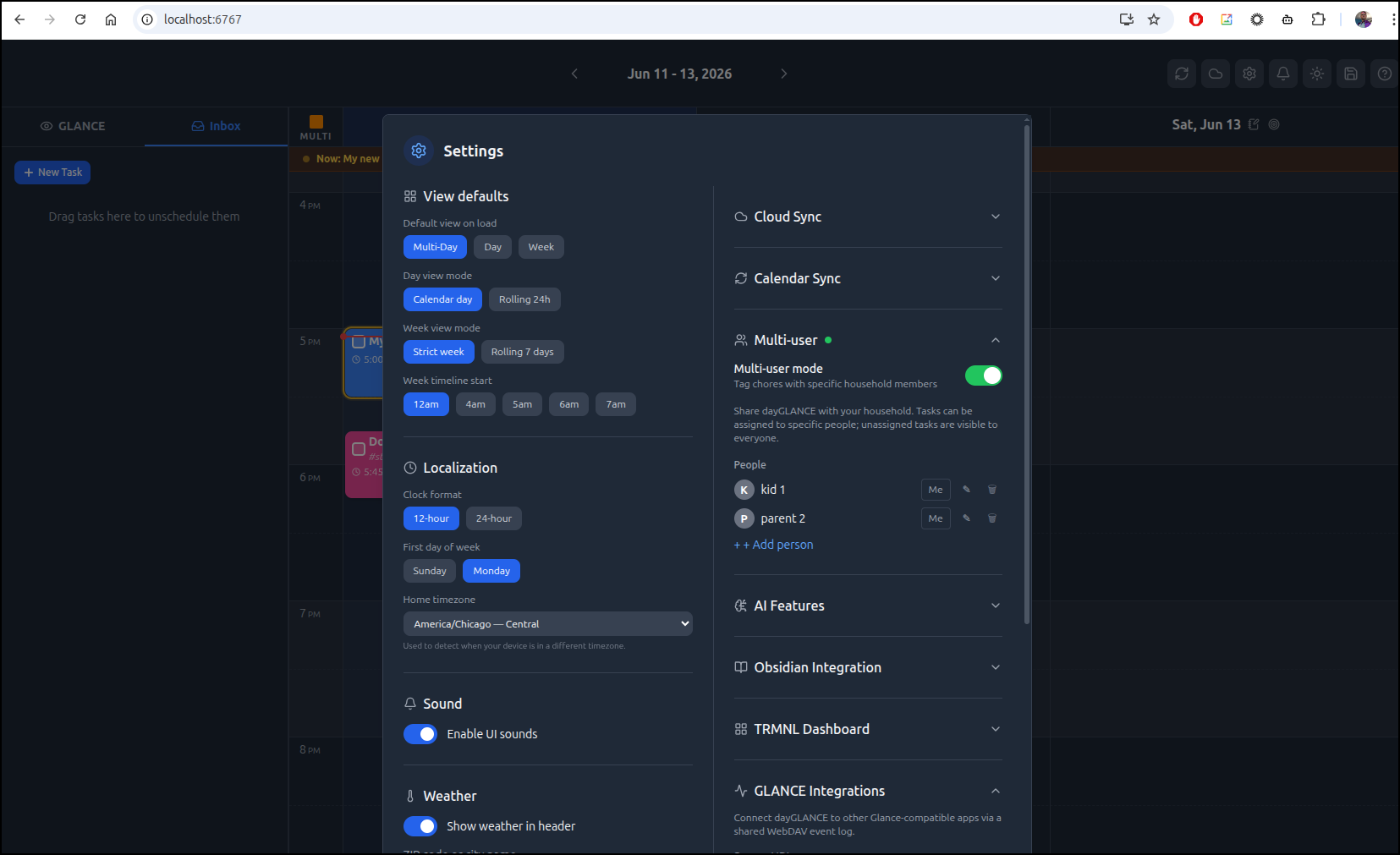
There is also multi-user mode, such as for a household
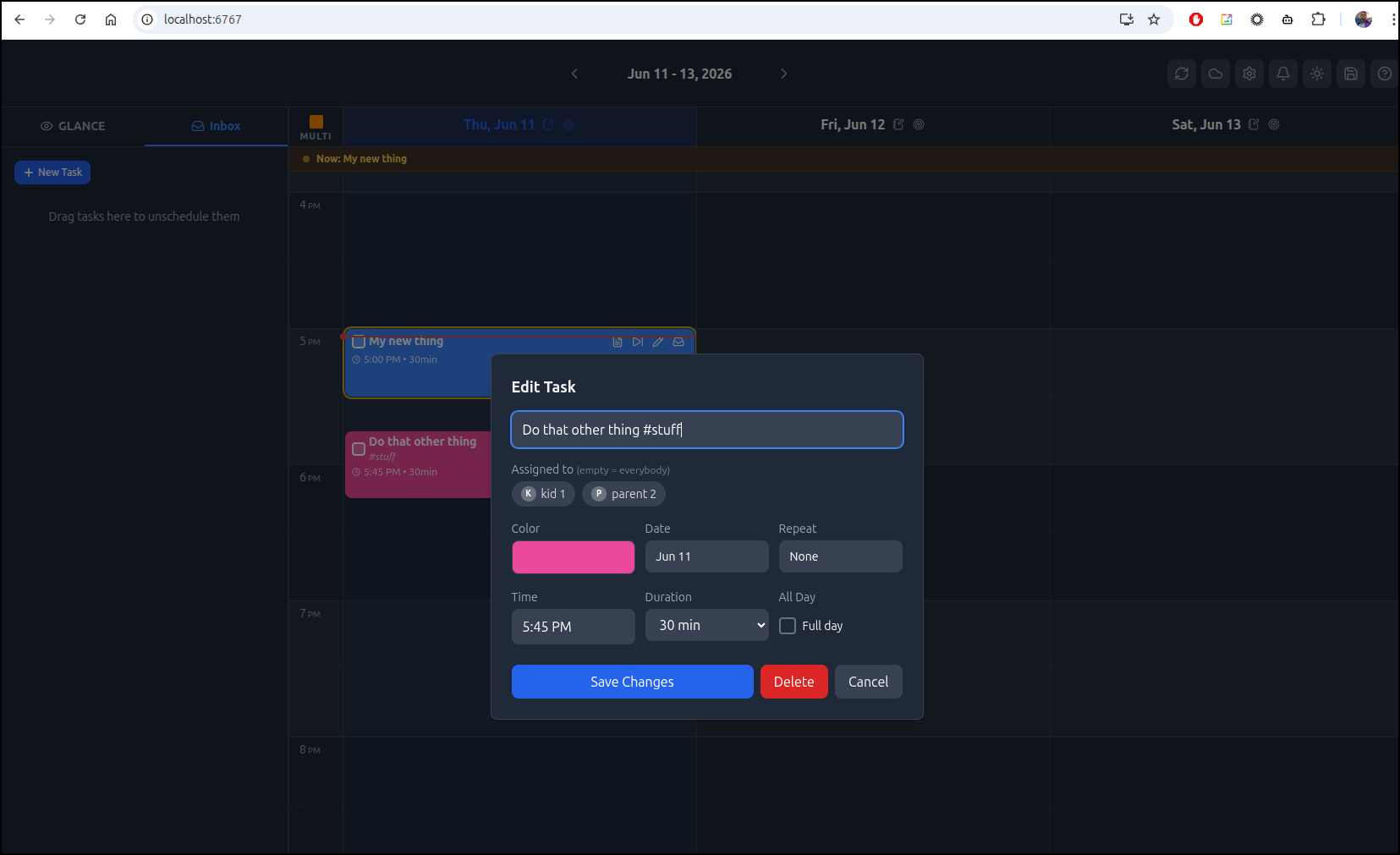
I can now pick a person for a task (useful for things like dishes or laundry)
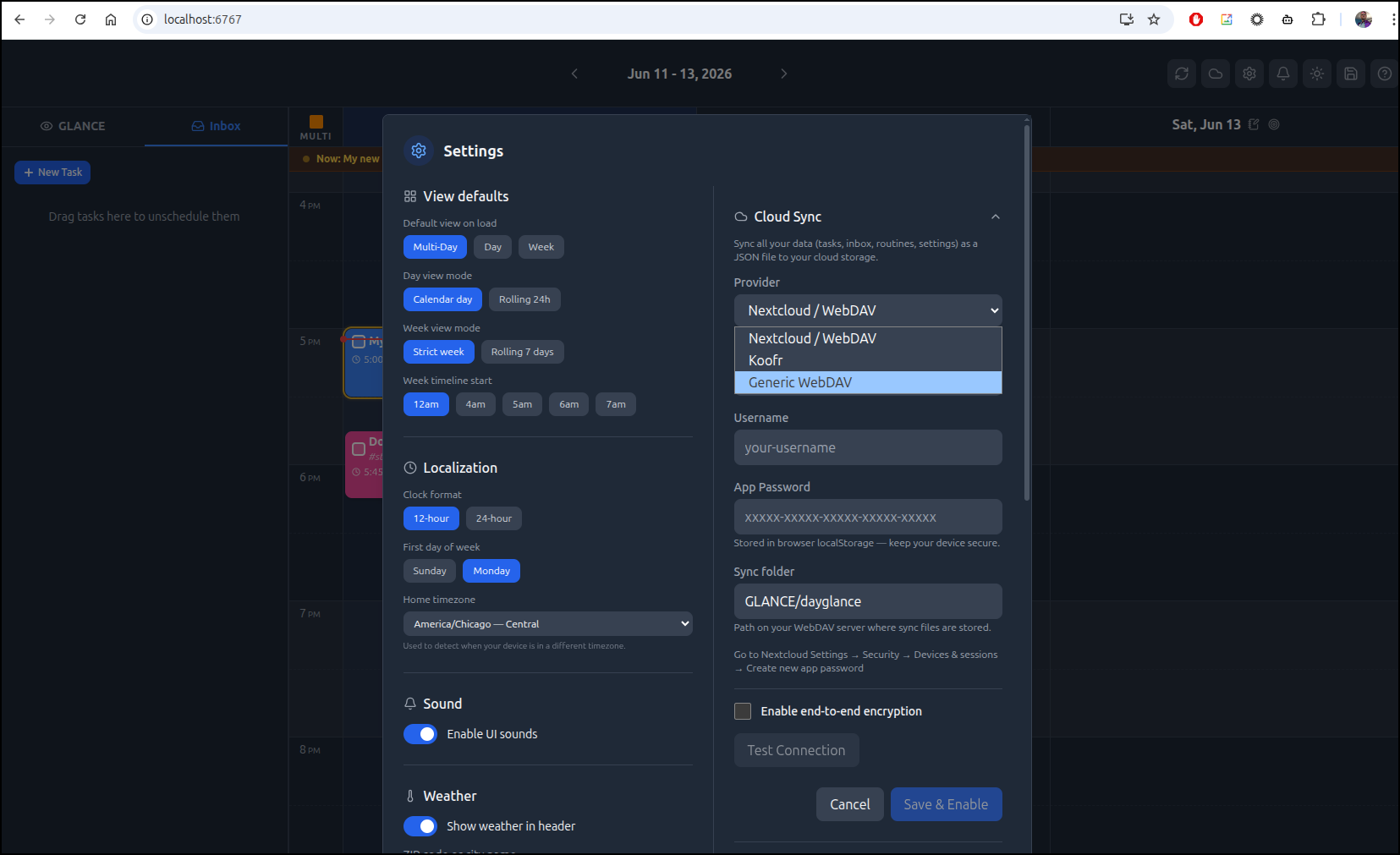
As far as CloudSync goes, it can handle any WebDAV destination like Koofr or Nextcloud
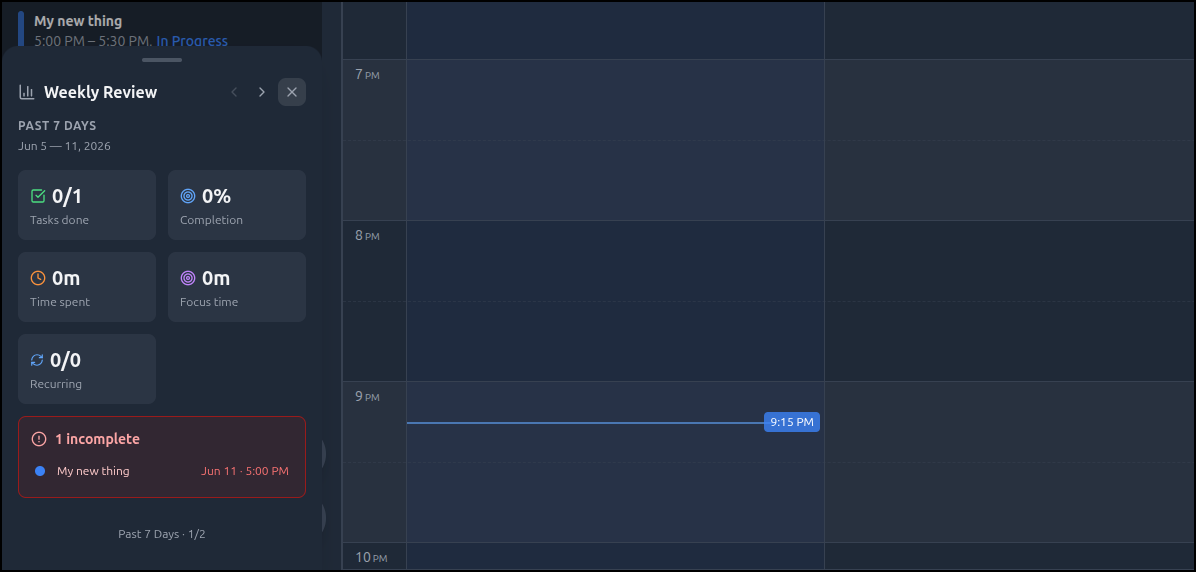
For those metric driven, the bottom left will give us stats for the week
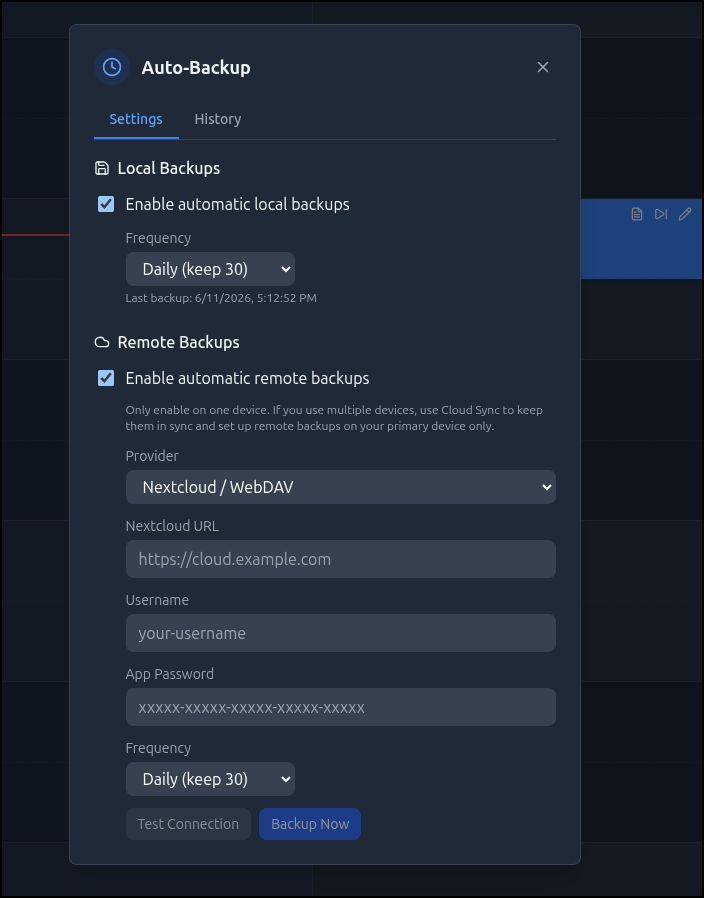
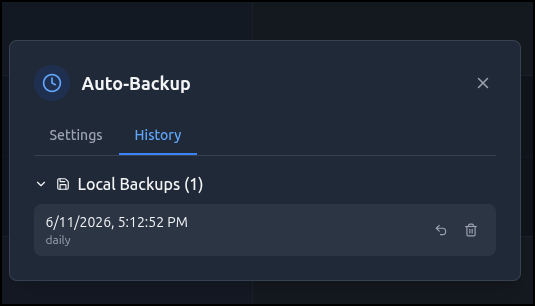
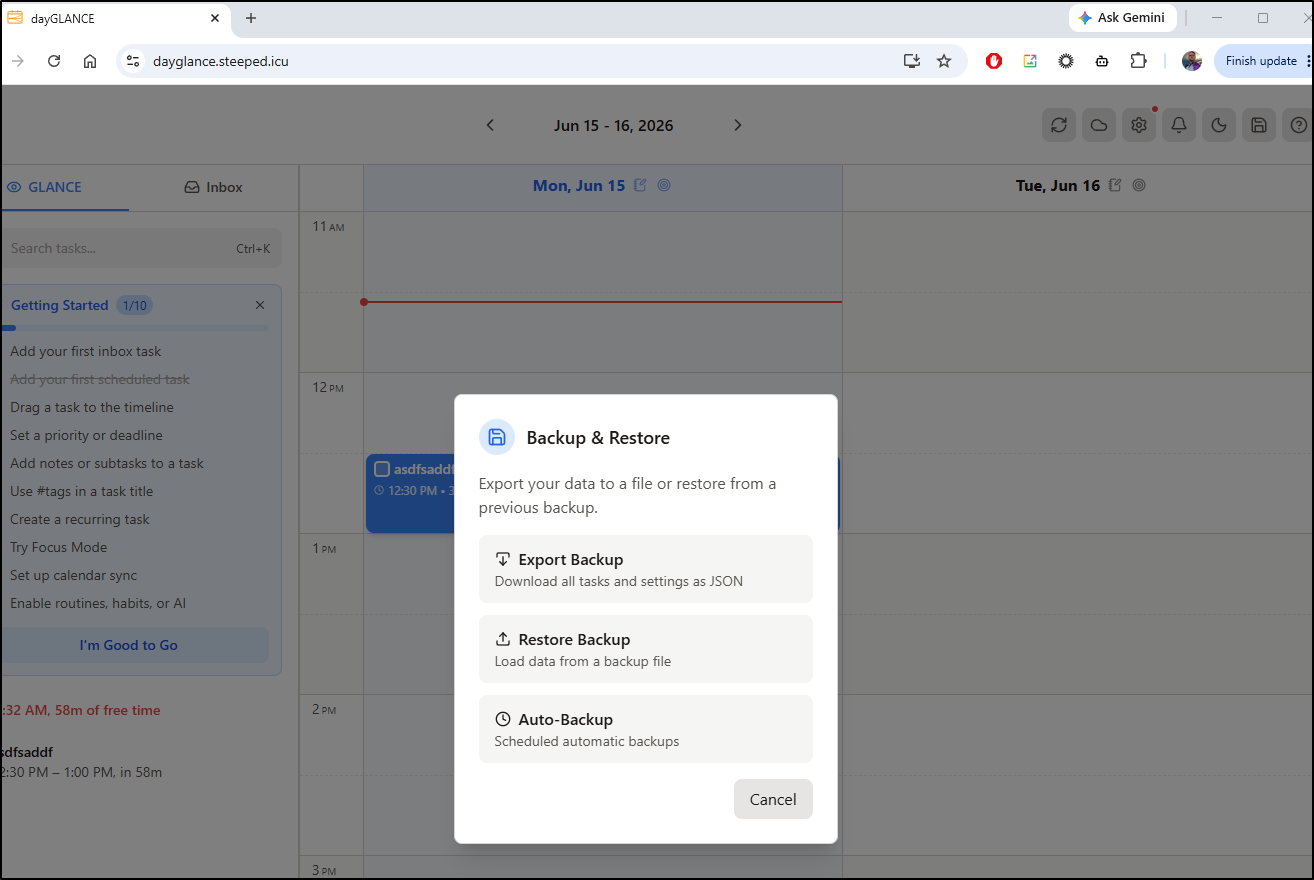
We can configure local and remote backups. Remote backups can only go to a WebDAV URL
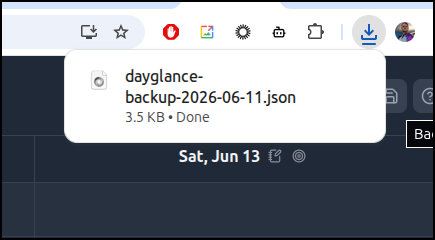
However, clicking “export” will download a JSON file you can save for safekeeping locally
which we can see in the history
I asked Gemini CLI where the data is stored because i searched all over the container but couldn’t find it.
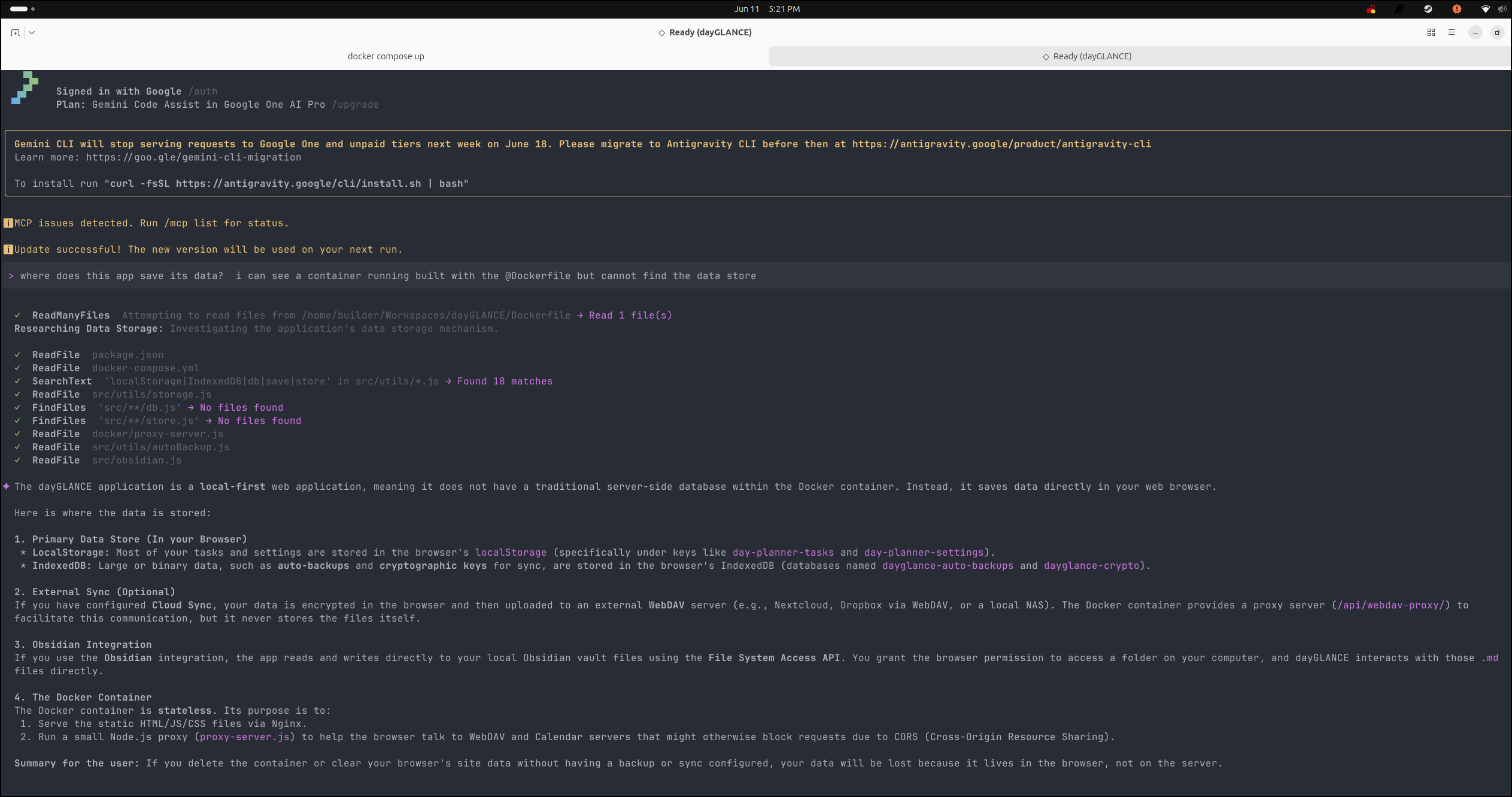
Gemini CLI, which will be dead soon, told me it was stateless and in a browser.
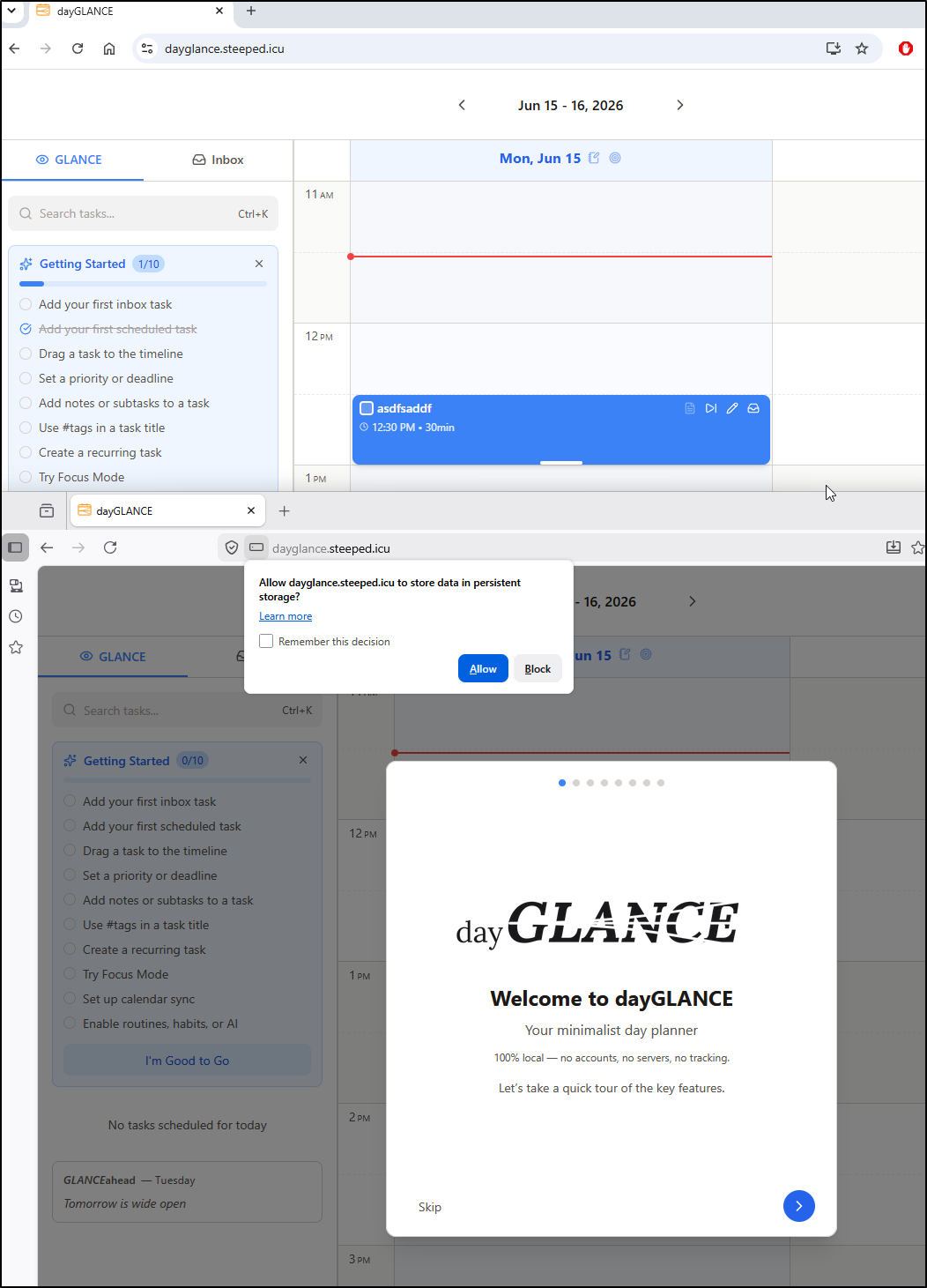
That seemed a bit crazy, so i fired up a different browser and indeed it was refreshed!
This is an interesting offering in that the data is only in the users browser so theoretically we could host this on a URL and each person gets their own view when accessing it.
Like before, let’s create a DNS entry
$ gcloud dns --project=myanthosproject2 record-sets create dayglance.steeped.icu --zone="steepedicu" --type="A" --ttl="300" --rrdatas="76.156.69.232"
NAME                    TYPE  TTL  DATA
dayglance.steeped.icu.  A     300  76.156.69.232
We can the create a kubernetes.yaml manifest (thanks again Gemini CLI)
$ cat kubernetes.yaml
apiVersion: apps/v1
kind: Deployment
metadata:
  name: dayglance
  labels:
    app: dayglance
spec:
  replicas: 2
  selector:
    matchLabels:
      app: dayglance
  template:
    metadata:
      labels:
        app: dayglance
    spec:
      containers:
      - name: dayglance
        image: ghcr.io/krelltunez/dayglance:latest
        imagePullPolicy: IfNotPresent
        ports:
        - containerPort: 80
        resources:
          requests:
            cpu: 100m
            memory: 128Mi
          limits:
            cpu: 500m
            memory: 512Mi
        # Liveness and readiness probes ensure the app is healthy before serving traffic
        livenessProbe:
          httpGet:
            path: /
            port: 80
          initialDelaySeconds: 5
          periodSeconds: 10
        readinessProbe:
          httpGet:
            path: /
            port: 80
          initialDelaySeconds: 2
          periodSeconds: 5
---
apiVersion: v1
kind: Service
metadata:
  name: dayglance
spec:
  selector:
    app: dayglance
  ports:
    - protocol: TCP
      port: 80
      targetPort: 80
  type: ClusterIP
---
apiVersion: networking.k8s.io/v1
kind: Ingress
metadata:
  name: dayglance-ingress
  annotations:
    kubernetes.io/ingress.class: nginx
    cert-manager.io/cluster-issuer: gcpleprod2
    ingress.kubernetes.io/proxy-body-size: "0"
    ingress.kubernetes.io/ssl-redirect: "true"
    kubernetes.io/tls-acme: "true"
    nginx.ingress.kubernetes.io/proxy-body-size: "0"
    nginx.ingress.kubernetes.io/proxy-read-timeout: "3600"
    nginx.ingress.kubernetes.io/proxy-send-timeout: "3600"
    nginx.ingress.kubernetes.io/ssl-redirect: "true"
    nginx.org/client-max-body-size: "0"
    nginx.org/proxy-connect-timeout: "3600"
    nginx.org/proxy-read-timeout: "3600"
    nginx.org/websocket-services: dayglance
spec:
  rules:
  - host: dayglance.steeped.icu
    http:
      paths:
      - path: /
        pathType: Prefix
        backend:
          service:
            name: dayglance
            port:
              number: 80
  tls:
  - hosts:
    - dayglance.steeped.icu
    secretName: dayglancegcp-tls
Now I can fire it up
$ kubectl apply -f ./kubernetes.yaml
deployment.apps/dayglance created
service/dayglance created
Warning: annotation "kubernetes.io/ingress.class" is deprecated, please use 'spec.ingressClassName' instead
ingress.networking.k8s.io/dayglance-ingress created
The pods fired up right away
$ kubectl get po | grep day
dayglance-5f8db5d55b-8d746                           1/1     Running            0                   36s
dayglance-5f8db5d55b-bgwbx                           1/1     Running            0                   36s
Once I saw the cert was satisfied
(base) builder@LuiGi:~/Workspaces/dayGLANCE$ kubectl get cert dayglancegcp-tls
NAME               READY   SECRET             AGE
dayglancegcp-tls   False   dayglancegcp-tls   68s
(base) builder@LuiGi:~/Workspaces/dayGLANCE$ kubectl get cert dayglancegcp-tls
NAME               READY   SECRET             AGE
dayglancegcp-tls   True    dayglancegcp-tls   75s
I could fire up using the proper DNS name and https
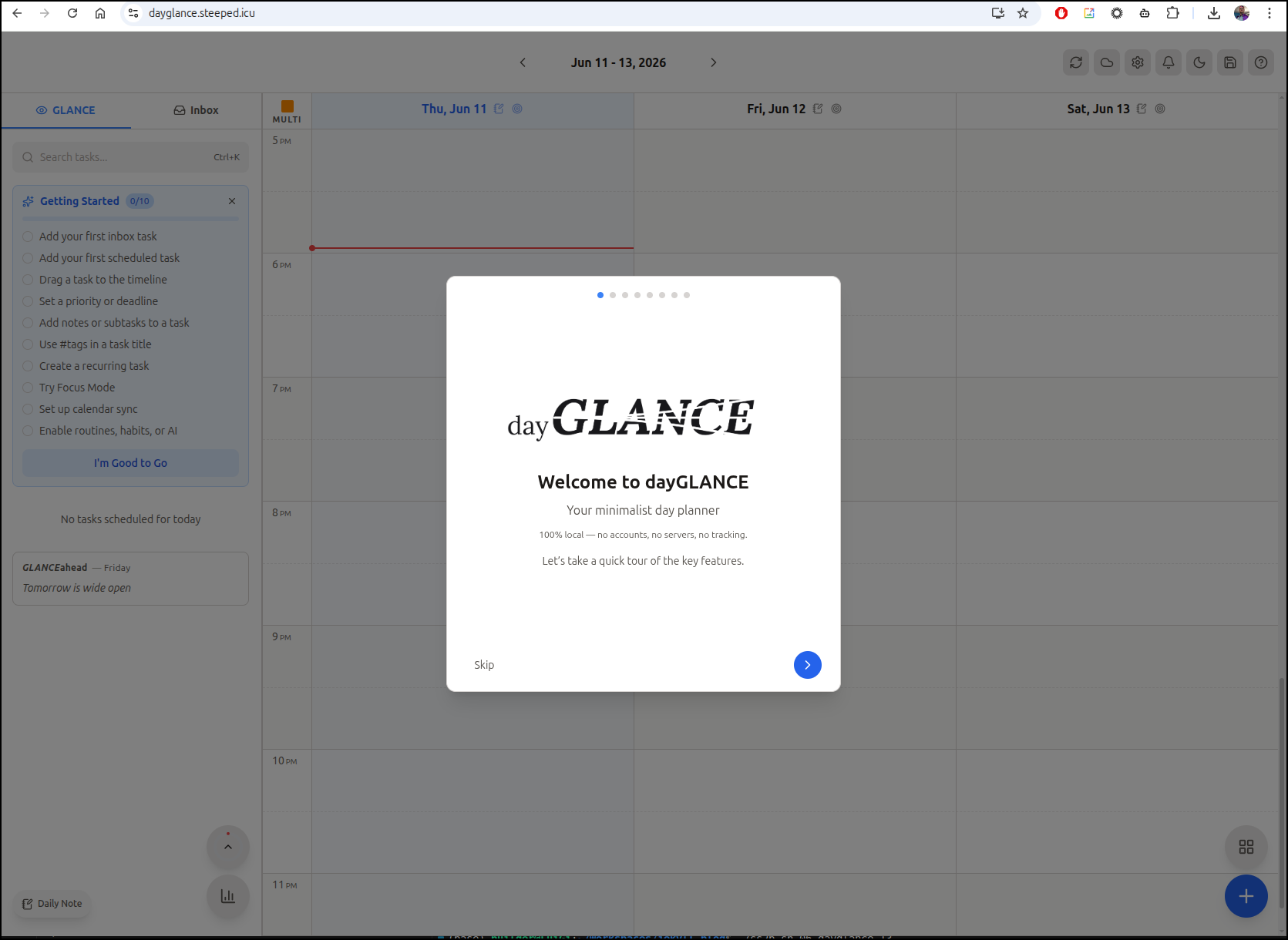
What is interesting is that this is entirely in the browser. So if you jump between machines a lot, this won’t work, but otherwise it gives you a webapp with all the data stored only locally
If one went this way, I would do a regular backup locally and store in a cloud storage tool like Dropbox/Onedrive or similar.
Summary
Both dayGLANCE and lifeGLANCE are very interesting tools. I love the look and feel in both. As local tools, I can see the value but they need an auth layer to make them really functional in a shared environment. For instance, I cannot see how dayGLANCE would work with chores unless it’s used on a shared computer like a family room computer or smart fridge.
With lifeGLANCE I would love to add a read-only view and basic auth for editing. I think this would be a fun app to share with CV’s for a job timeline view that was interactive. Using it to plot other data (like Kubernetes versions) was easy enough with some LLM tooling.
I’ll leave both live and likely revisit krelltunez Github page to see what is new from time to time.